

Upload Files in Plesk
One way to develop your website is to create webpages using a program on your computer. Then, you upload the HTML to your website, specifically the public_html directory. This is different than using a Content Management System (CMS) to manage your site using themes and plugins.
If you decide to upload your own code, there are two recommended methods: using File Manager in Plesk or using the File Transfer Protocol with SSL (FTPS). In this article, we’ll cover using File Manager.
File Manager in Plesk is great for uploading individual files or compressed files to your domain. It could take a longer time to upload than FTPS, but you can access File Manager anywhere you have an internet connection without having to download FTPS software to your computer.
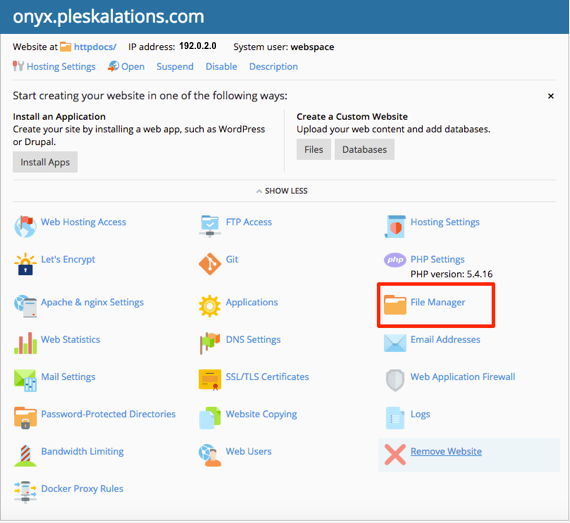
- From the home page of Plesk, click on the File Manager link.

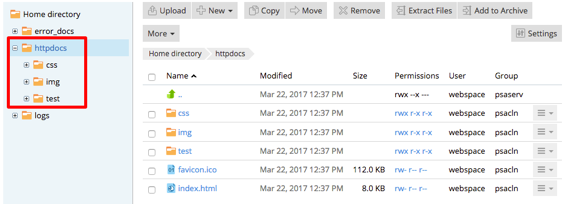
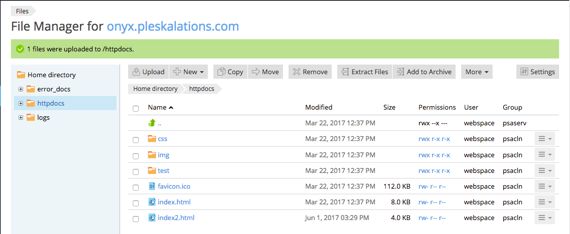
- This will open the File Manager. You should automatically be directed to the httpdocs directory, but if not, click the link on the left hand side of the page to open it.

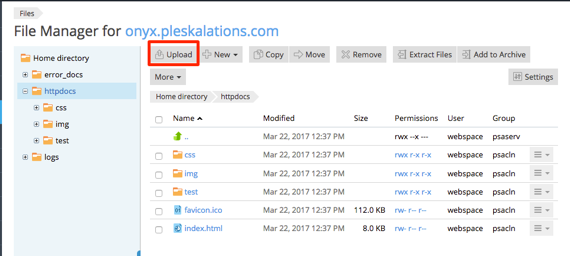
- From the task bar at the top of the page, click Upload.

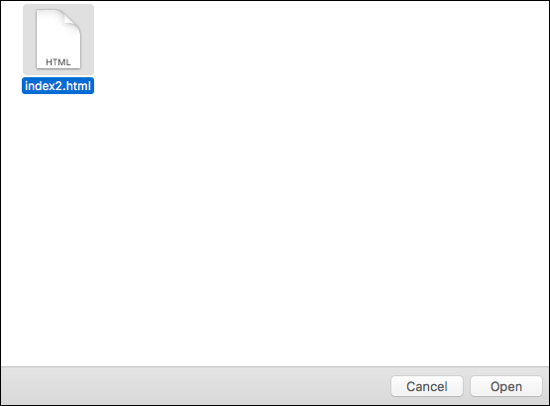
- The default folder for your computer will open. Navigate to the folder where your document is saved and click Open.

- Your file will upload. Once complete, it will show in the list of files and folders.

For more information about adding files, please see our Adding Files and Folders in Plesk help doc. If you need to delete files, you can read our Deleting Files and Directories in Plesk help doc.