

Installing WordPress with Plesk
WordPress is a content management system (CMS) that helps you manage your website’s look and content. If you aren’t familiar with CMSes, check out What Is a Content Management System (CMS)? to decide if WordPress is right for you.
Installing WordPress on your domain is simple at Liquid Web, whether you’re using a Plesk VPS, dedicated server, cloud server, or one of our WordPress hosting solutions. Plesk installs packages so you don’t have to download and install them manually. Plesk also walks you through installing WordPress, choosing some basic settings, and setting up an administrator account.
- Log into Plesk. If you have never logged into Plesk, read Getting Started with Plesk first.
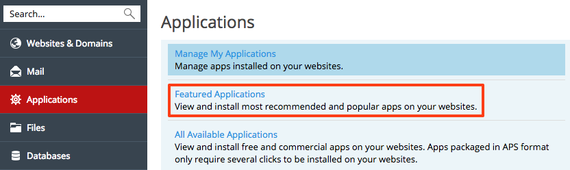
- In Power User view, click on Applications in the left navigation menu. This will open the Plesk applications installer. in Service Provider view, click on Subscriptions in the left navigation menu. Then, click on the domain where you’d like to install WordPress and click on the Applications tab.
- Then click on Featured Applications and find WordPress. (You can also click on All Available Applications and search for “WordPress.”)

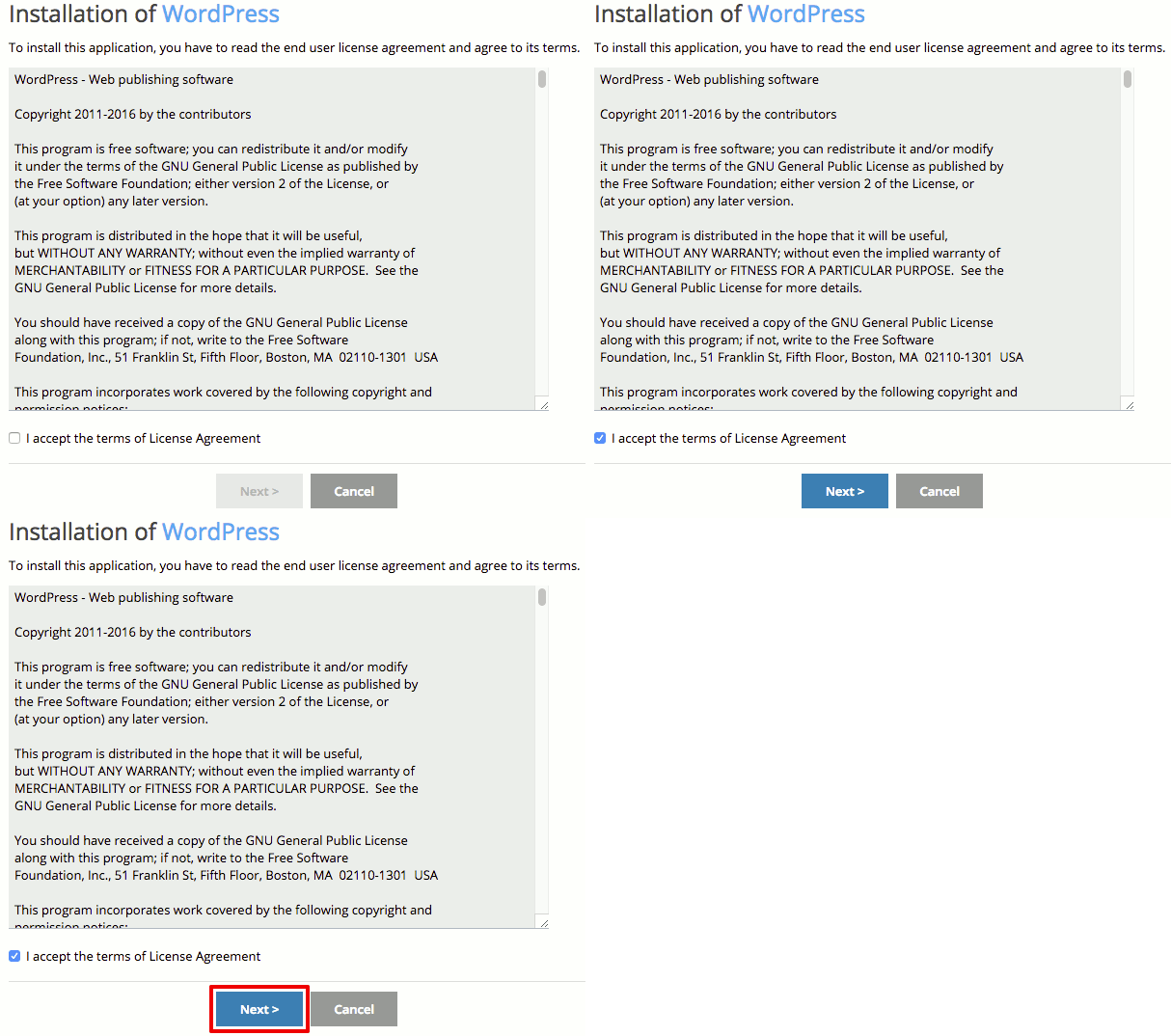
- First, read and accept the WordPress license agreement.

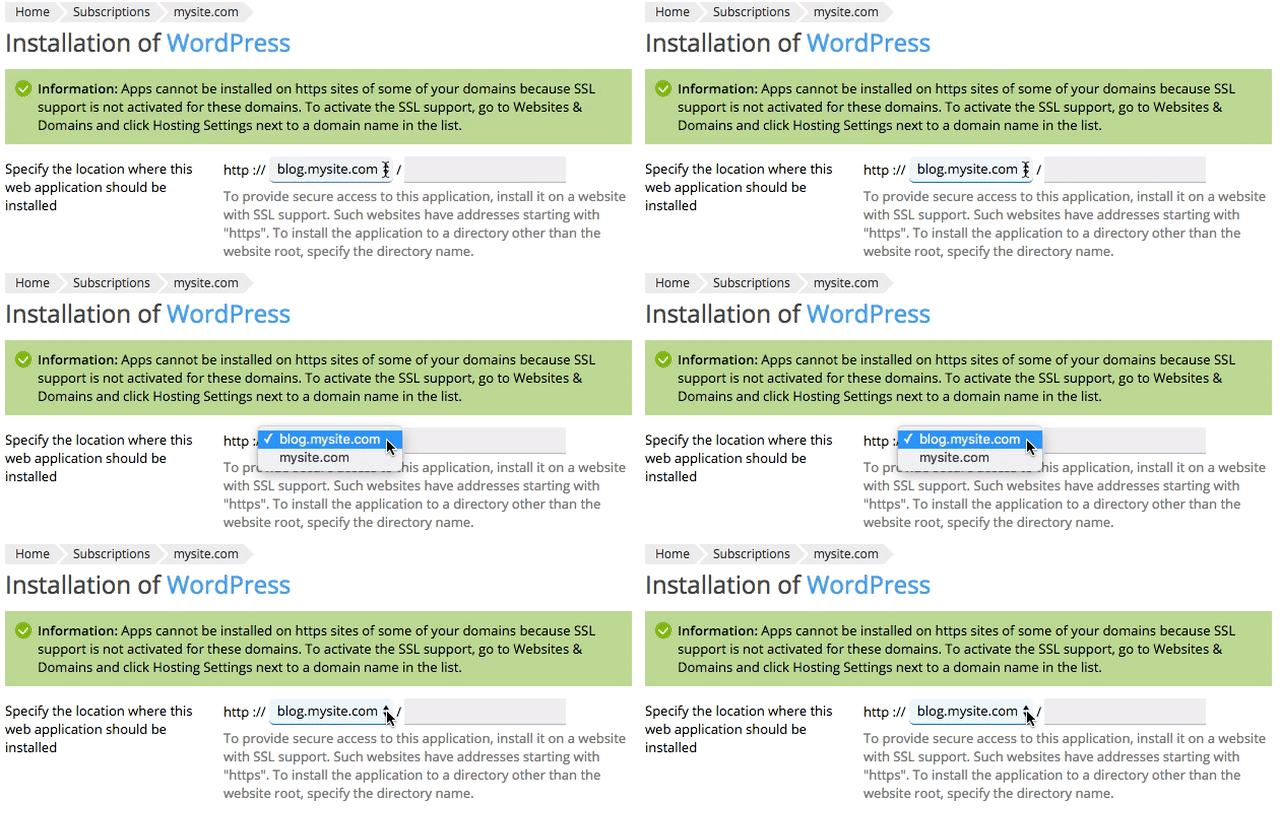
- Now, choose where you’d like to install WordPress. You can install it WordPress on your main domain, on a subdomain, or in a directory (on a certain page of your site).

- Next, check the box to automatically update WordPress in the Update Settings section. This will help protect your site from malicious attacks.

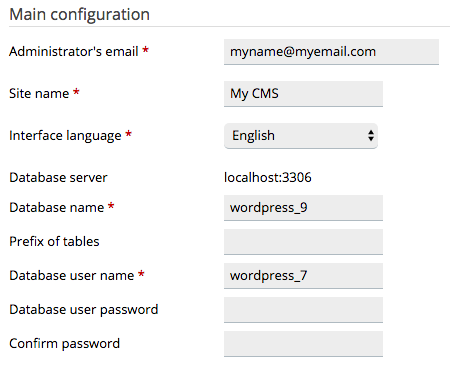
- Now you’ll set up your Main configuration settings.
- Choose the Administrator’s email.
- Choose a Site name. You can change this at any time.
- Choose an Interface language.
- WordPress will automatically create the necessary databases. If you’d like, you can change the database name and user account information.

- Click Install to continue.
- Once your installation has completed, you’ll see the URL of your WordPress installation. Click on this URL to make sure WordPress is installed how you want it to be installed.


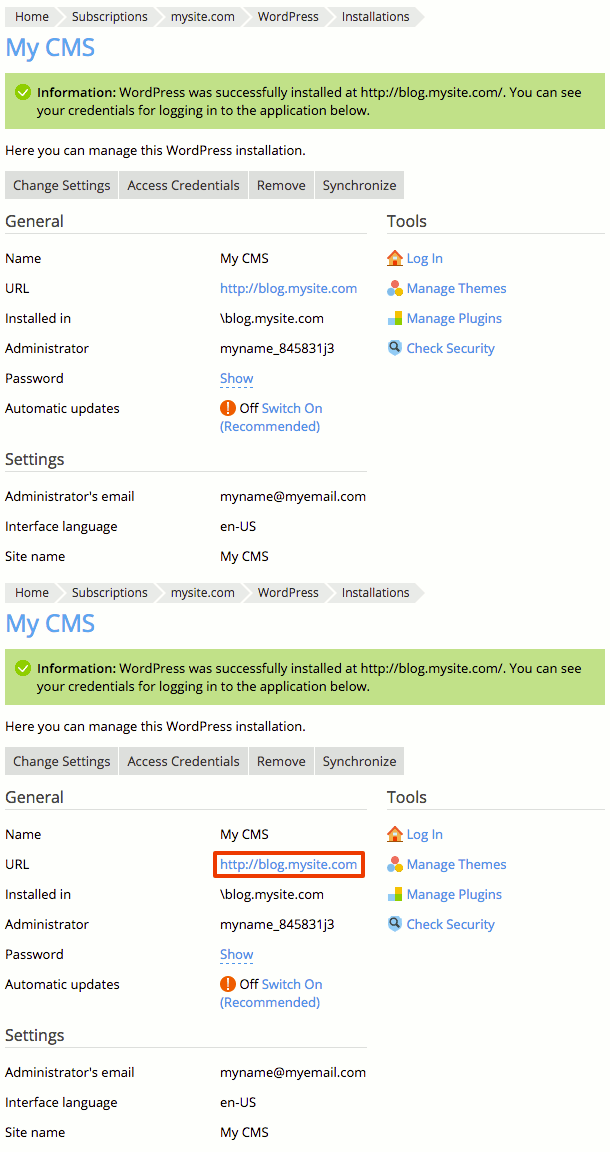
You’ve successfully installed WordPress on your domain. Now you can start exploring different themes and plugins and creating content for your new site!