Add Files or Folders in Plesk
Using the File Manager in Plesk, you can create files and directories. This allows you to create directories for images and other assets to your site and create files to directly edit them in Plesk. All you need is an internet connection.
In addition to uploading files to your website using the File Manager in Plesk, you can create files and directories as well. This allows you to create directories for images and other assets to your site and create files to directly edit them in Plesk. All you need is an internet connection.
Add a File
- To add a file in Plesk, navigate to the httpdocs directory in the File Manager.
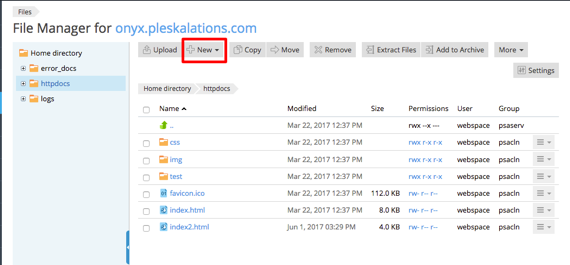
- Click on the New button at the top of the page.
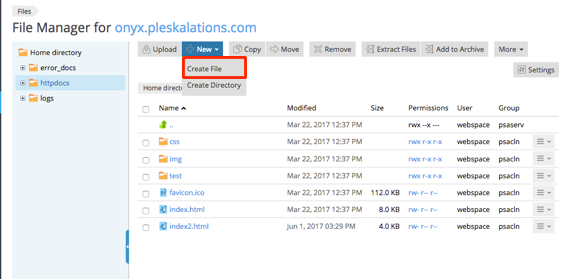
- A drop down will open and you can select Create File.
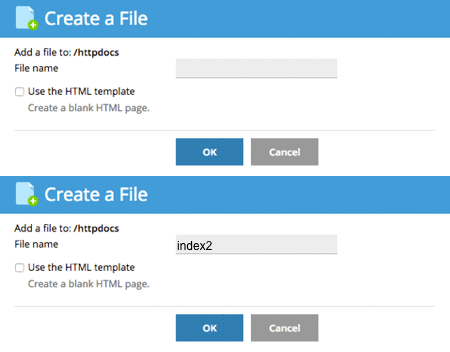
- A pop-up will appear asking you to name the file. You can choose to use an HTML template which will create a blank HTML page. If you are going to be coding in a different language, make sure to use the correct file name, such as .php .
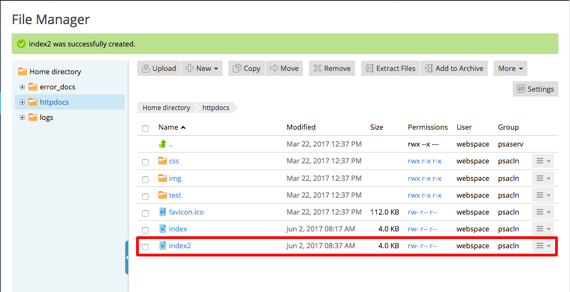
- Once you click OK to create the file, it will show in the httpdocs list.
Add a Directory
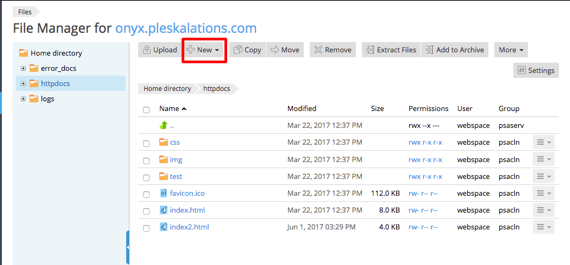
- Click on New at the top of the page in the File Manager.
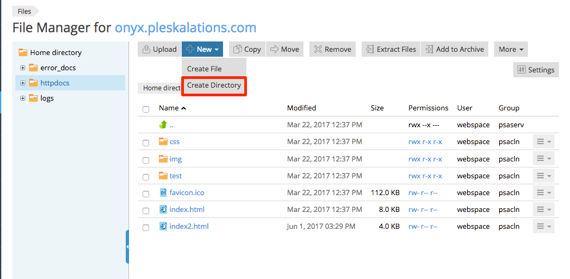
- Select Create Directory from the drop down menu.
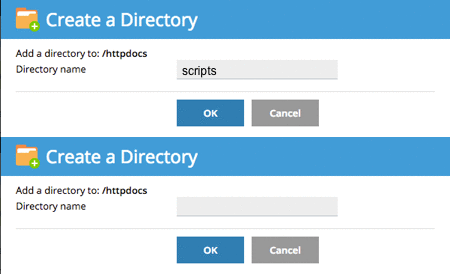
- A pop-up will appear asking you to name the new directory. Enter the name and click OK.
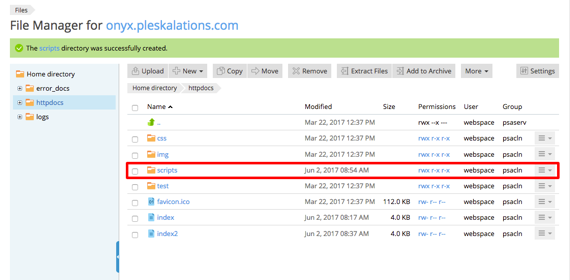
- The directory will now show in the httpdocs list in the File Manger.