Find Your Email Client Configuration in Plesk
This walkthrough will show you how to find email client settings in Plesk.
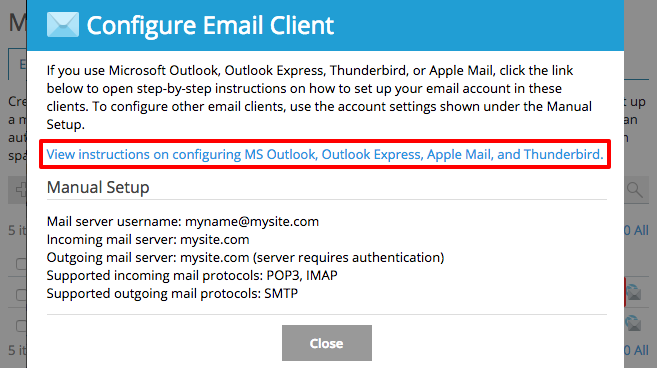
You may want to use your Plesk email with an email client like Outlook, Mac Mail, or the email app on your phone. Before you can connect your email client to your Plesk email, you’ll need your configuration settings. These include the mail server settings and your webmail username (email address) and password. This walkthrough will show you how to find these settings in Plesk.
- Log into Plesk (if you need help logging in, see Getting Started with Plesk).
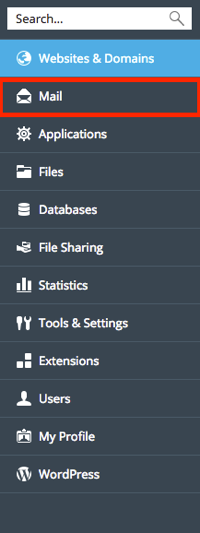
- In Power User view, click on Mail in the left navigation menu.

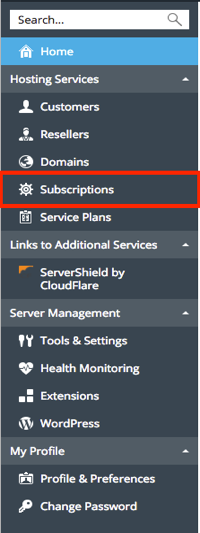
In Service Provider view, click on Subscriptions under Hosting Services.
Tip:
To enable Power User view: - Click on the Change View link at the bottom right hand side of your browser in the Plesk control panel.
- Select Switch to Power User view to change the view.
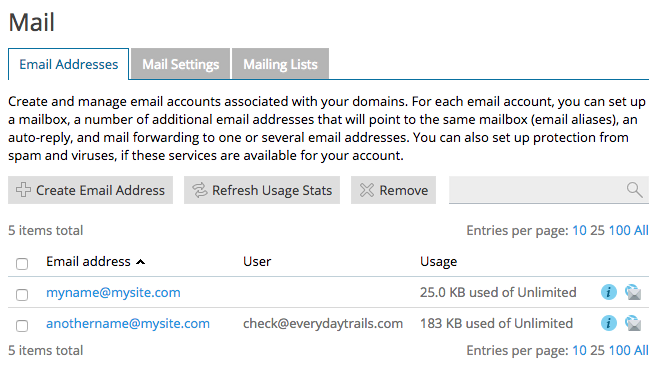
- Click on the domain associated with your email address. Then, click on the Mail tab.
- You’ll see a list of your email addresses. (If you haven’t created an email account in Plesk, do that first.)

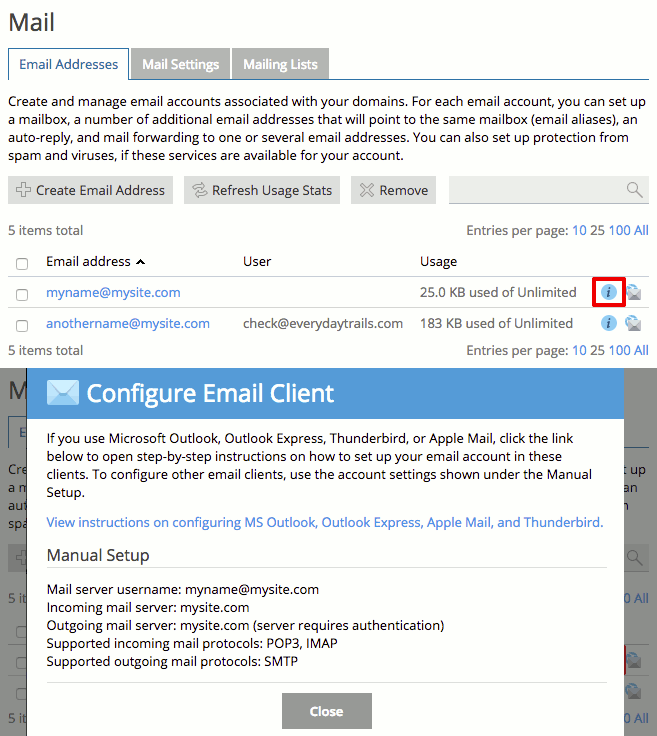
- Find the email address you’re configuring and click the “i” icon. These are your email configuration settings.
- Once you have your email configuration, you can set up your email client. Or, click the link within the email configuration pop-up and follow Plesk’s instructions.