Creating a Database User in Plesk
Easily add new database users in Plesk for specific access needs, like database administrators or third-party remote applications.
It’s simple to create new database users in Plesk. This can be useful if you have a database administrator who you want to have access to specific databases, or if you have third-party applications which are accessing your database remotely.
- Log into your website’s Plesk account.
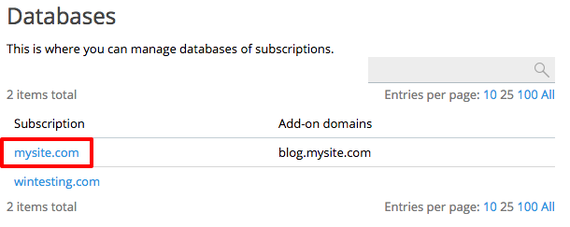
- In the left navigation menu, click on Databases. (If you use Service Provider view, click on Domains and select the domain you need, then click on Databases on the right hand side.)
- Click on the website where you want to add a database user.

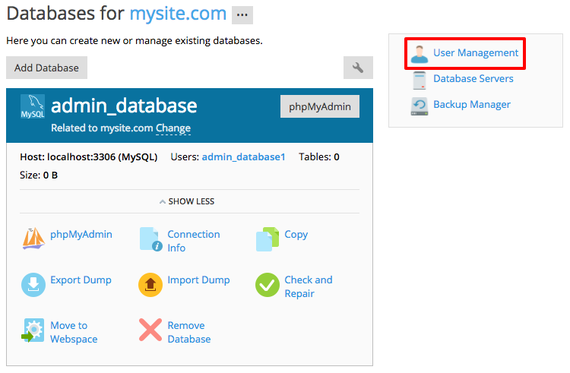
- Click on User Management.

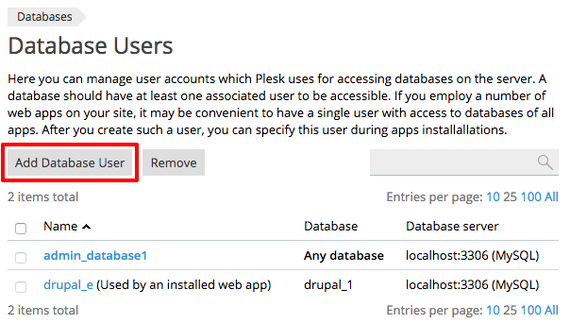
- Click Add Database User.

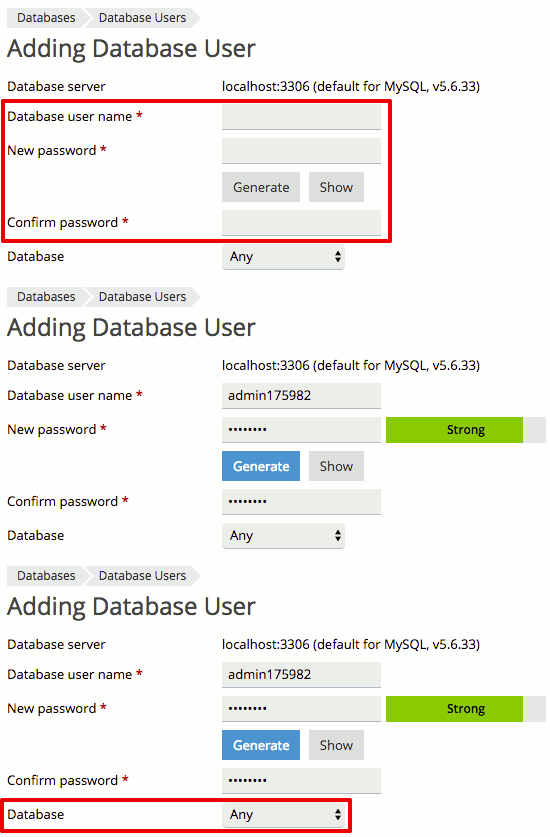
- Choose a username and choose and confirm a password. For more information about using strong passwords, see Best Practice: Creating a Secure Password. Then use the dropdown menu to choose which database your user can access (or select Any to allow your user to access any database).

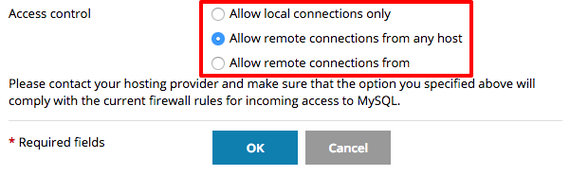
- Use the radio buttons to choose the Access control level. This determines whether or not this user can have remote database connections.

- Once you’ve chosen your options, click OK to create your database user.