Learn how to configure the Nexcess CDN for Magento 2. This guide covers enabling the service, updating Base URLs for static files, and flushing the cache.
Many businesspeople wonder How Does a CDN Work to Speed Up Your Ecommerce Site? but they will discover that the reasons are remarkably straightforward. Review the content, resources, and links in this article to learn more about those reasons in full detail.
Prerequisites
A functioning Magento store on your Nexcess server.
In order to be able to use the Nexcess CDN you will need to enable it from the Performance tab.
Click on Configure CDN on Your Site in the Content Delivery Network section to Enable CDN. A popup will display you will need to click on the ENABLE button.
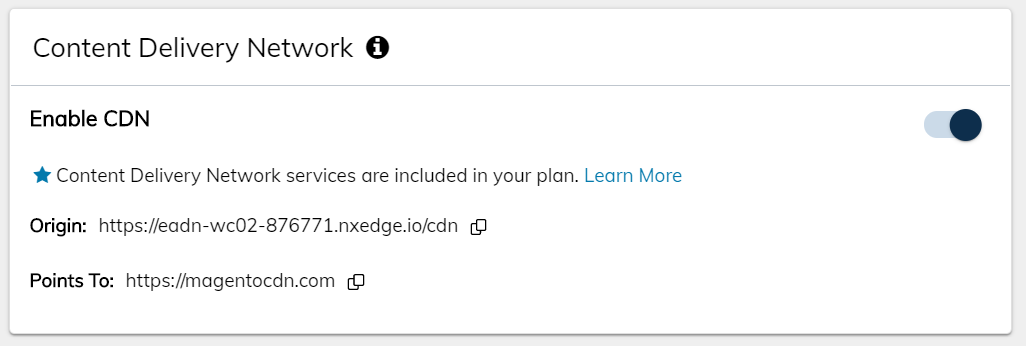
Once the CDN has been enabled the CDN origin URL will now show in the Content Delivery Network section of the performance tab.
Locate the Nexcess CDN information from the Performance tab in the portal.
Setup Time
Allow the CDN service at least one hour to cache your data before you attempt to verify the new settings as outlined below. A good test would be to use just visit the CDN endpoint and see if your website loads.
Enter the CDN URL into your web browser. If the page loads, your assets have successfully propagated to the CDN.
Update your Magento install to use the CDN origin URL by selecting Stores > Configuration > Web.
From the General tab, select Web.
From the Store View drop-down list, select your desired store.
In the Base URL (Secure) section, in the Base URL for Static View Files and Base URL for User Media Files fields, enter the CDN origin URL. The static view file and user media files will depend on how your Magento 2 store is installed with or without pub in the path.
If your Magento 2 store is installed with pub, then use:
If your Magento 2 store is installed without pub, then use:
https://eadn-wc02-876771.nxedge.io/cdn/media/
https://eadn-wc02-876771.nxedge.io/cdn/static/
In the same section, in the Base URL for User Media Files field, the origin URL.
Flush the Magento 2 cache:
From the main menu, select System > Cache Management.
On the upper right, click Flush Magento Cache.If you do need to purge the content being stored in the Nexcess CDN you can purge the CDN directly from the portal in the performance tab.
Conclusion
Configuring the Nexcess CDN for your Magento 2 store effectively reduces latency and improves page load times for your customers. By syncing the settings in your Nexcess Client Portal with your Magento Base URLs, you ensure that static assets are delivered via our global network. Remember to flush your Magento cache after applying these settings to ensure the changes take effect immediately.