

Viewing Error and Access Logs in the Client Portal
The Nexcess Client Portal allows you to view and manage various parts of your Nexcess hosting plans. Most of them are listed in our guide to the Nexcess Cloud control panel. Among other things, our Nexcess Portal allows you to view web server error and access / transfer logs on a per-site basis.
What You Need
- Your sites-portal.liquidweb.com login credentials: If you cannot locate them, click Forgot Password? on the login page and provide the email address that was used to create the Nexcess account.
- An existing Nexcess Cloud account: See the How to create Nexcess Cloud accounts article for more information.
If you have one of our non-cloud server plans, you will find the correct guide to viewing server logs in the How to view website error and access logs article.
Method
1. Log in to sites-portal.liquidweb.com. Then, on the home page, click Plans.
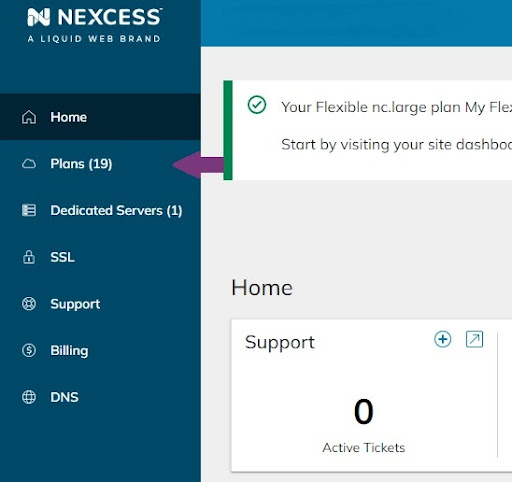
2. Either click the name of your service or select Plan Dashboard from the menu toggle.
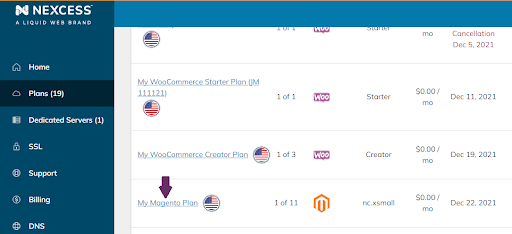
3. Click on the name of the site.
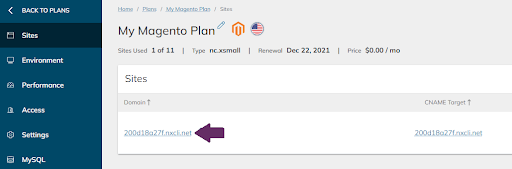
4. Click Logs.
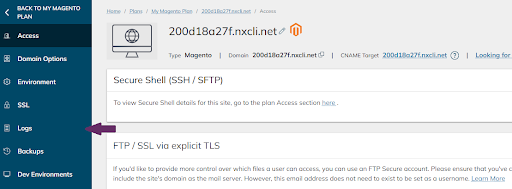
5. Download the log you would like to view.
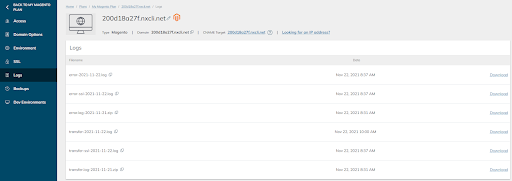
As you can see in the image above, you are presented with a list of files. Most of them will be compressed, showing the date they were created. The only ones that will not be compressed will be the ones with the “.log” extension (error-2021-11-22.log and transfer-2021-11-22.log in this example) that are still being written to. All the logs visible in your Nexcess Portal will be plain text files and, once decompressed, can be viewed in any text editor.
Access / Transfer Logs
The transfer log, which is visible in the Nexcess Client Portal, is one of several log files that an Apache HTTP server creates. This particular log file records data for all requests processed by the Apache server. So, if a device visits a webpage on your site, the transfer log file will contain details regarding this event.
This data is helpful in various situations. For example, if a request fails for each individual trying to get to a particular web page, the link they are accessing could be pointed to a page that no longer exists. In that case, the HTTP code returned would be 404 – not found, instead of the HTTP code 200 – OK, which would be found on pages that are normally accessible. Additionally, suppose the site is under attack from a single device or various bots. In that case, access logs will be used to identify the culprit and prevent them from causing further damage to the site.
How to Read Access / Transfer Logs
On Nexcess cloud servers, transfer logs have the same format and look a lot like this example.
50.28.76.132 - [22/Nov/2021:09:35:38 +0000] "GET /product/vintage-lighting/ HTTP/1.1" 200 55040 "-" "Mozilla/5.0 (Windows NT 10.0; Win64; x64) AppleWebKit/537.36 (KHTML, like Gecko) Chrome/96.0.4664.45 Safari/537.36"The fields represent the following:
50.28.76.132 = IP address of the device that made the request
[22/Nov/2021:09:35:38 +0000] = Date and time the request reached the server
“GET /product/vintage-lighting/ HTTP/1.1” = Type of the request and the resource being requested
200 = HTTP status code
55040 = Size of the object returned to the device
“-” = The HTTP referrer represents the address the request originated from. In this case, the URL was pasted directly into the address bar of the browser, so there was not another referrer
“Mozilla/5.0 (Windows NT 10.0; Win64; x64) AppleWebKit/537.36 (KHTML, like Gecko) Chrome/96.0.4664.45 Safari/537.36” = This string represents the User Agent and it identifies the basic information about a browser accessing the site
Error Logs
The error log, which is visible in the Nexcess Portal, is another of the logs that the Apache HTTP server creates. This log does not record every single request made to the site, but only errors or anomalies that happen on the web server level (not coding issues) and prevent the site from functioning properly.
For example:
The following request did not get a successful HTTP response code but instead got the code 403 (forbidden):
50.28.76.132 - [22/Nov/2021:09:51:22 +0000] "GET / HTTP/1.1" 403