

How to create and modify email accounts in Nexcess Cloud
How to create email addresses, reset email passwords, and create aliases for your Nexcess Cloud account.
Prerequisites
- Your sites-portal.liquidweb.com login credentials. If you cannot locate them, click Forgot Password? on the login page.
- An existing Nexcess Cloud account using WordPress, WooCommerce, Magento 1 or 2. See How to create Nexcess Cloud accounts for more information.
Step by step instructions
After you create an account, you may adjust some settings, but you cannot change the email address unless you delete the old account and create a new one.
- Log in to sites-portal.liquidweb.com.
- From the home page, click Plans.
- Select your desired plan.
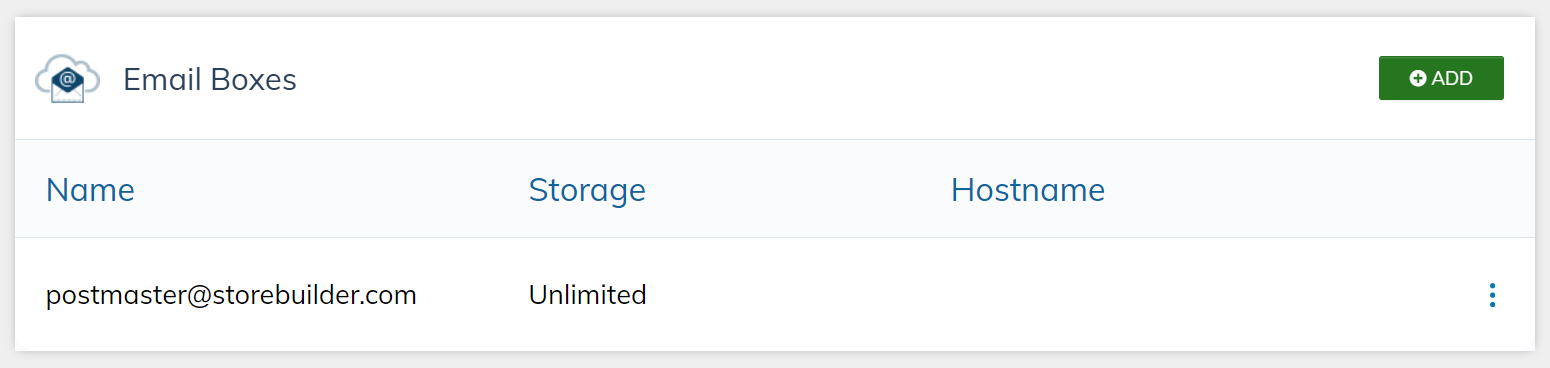
- Click Menu > Email.
- Click Add.

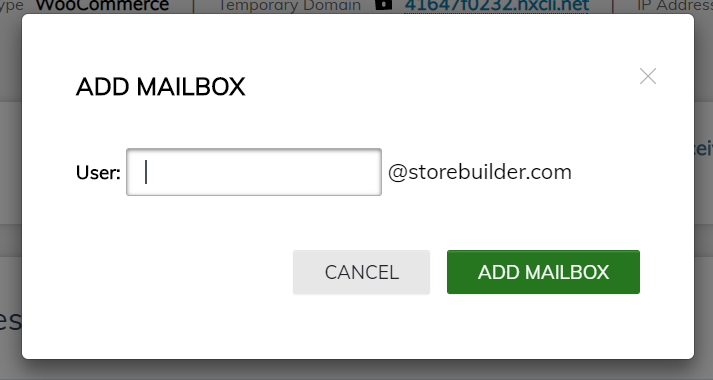
- Enter your desired user name, then click Add Mailbox.

Deleting email and resetting passwords
To delete mailboxes or view and regenerate passwords, click the menu toggle corresponding to the desired email account.
Creating aliases
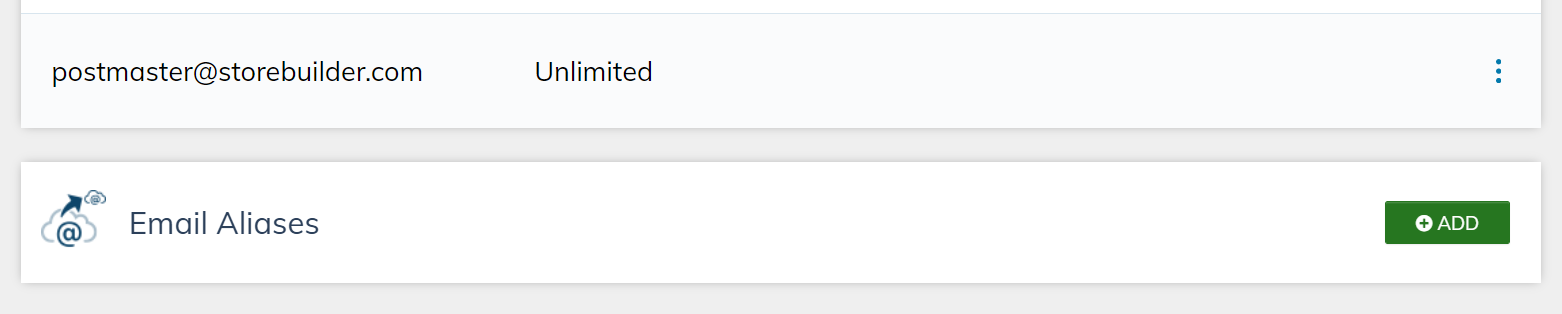
- To create an alias, select an email account, then click Add Alias.
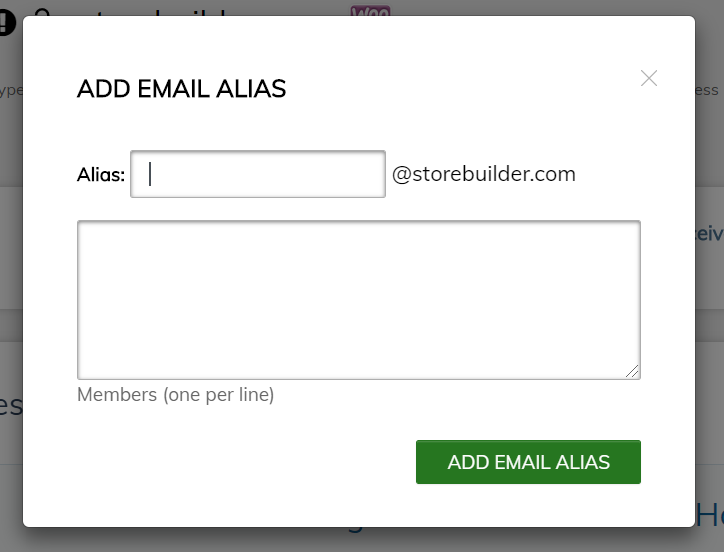
- Enter the alias email in the Alias field. In the Members field, designate one or more recipients, one per line. Click Add Email Address when ready.
- To update or delete the alias, click the menu toggle corresponding to the desired alias.
Conclusion
Adding and managing email accounts in the portal only takes a few clicks. Create and edit email accounts, including aliases, to fit your business needs.