

How to monitor running MariaDB and MySQL queries
MariaDB (a variant of MySQL) is a database management system that is probably running on your website if it contains interactive and dynamic elements. If, say, for example, all your content is being stored for you in a database and is being accessed by your site through MySQL queries.
If a large amount of data is needed or your database is often queried, these interactions can be resource intensive. Therefore, you need a way to check the status of your MySQL queries. This is called the Processlist, and the information you get from monitoring MySQL queries will be necessary when you are Tuning MySQL Queries for Performance.
How to monitor queries
MariaDB and MySQL provide a command SHOW PROCESSLIST that will display all the vital information about MySQL queries running on your server. Please note that all MariaDB/MySQL queries and commands must end in with a semicolon character (“;”) to be executed. The example below shows 10 running processes (the 10 rows in the result set are shown in red at the bottom). At the MariaDB/MySQL command prompt, type in show processlist and press the Enter key:
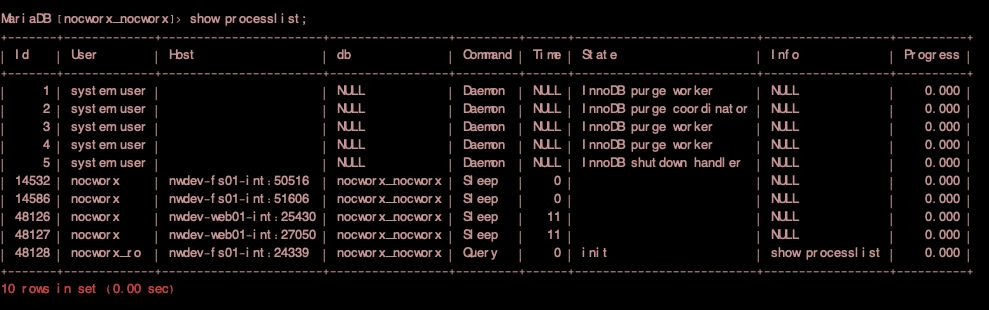
MariaDB/MySQL provides basic information about every process running on your database. Let’s go into more detail on each of the returned columns:
- Id – a unique id assigned to each process
- User – the user that has initiated this process
- Host – the name of the server, if different than the MariaDB/MySQL server, where the process originated
- db – the name of the database being accessed
- Command – the type of process initiated (MySQL queries are identified using the value of “Query” in this column)
- Time – how long (in seconds) this process has been running
- State – the current state of the process
- Info – more details, if available, on the process
- Progress – the total progress of the process (0 – 100%)
Using the phpMyadmin utility
Using phpMyAdmin is the simplest option, as you are not required to enter any secure credentials and it does not require that you are familiar with the Linux Shell. You can get more details about phpMyAdmin from the Nexcess Knowledge Base – phpMyAdmin FAQ.
From your Nexcess Client Portal, navigate to the MySQL page and select the Launch phpMyAdmin option.
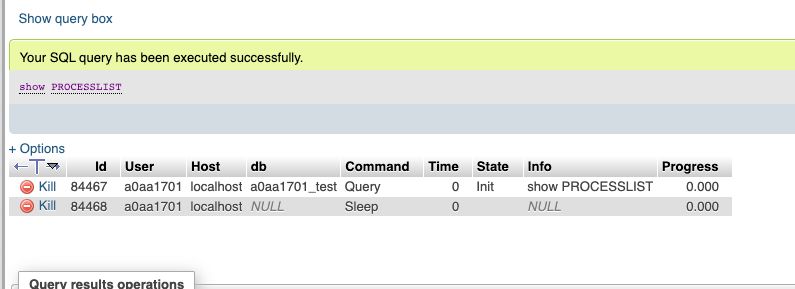
The phpMyAdmin utility is a commonly installed user interface for MariaDB and MySQL, which can be accessed directly through your Nexcess Client Portal. It grants you the ability to execute and monitor MySQL queries from your browser. In the phpMyAdmin interface, locate and select the Query tab. In the query box displayed, type SHOW PROCESSLIST and click the Submit Query button.
The result will be displayed, providing the information about your MySQL queries as indicated earlier in this article:
Using the MariaDB/MySQL client
Using the MariaDB/MySQL client is a slightly more challenging option in terms of the user level of technical skills. You should have some basic knowledge of how to use a Terminal via the Linux Command Line Shell.
Then follow these steps:
1. First, from your site’s Client Portal, go to the Access page, where you are supplied with a secure username and password to gain access to your site’s secure operating system shell via the Terminal interface:
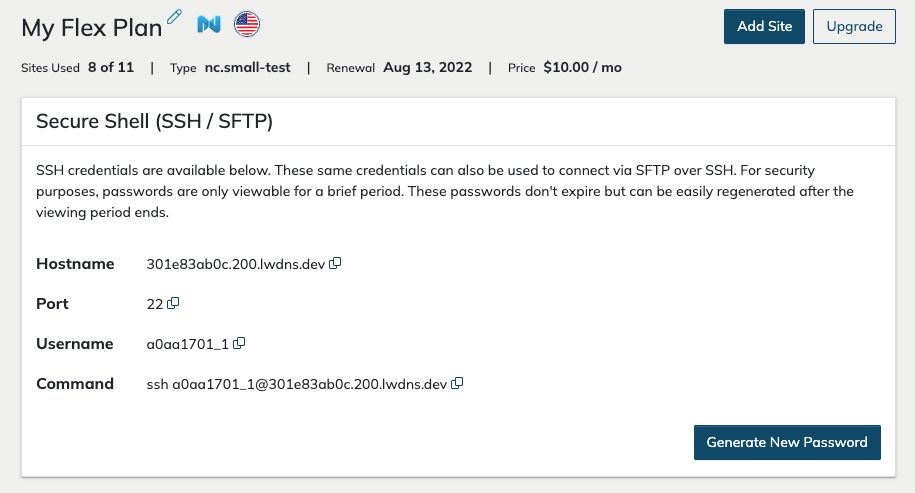
2. If you have not already accessed the secure password or the password has expired, you will be prompted to generate a new one. Otherwise, you will have access to the existing password.
3. Next, go to the MySQL page, the same place where you launched phpMyAdmin.
4. You will be presented with a database username and the ability to view the database password.
5. Using a Terminal, create a new secure connection to your website via the ssh command. You can copy the complete command to the clipboard by using the Copy button at the end of the displayed Command. You will be prompted to enter the secure password.
6. Finally, securely access the MariaDB/MySQL client with the following command:
- mysql -u {{username}} -p{{password}}
- Substitute the username and password as appropriate.
- Do not leave a space between -p and {{password}}
- Type SHOW PROCESSLIST and press the Enter key.
Using the MySQL Workbench utility
An excellent tool for accessing and monitoring MySQL queries is MySQL Workbench. You can learn more about it from our Nexcess Knowledge Base – Using MySQL Workbench.
Related articles
- MariaDB Performance Tuning Tips at Nexcess | Nexcess
- MariaDB Databases & MariaDB Setup in the Nexcess Cloud | Nexcess
- Tuning Your MySQL Database for Performance | Nexcess