

MySQL User Permissions for a Magento/Flex Cloud Plan
Overview
This article will cover MySQL user account management for admins. MySQL is an open source database management software that helps users store, organize, and retrieve data. There are various options for granting specific users detailed privileges on tables and databases. This guide provides a brief overview of how easily you can manage MySQL user permissions for your Magento/Flexible Cloud Plan using the Nexcess Cloud SiteWorx Control Panel.
Step by step instructions
- Log in to sites-portal.liquidweb.com.
- Navigate to the Control Panel page and click on Plans:
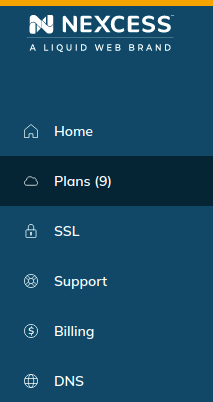
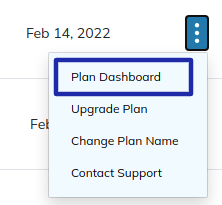
- Either click the name of your Magento/Flexible Cloud Plan service, or select Plan Dashboard from the menu options:
- From the dashboard, select the Menu > Control Panel option:
- Click the Launch Control Panel button: Your browser will redirect you to the Cloud Siteworx Control Panel home page.:
- Navigate to the MySQL section and from the SiteWorx main menu, click Hosting Features > MySQL > Databases.
- On the Cloud SiteWorx Control Panel, navigate to the Hosting Features > MySQL > Databases > Existing Databases option. The Existing Databases section displays all the databases that you have on the current Magento or Flexible Cloud Plan.
- Click on Manage Users to Add, Modify and Delete user privileges.
- User – Choose the user from the user list for which you desire to grant permissions to the selected MySQL database.
- MySQL User Permissions – Select your user’s privileges when operating with your database. If you are not sure which privileges should be chosen, click the CHECK ALL option so all the privileges can be granted to your MySQL user.
- When Connecting From – By default, this value is set to localhost. But if you are trying to connect it from a remote database/software you may need to add the IP address of the host or use % if it is a dynamic IP address:
- To save the new user permissions, click on Add.
Procedures for Modifying Existing MySQL Database Permissions
The Existing Permissions section displays current permissions/privileges a user has while connecting from a host. To update the current permissions, click on the Edit option. Once you have made the desired changes, click on Save.
List of User Permissions
The following table defines the permissions available for application to a specific MySQL database user account.
| User Permissions | Operations Allowed |
| All Privileges | Grants a MySQL user full access to a specific database. |
| Grant Option | Allow a user to grant or remove another user’s privileges. |
| Select | With ‘SELECT’ permission, users can read the contents of a table. |
| Create | Allows users to create new databases or tables. |
| Alter | Allows users to alter the table structure. |
| Show Database | Allow a user to view a list of all databases. |
| Insert | Allows users to insert rows in tables. |
| Drop | Drop or remove existing databases and tables. For example, if this permission is enabled for a user, the user will be able to drop the database in which the MySQL access privileges are stored. |
| Create Temporary Table | Create temporary tables. |
| Create Routine | Create stored routines, procedures, and functions. |
| Update | Allows users to update the rows in a table. |
| References | Not currently used. |
| Lock Tables | Lock tables in the database. |
| Alter Routine | Modify or alter stored routines. |
| Delete | Delete data and rows in database tables. |
| Index | Create or remove indexes. |
| Create View | Create a new view. |
| Execute | Allow a user to execute stored routines. |
Conclusion
You should know how to grant permission in MySQL for a user assigned to a database. Depending on your needs, you may wish to explore different permissions settings for your database or learn about some higher-level MySQL configurations.