

How to View SSH Log Files
What is Log File Monitoring?
Log File Monitoring is the overarching subject name for using the LOG files of the systems, servers, processes, applications and other components of the IT infrastructure to know the performance of the systems and mission critical applications such as Magento 2, WooCommerce, and WordPress in real time. The
LOG files of systems and applications contain richly detailed information such as operation status, execution results, code errors, and much more. Monitoring the LOG files helps System and Web Administrators determine the root cause of production issues and events, which can be used to fix problems and return systems to good health.
How Can You View a LOG File?
Easily and quickly would be the short answer! Simply put, you can open and read a LOG file with any text editor, including the default one included with your Operating System (OS).
Furthermore, in some instances, you might be able to open a LOG file in your web browser by dragging it directly into the browser window. The most straightforward method is always just to browse for the file and open it with your preferred text editor.
An Overview: Secure Shell Protocol (SSH) View LOG File Steps
As a WordPress or Magento website owner, you will likely encounter various errors while performing different website management tasks. To track down errors and their causes, you will need to check your logs, which is the record of events associated with your website.
This guide will show you how to use Secure Shell Protocol (SSH) to view LOG files in WordPress or Magento and what to do when these files are not where you would expect them to be.
General SSH Log File Location Information for WordPress Websites
Nexcess clients with WordPress websites will occasionally need to check logs when errors occur at the service or coding level. For a Nexcess Flexible Cloud Hosting Plan, you can use SSH to view use LOG files. You can also use FTP or access logs from your Nexcess Control Panel.
You will probably face permission issues when attempting to access certain locations or logs. But that is no cause for alarm — these limitations are set as a part of the security features included in your Nexcess Managed Hosting Plan.
Types of Logs You Might Encounter
While you may run into custom logs, too, the most common types of logs you are most likely to come across include:
The error.log — This is the most basic log that would record any service interruption, mod_security error, or any other possible errors based at the service level.
The transfer.log — This tracks account access details and functions similarly to the access log.
So, you know what you are looking for, but the real question is, how do you find it? There are multiple ways to access the major error logs for WordPress websites.
Let us guide you through each of the possible methods in the sections below.
Locating Logs Using the Nexcess Portal
For Nexcess Cloud Platform users, the simplest way to check the transfer log and error log is from the sites-portal.liquidweb.com portal.
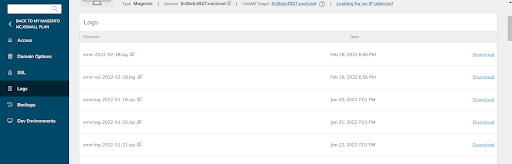
Once you are in the account portal, click Plans > Sites > Logs on the left-hand side. From there, you can download the following logs:
error.log
error-ssl.log
transfer.log
transfer-ssl.log
Download the desired logs based on the date and cross-check the needed details locally. In most cases, that will be all you need to do to figure out what is causing the error.
About Nexcess Client Portal
Log in to sites-portal.liquidweb.com and pick the product plan you have with Nexcess. Review to the Nexcess Client Portal Guide for more details on how best to use the portal.