

MariaDB Databases & MariaDB Setup in the Nexcess Cloud
Overview
MariaDB is an open-source relational database management system often used as a replacement for MySQL. Managing databases is a critical task for maintaining website functionality and data security. This guide explains how to manage your MariaDB setup using the Nexcess Client Portal. It covers the steps to create databases and users, retrieve and reset user passwords, and assign specific user permissions for Managed Magento and Flexible Cloud plans.
Managing Your MariaDB Setup
- Login to my.nexcess.nethttps://my.nexcess.net using a super user account.
- Navigate to the plan option as shown below screenshot.
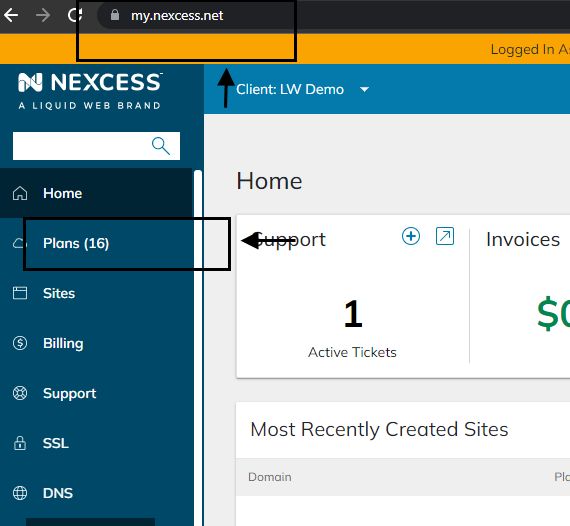
- Select the plan on which you wish to create or edit the database/user.
- Select the database option from the menu shown on the screenshot below, where you can do the MariaDB setup on the account. It will take you to the MariaDB setup section, where you can see various options such as phpMyAdmin access and database/user creation.
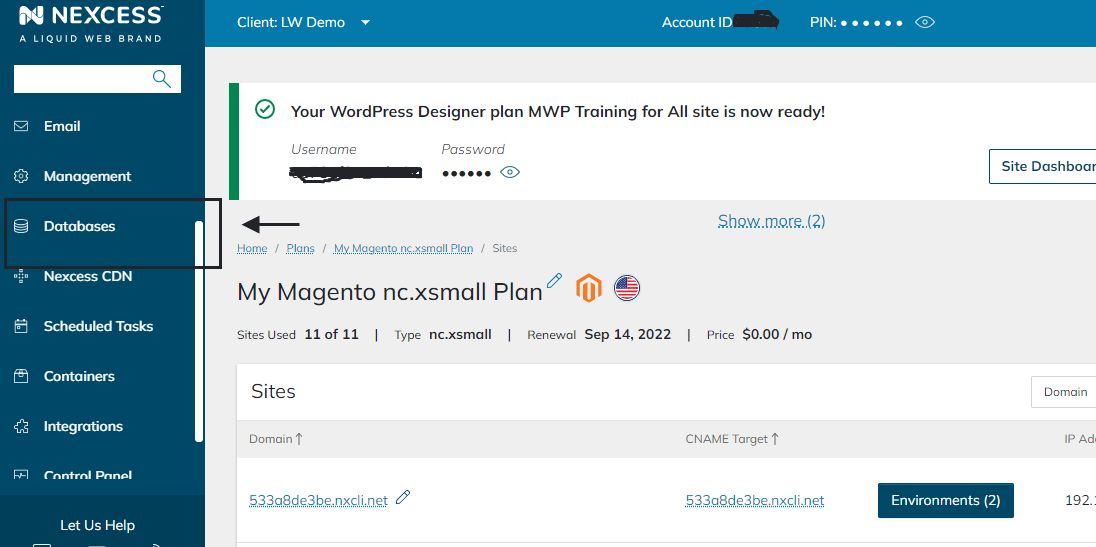
- If you wish to create a new database/user, then click on Add a database and user option.
- Add database and user option will pop up a new screen, where you can create the new database and user. Once username and database are selected, click on Add. It will create both a database and a user.
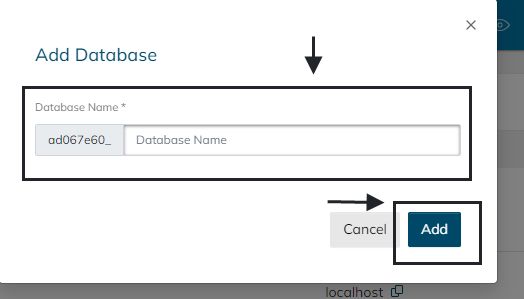
- If you only wish to create a database alone and want to assign an existing user to the newly created database, then you can select the Plus symbol next to the database. From there, you can create a new database alone.
The plus sign will pop a new window, as shown below. Once database details are filled, click on Add.
Obtaining the Password of a Newly Created User Database User
To obtain the password of a newly created database and user, following these steps:
- Navigate to the user section under the Database menu, showing the MariaDB database available on the account.
- Click on the + sign next to the newly created database user.
- To access the database user’s password, click on View password option.
- A new webpage will pop up on the screen, and you can see the view password option and click on it. Taking this action will display the password details of the database user.
- When the expiration date shown on the page is reached, the view password option will disappear.
- The view password option will disappear if you use up all 15 views before the expiry date.
How to Access or View the Password Once the View Password Option Expires
If the View Password Option expires, you can generate a new password for the MariaDB database user. Please note that after generating the new password, you must update the application configuration so that the website can connect to the database.
Assigning Different Users Access to the Newly Created Database
To assign different users access to the newly created database, follow these steps:
- Click on the Control Panel menu option (you may need to “show more options” to see the control panel link).
- Now click on the Launch control panel option; this will take you to the control panel.
- Make sure you are adjusting settings for the correct domain name.
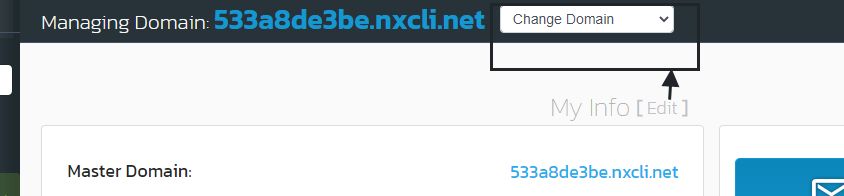
- Once selected, correct domain name > click on Hosting Feature > MySQL > MariaDB database option.
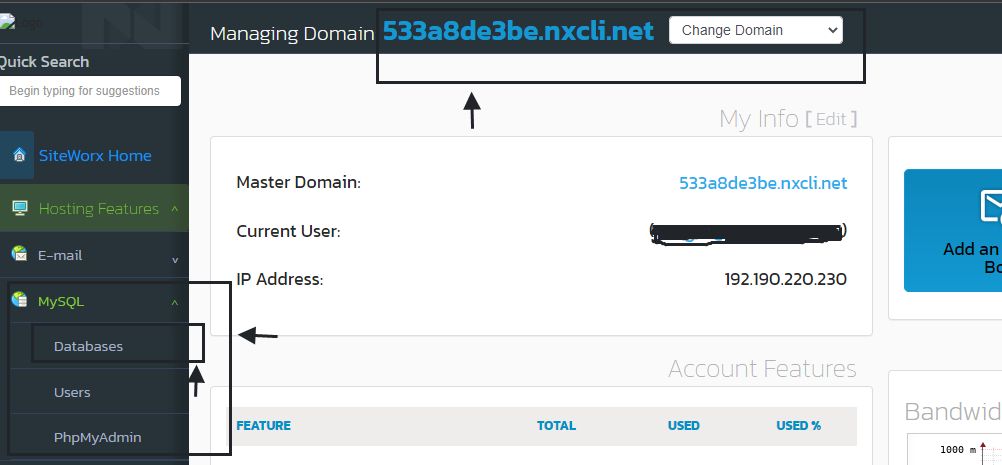
Here you can identify the MariaDB database on which you want to assign a new user.
- Select the Manage user option to assign additional users to the database.
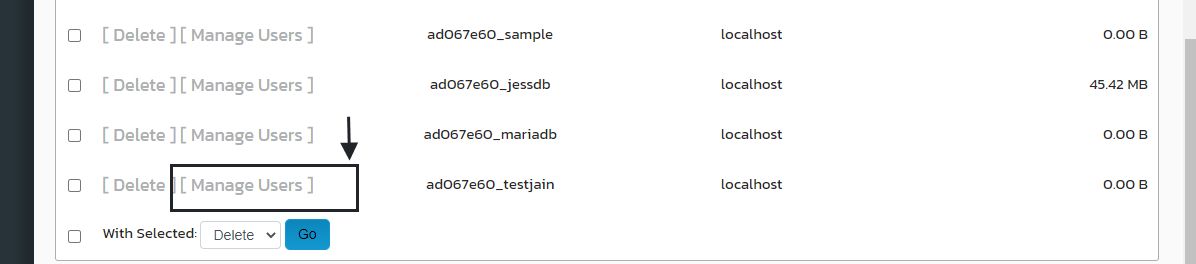
- The Manage User option will take you to a new screen where you can assign an existing user and permission for the database. Select the correct user from the dropdown option and grant all permissions. The drop down will show the MariaDB database list on the account.
- Click on the Add option to complete the process.