

How to view your Nexcess account ID number and account PIN number
As a customer of Nexcess seeking assistance, the first thing you will need to do when calling our Nexcess Support Team is to provide your account ID number and your account PIN number. For security purposes, you must provide your PIN to verify your identity whenever calling our support center.
But first you will need your my.nexcess.net username and password handy. If you cannot locate this information, click the Forgot Password? link on the Nexcess Client Portal login page
More about the required six-digit Personal Identification Number (PIN) for your Nexcess account
As an added security measure, all Nexcess web hosting accounts are assigned a corresponding account PIN number, made up of six digits. You are required to provide this PIN whenever you call our billing or support departments regarding your account.
Requiring your account ID and PIN numbers be provided to our staff is done to authenticate your call and make sure we are allowed to share sensitive information during our phone call. Using these credentials to validate the account holder, we ensure that the changes we make are as per the account owner’s wishes and requests.
Step by step instructions
- Log in to my.nexcess.net using the username and password for your existing Nexcess account. If you have forgotten your credentials, use the Forgot Password? link to reset your password.
- After logging into your Nexcess account, you will be on the Home tab of your Nexcess Client Portal. From there, you will be able to see the required account ID number and the account PIN number, which has six digits. In fact, these credentials remain in view along the top of the screen throughout your session as you move to various areas of the portal:

Next to your PIN is an eye icon. After clicking it, you will be able to see the six-digit PIN number revealed. In comparison, your account ID is always in view here.
Changing your account PIN number
- If you want to change the six-digit PIN number associated with your account, click on the down arrow next to your account name in the upper right area of the portal.
- Then, click the Account Settings option in the dropdown menu that appears.
- Next, click the pen icon in the upper right corner of Call In PIN section of the user interface located on the left side of the Account Settings screen.
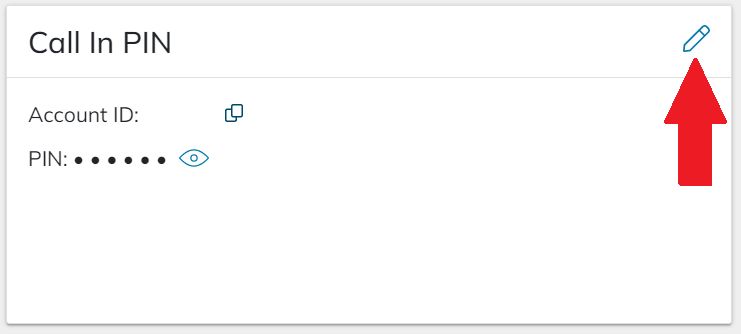
- When the Edit PIN window appears, insert your new desired six-digit PIN number and click the Edit PIN button to save your change.
Managing your account PIN number with caution is an essential step in keeping your account intact and safe.
Conclusion
The Nexcess Support PIN is a critical security measure used to verify your identity during support calls. Knowing how to locate and update this six-digit code in the Client Portal ensures swift assistance while protecting your account data. Always keep your PIN secure and provide it along with your Account ID to authorize any changes to your hosting environment.