How to enable DKIM
Overview
DKIM refers to DomainKeys, an email authentication system designed to verify the domain name system (DNS) of an email sender. It also verifies the integrity of the message sent by the sender, thereby diminishing the risk of email spoofing.
As owner of your domain, you can generate a private or public key pair which will be used to sign all outgoing messages from your domain. The public key is placed in the DNS zone of the domain as a TXT, or text record. The private key is kept on the outgoing mail server for the domain. When you send an email, the outgoing server will digitally sign it using your private key. The digital signature is added in the DKIM Signature header in the sent email.
When your email is received, the recipient can then verify your DKIM signature using the public key in your domain’s DNS. If the signature matches, this means that you have validated both the sending domain and that the message has not been changed in transit.
Step by step instructions
- Log in to your SiteWorx account.
- If you do not know your password, click Forgot your password on the login page.
- From the SiteWorx main menu, click Administration > Mail Options > DKIM.
- Click Add next to the relevant domain name.
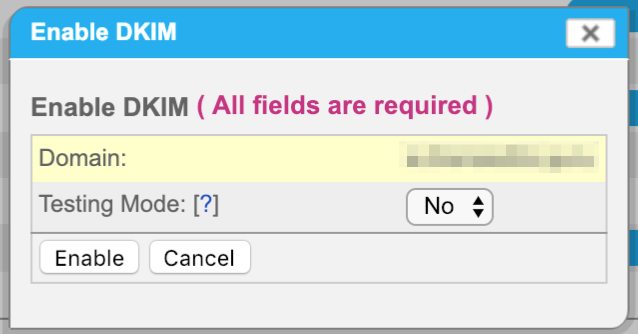
- Select Yes or No to specify whether DKIM will be tested for your domain. Unverified email will not be treated any differently from verified email NOTE: If setting up DKIM for an active domain, select No.

- Click Enable.
- The DKIM Management page displays as it was enabled for your domain.