How to activate two-factor authentication in SiteWorx
Prerequisites
- A Siteworx server; if you are a Nexcess Cloud client, see instead How to use two-factor authentication in the Client Portal
- Your login credentials for SiteWorx
- A two-factor authentication application such as Google Authenticator, DuoSecurity, or equivalent
- Your secured mobile device
Generate security key in SiteWorx
- On your mobile device, if you have not already done so, download and install a two-factor authentication application such as Google Authenticator, DuoSecurity, or equivalent.
- Log in to your SiteWorx account.
If you do not know your password, click Forgot your password on the login page.
- From the SiteWorx main menu, click Administration > Authentication.
- On the Two-Factor Authentication page, click Generate.
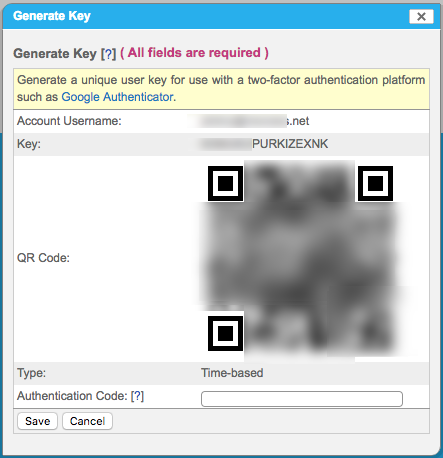
- The Generate Key panel will appear, providing you a Key, QRCode, and an empty Authentication Code field.

- Open your two-factor authorization application and use the information gathered in Step 4 as directed to complete setup. For an example of how to do this using Google Authenticator, go the next section.
Set up your two-factor authorization app (Google Authenticator)
- From your mobile device, open Google Authenticator, then tap the + icon.
- Tap either Scan a barcode, or Enter a provided key. The first option is usually easiest.
- If you selected Scan a barcode:
Place the QR code shown in SiteWorx within the red lines.
After Google Authenticator adds your account, enter the six-digit code into the Authentication Code field in the SiteWorx Generate Key panel.
Click Save.
- If you selected Enter a provided key:
In Google Authenticator, in the Account name field, enter a name.
Locate the 16-digit key shown in SiteWorx, then enter it in the Your Key field in Google Authenticator.
In Google Authenticator, click ADD.
In SiteWorx, click Save.
- If you selected Scan a barcode:
If successful, the key and QR Code will appear in the Two-Factor Authentication panel in SiteWorx.
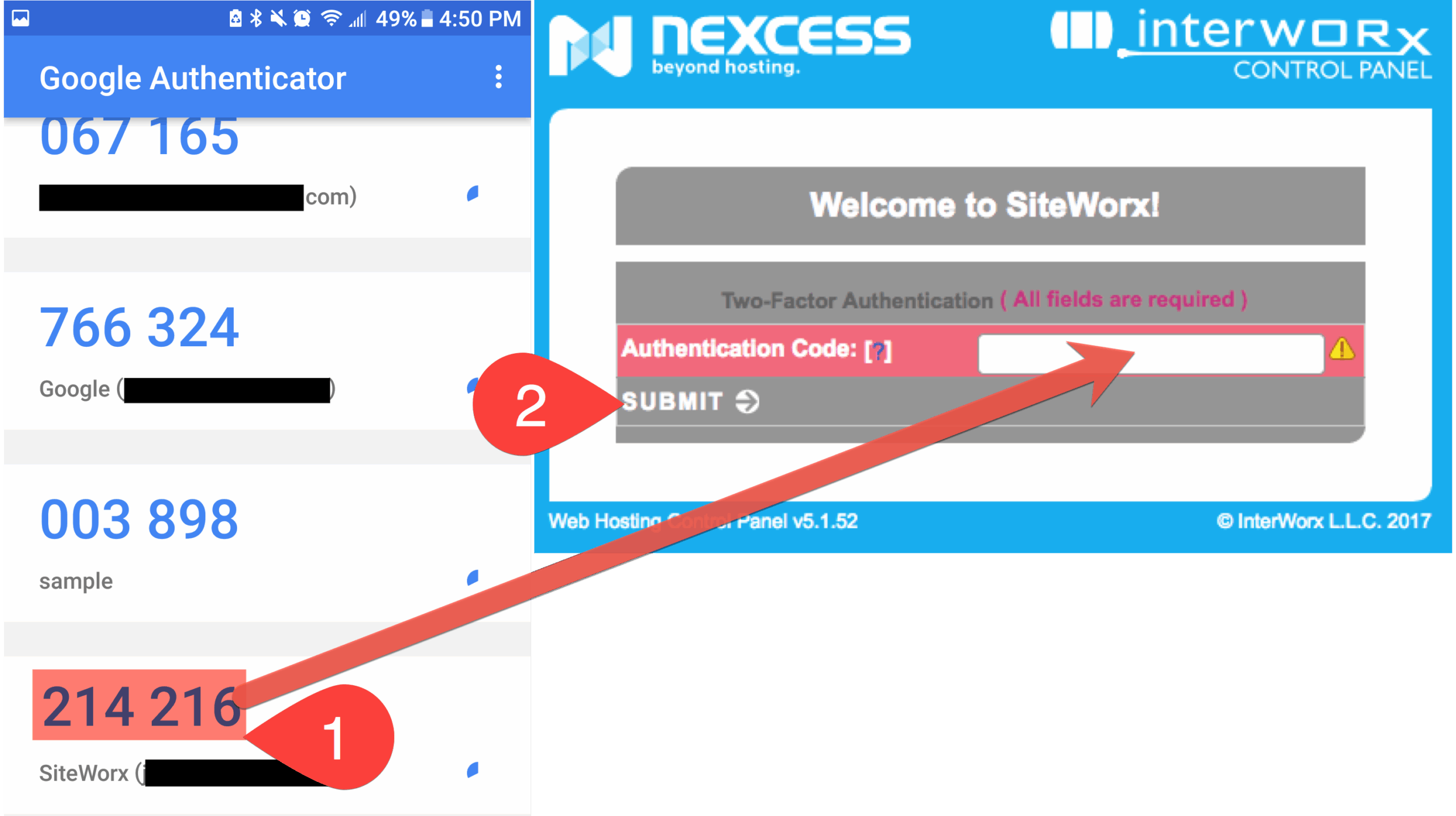
Test your two-factor authorization by logging out of SiteWorx, then logging back in. When prompted for your authentication code, enter the appropriate code from Google Authenticator, then click SUBMIT.