

Secondary User Management in SiteWorx
How Nexcess resellers can manage secondary users using SiteWorx.
Prerequisites
You must have a reseller account with Nexcess.
- You must be the primary user on this account to add secondary user accounts.
Adding secondary users
- Log in to your SiteWorx account.
- If you do not know your password, click Forgot your password on the login page.
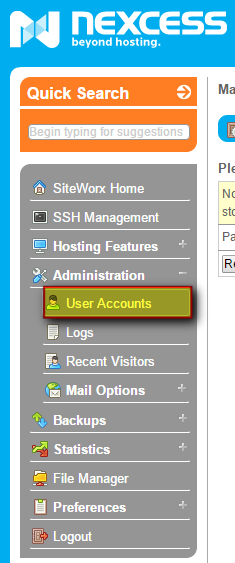
- In the SiteWorx main menu, select Administration > User Accounts.

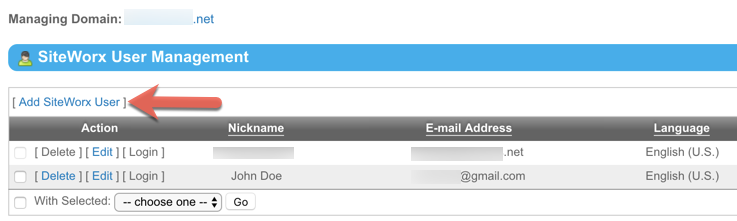
- Click Add SiteWorx User.

- Fill the Nickname, Email, Password, and Confirm Password fields. Select a Language and Menu Style. In the User Permissions section, select the check box of each desired permission. Click Save when ready.
Edit a secondary user’s settings
- Log in to your SiteWorx account.
- If you do not know your password, click Forgot your password on the login page.
- In the SiteWorx main menu, click Administration > User Accounts.
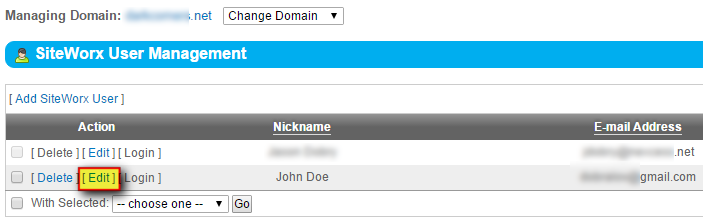
- Next to the name of the account that you want to edit, click Edit.
- Make the desired changes and click Save.
Delete a secondary user
- Log in to your SiteWorx account.
- If you do not know your password, click Forgot your password on the login page.
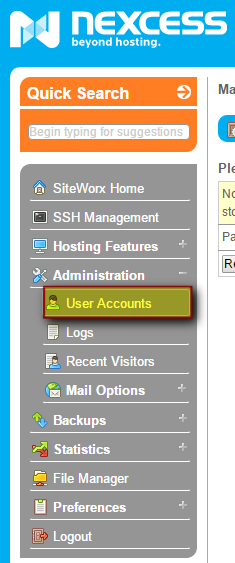
- In the SiteWorx main menu, select Administration > User Accounts.
- You may now either delete or deactivate the account:
- If you want to delete the user, in the row containing that user, click Delete, then click Delete again when prompted to confirm.
- If you want to deactivate the user, in the row containing that user:
- Select the check box in that user’s row.
- Select the check box next to the With Selected list.
- From that same list, select Deactivate, then click Go.
- Click Deactivate when prompted to confirm.