

Changing Your Password in SiteWorx Web Panel
As the server administrator, you can change domain user passwords from your panel, aiding users who have lost or forgotten their passwords. Alternatively, domain users can also change their own passwords within their control panel for added convenience.
As the administrator of the server, you can change domain user passwords from your panel. This is helpful if the user has lost or forgotten their password. However, domain users can also change their own password in their control panel.
- Login to your SiteWorx Server using the domain user credentials. For help with logging in, see Logging into InterWorx Web Panel).
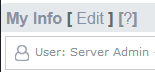
- Click on the Edit button beside My Info on the top left of the screen.
- Enter the new password you would like to use for the root user and confirm the password. NOTE: InterWorx can recommend a strong password using a random generator. You can use this password by clicking Generate, or use your own password by entering and confirming the password in the boxes provided.

- Once you have entered and confirmed your new password click Save to confirm.