

Deleting Files and Directories in SiteWorx
In just a few clicks you can delete files and folders from your website.
We’ve shown you how to upload files and add files and folders using the File Manager in SiteWorx, now let’s look at deleting them. In just a few clicks you can delete files and folders from your website.
Warning: |
| Deleting files and folders will permanently delete them from the site. If you need a copy for later use, verify a backup before deleting any files or folders (see Configuring Backups in Interworx Web Panel). |
- To delete a file, log into SiteWorx and go to the File Manager (if you need help logging into SiteWorx, see Logging into Interworx Web Panel.
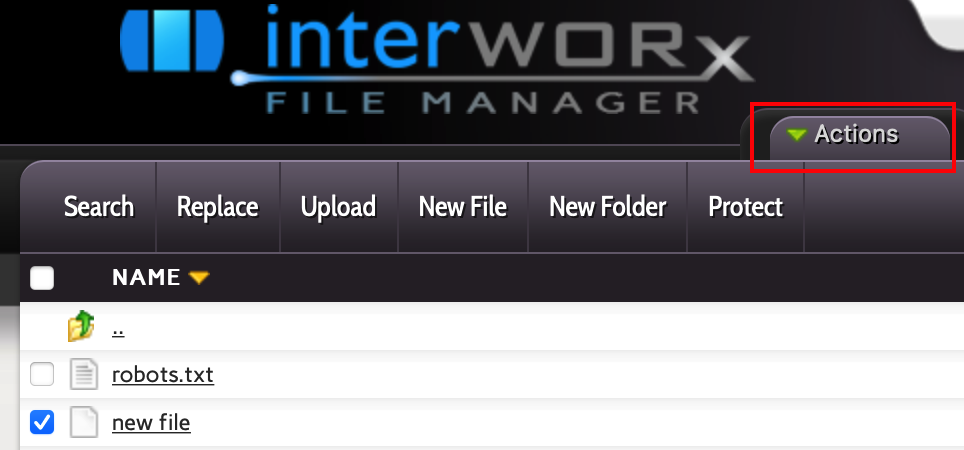
- Click the check box next to the name of the file you want to delete. Then click the Actions drop-down menu.
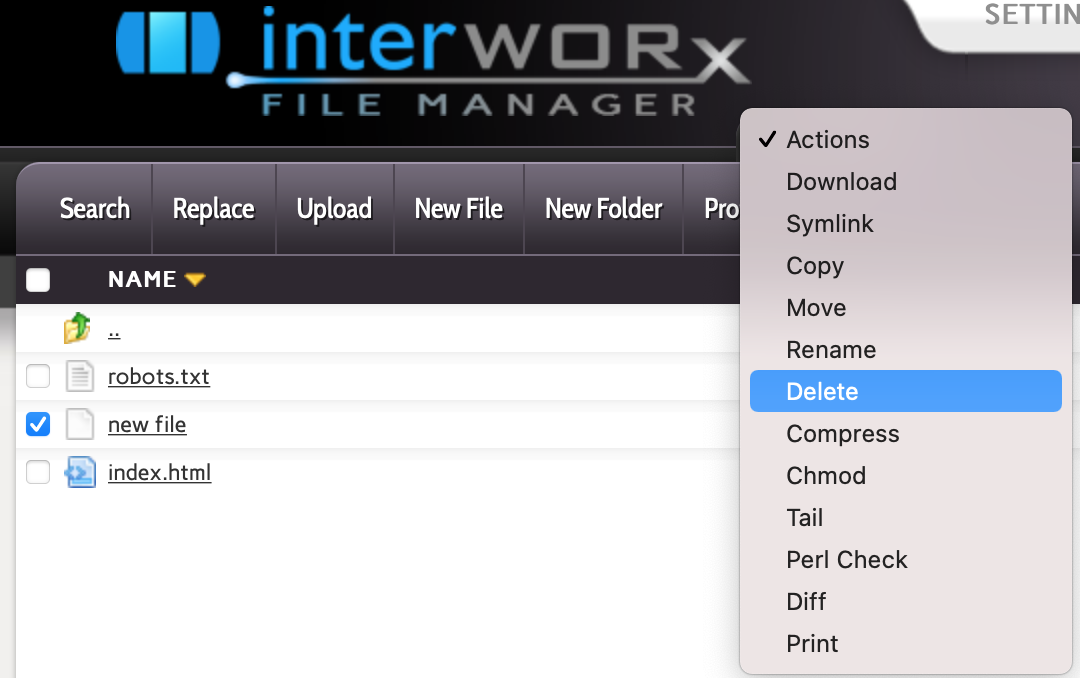
- Choose Delete from the Actions options menu. Notice, you can also use this menu to download, copy, move, and rename files and complete other tasks.
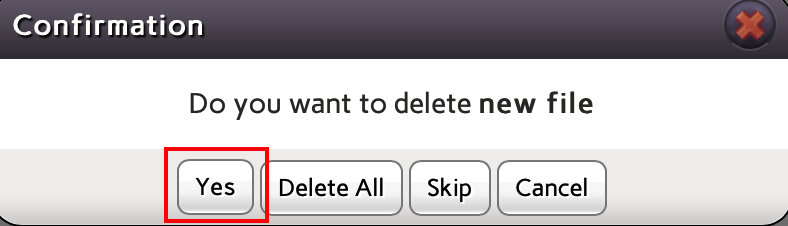
- Confirm that you want to delete the file or files selected by clicking Yes.
The file is now deleted.
You can follow the same steps to delete a folder, remembering to check the box next to the folders name.