

Adding Files and Folders in SiteWorx
SiteWorx provides you with the File Manager tool that is simpler to use than SFTP or FTP for a small number of files. This tutorial will walk you through adding files and folders in File Manager.
SiteWorx provides you with the File Manager tool that is simpler to use than SFTP or FTP for a small number of files. Our article Using the File Manager in SiteWorx outlines the different things you can do within it to manage your sites. This tutorial will walk you through adding files and folders in File Manager. (This tutorial assumes that you are logged into SiteWorx and have navigated to the File Manager. See Using the File Manager in SiteWorx if you need additional help).
Add a File
- Select the folder to which you want to add a file (if you want the file to be available on your website, you’ll need to be in the public_html folder). Click on the folder name to open the folder so that additional files will be placed inside the folder.
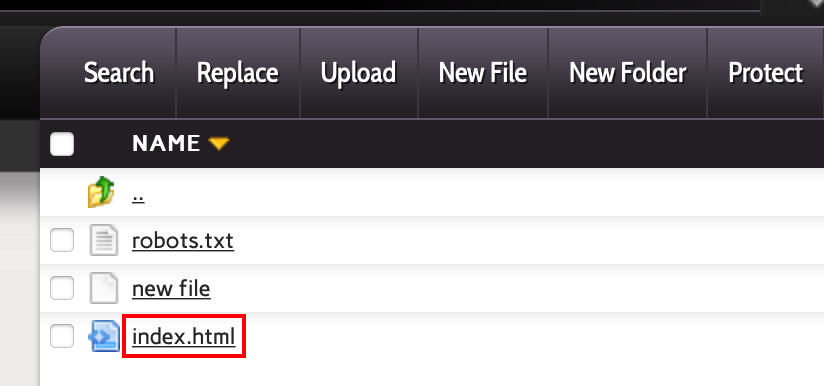
- Click New File to create a file inside the folder.
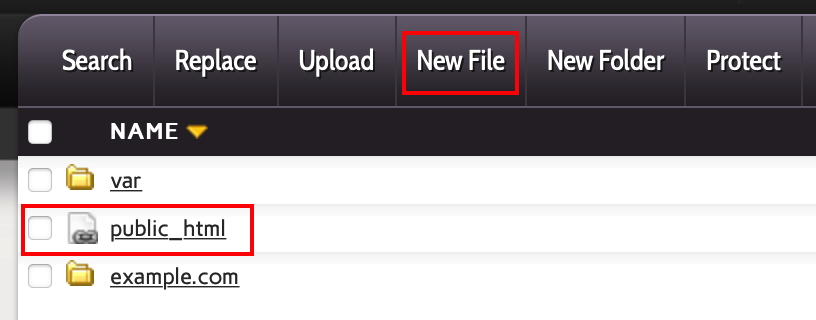
- Enter a name for the file and click Save to create the file.
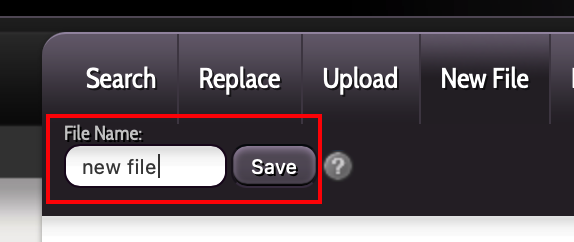
- The file will now show in the file list and you can edit the html or code as needed. For help with editing files, see Editing HTML and Code in SiteWorx.
Add a Folder
- Click New Folder to create a folder in the location that is currently displayed.
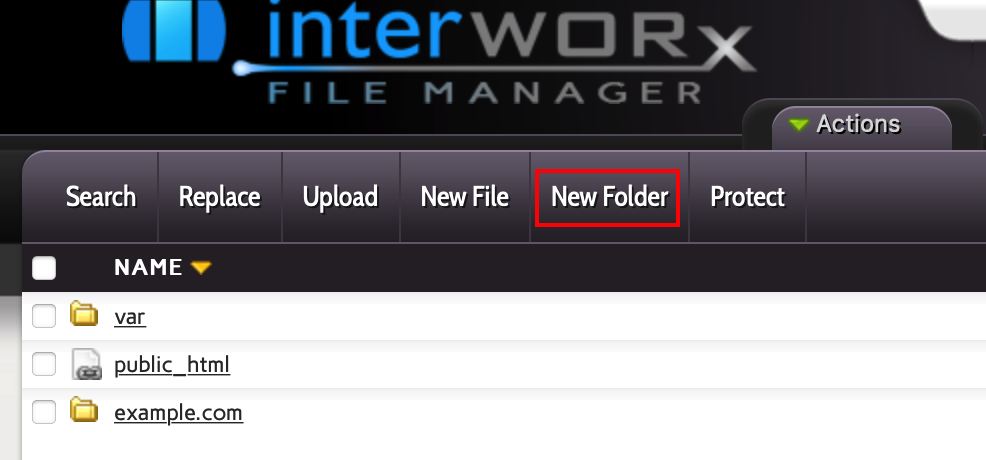
- Enter a name for the folder/directory and click Create to create the folder.
Upload a File or Folder
- Make sure to navigate to the folder in which you want new files to be uploaded (if you want the files to be available on your website, you’ll want to be in the public_html folder).
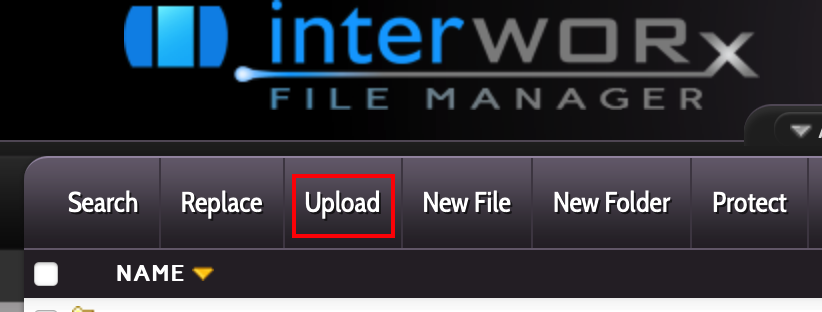
- Click on Upload to open the file upload dialogue.
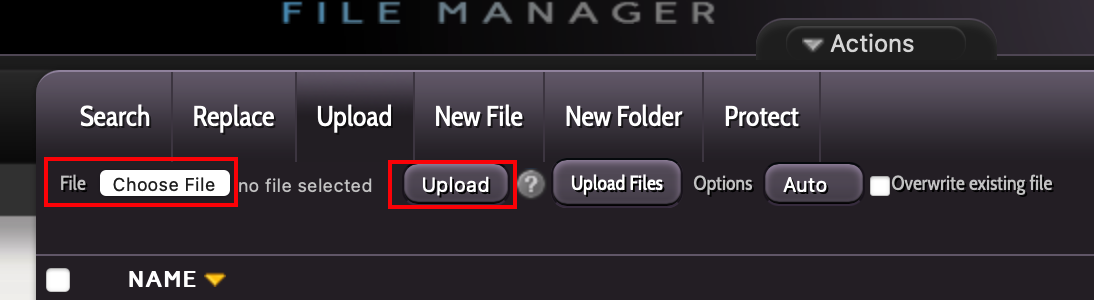
- Click Choose File to select a file to be uploaded. Then click Upload to add the file to the directory.
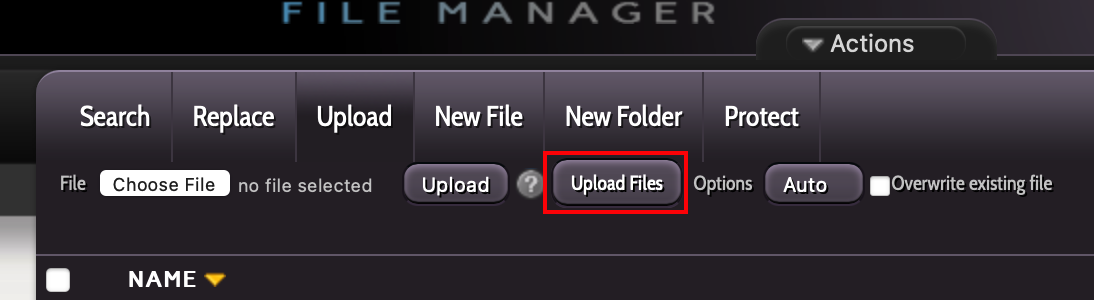
- To upload multiple files at the same time, click Upload Files.
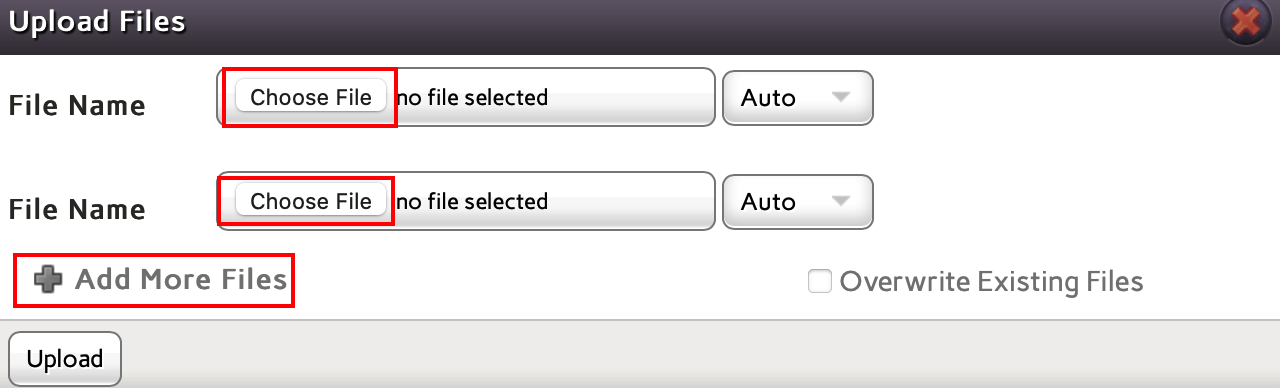
- Select each file to be uploaded. Click Add More Files to select additional files.
NOTE: |
| To upload a folder, you must first compress/zip the folder into a single file. To uncompress a compressed/zipped folder, click on the folder name and click Uncompress. |