

How to change email account passwords in SiteWorx
How clients on physical (non-cloud) servers can use SiteWorx change the password for email accounts on their domain.
How clients on physical (non-cloud) servers can use SiteWorx change the password for email accounts on their domain.
ATTENTION: This method only works for clients on physical (non-cloud) servers. If you are a Cloud client, see instead How to create and modify email accounts in Nexcess Cloud.
- Log in to your SiteWorx account.
- If you do not know your password, click Forgot your password on the login page.
- If you do not know the web address for your SiteWorx login page, either refer to your Welcome Email or contact our 24-hour support team for assistance.
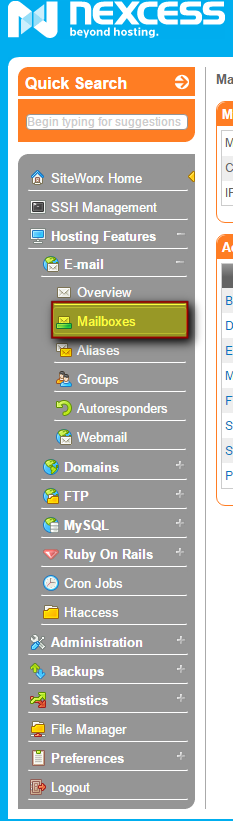
- From the SiteWorx main menu, click Hosting Features > Email > Mailboxes.

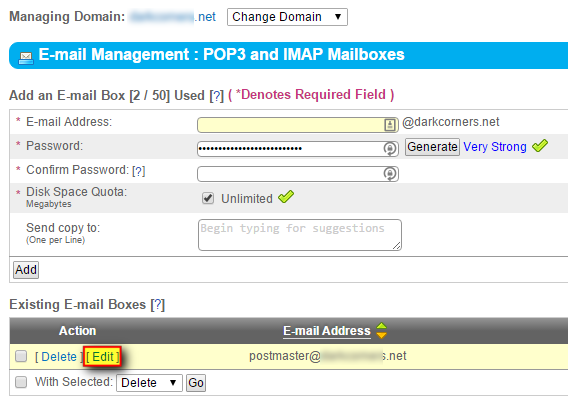
- In the Existing Email Boxes section, locate the relevant email address and click the corresponding Edit link.

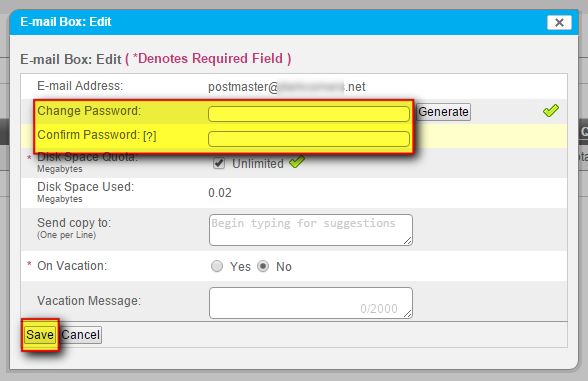
- In the Change Password field, enter your new password. In the Confirm Password field, duplicate your new password. Click Save when ready.
For 24-hour assistance any day of the year, contact our support team by email or through your Client Portal.