How to forward email with an alias in SiteWorx
How to use SiteWorx to create, modify, and delete email aliases for your Nexcess account.
Overview
You can redirect any email messages sent to a non-existent email accounts on your domain to one of your choosing by configuring email aliases within SiteWorx.
If you prefer for messages sent to an existing email account on your domain to be forwarded to another email account, edit your email account to specify a Copy to recipient. Refer to How to change the “Send Copy To” recipient.
Creating an alias
- Log in to your SiteWorx account.
- If you do not know your password, click Forgot your password? on the login page.
- From the SiteWorx main menu, click Hosting Features > Email > Aliases.
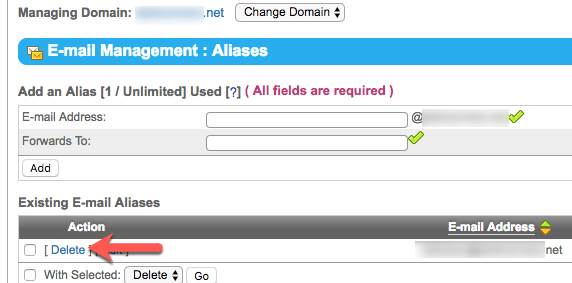
- In the Email Address field, type the name and email address for the email address that no longer exists.
- In the Forwards To field, type the email address to receive the forwarded emails.
- Click Add.
Modifying an alias
- Log in to your SiteWorx account.
- If you do not know your password, click Forgot your password? on the login page.
- On the SiteWorx main menu, click Hosting Features > Email > Aliases.
- Next to the email alias that you want to modify, click Edit.
- Type the desired changes and then click Save.
Deleting an alias
- Log in to your SiteWorx account.
- If you do not know your password, click Forgot your password? on the login page.
- From the SiteWorx main menu, click Hosting Features > Email > Aliases.
- Locate the email to be deleted, then click Delete.

- When prompted for confirmation, click Delete.