

How to import and export MySQL databases in SiteWorx
The import and export functions within phpMyAdmin give you an easy way to restore or migrate databases. We recommend you run this process in a test environment before committing to any permanent changes.
Exporting tables
You can export MySQL databases using phpMyAdmin from your SiteWorx account with the below method.
Log in to your SiteWorx account.
- If you do not know your password, click Forgot your password on the login page.
On the left, select Hosting Features > MySQL > PhpMyAdmin.
Select the correct database from the list on the left.
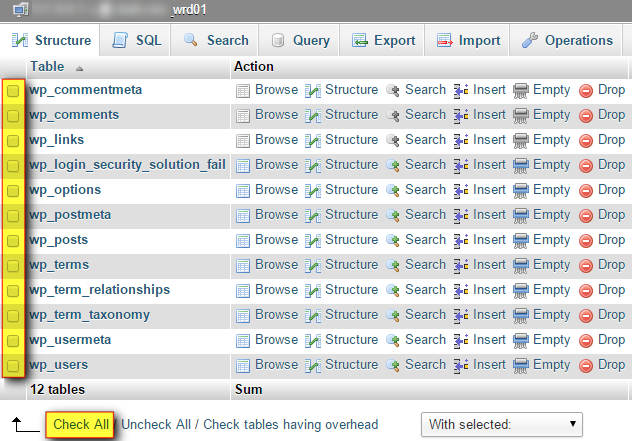
Select the check box corresponding to the desired table from the Table List, or click Check All.

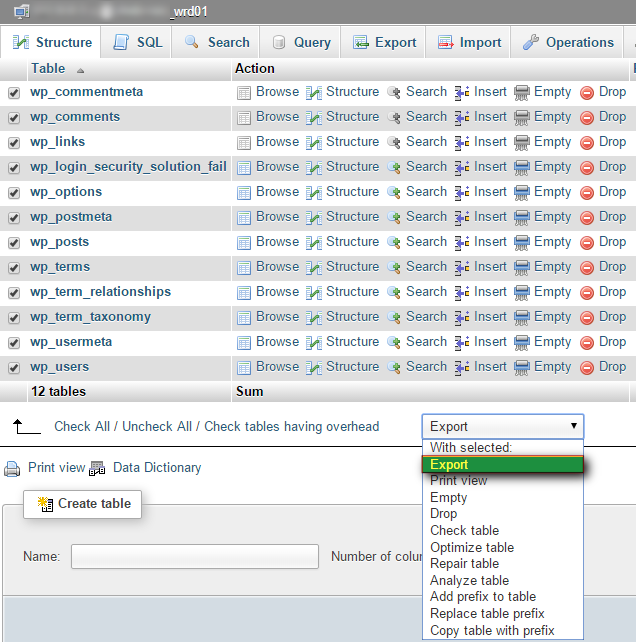
From the With selected list, click Export.

Under Export Method, leave the Quick radio button selected.
Under the Format list, select your desired format.
Click Go, choose a location, and click Save.
Importing tables
You can import MySQL databases using phpMyAdmin from your SiteWorx account with the following procedure:
Log in to your SiteWorx account.
- If you do not know your password, click Forgot your password on the login page.
On the left, select Hosting Features > MySQL > PhpMyAdmin.
Select the correct database from the list on the left.
Click Import.
Under File to Import, click Choose File and select the file to be imported. Click Go when ready.