

Changing Your Password in Interworx Web Panel
Security best practices recommend regular password changes. InterWorx Web Panel facilitates this with a few clicks on the main dashboard for easy password updates.
Best Practice in security dictates changing your important passwords on a regular basis (see Best Practice: Creating a Secure Password). Changing your password in InterWorx Web Panel only requires a few clicks on the main dashboard of the panel. The directions in this article will allow you to change your passwords as the administrative user. To change passwords as a domain user, see Changing Your Password in SiteWorx Web Panel.
Changing the Administrative (root) Password
- Login to your InterWorx Server using the root user credentials. For help with logging in, see Logging into InterWorx Web Panel).
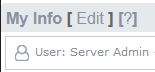
- Click on the Edit button beside My Info on the top left of the screen.
- Enter the new password you would like to use for the root user and confirm the password. NOTE: InterWorx recommends a strong password using a random generator. You can use this password by clicking Generate or use your own password by entering and confirming your own custom password.

- Once you have entered and confirmed your new password click Save to confirm.
- Report your new password to Liquid Web using our secure update process so that our support teams can continue to provide support. See Reporting Your Server Password.
Changing a Domain User Password
Domain users can change their own password in their control panel (see Changing Your Password in SiteWorx Web Panel). As the administrator of the server, you can also change domain user passwords from your panel. This is helpful if the user has lost or forgotten their password.
- Login to your InterWorx Server using the admin (root) user credentials. For help with logging in, see Logging into InterWorx Web Panel).
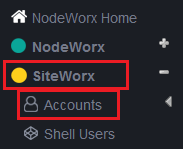
- Click on SiteWorx in the left navigation group, the. Then click on Accounts.
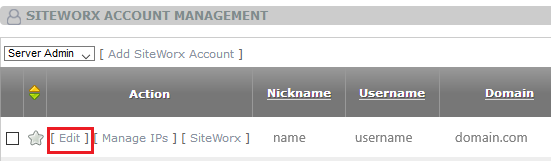
- Find the user for which you need to make changes and click Edit.
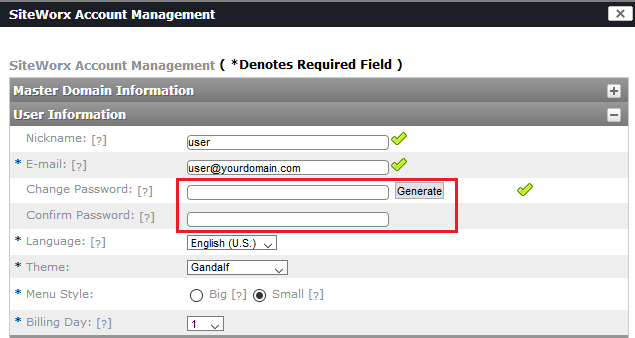
- Click the + sign on the User Information row. Enter and confirm the new password, or just click Generate to create a new secure password.
- Click Save to save the changes to the user account.