

Help Docs Control Panel Guides The Ultimate Guide to the InterWorx Control Panel (2025) NodeWorx Guide Email Management in NodeWorx Finding Your Email Client Configuration in InterWorx

Finding Your Email Client Configuration in InterWorx

Access your InterWorx email through Outlook, Mac Mail, or mobile apps by configuring mail server settings, username, and password. This guide demonstrates how to locate these settings in InterWorx.

You may want to use your InterWorx email with an email client like Outlook, Mac Mail, or the email app on your phone. Before you can connect your email client to your InterWorx email, you’ll need your configuration settings. These include the mail server settings and your webmail username (email address) and password. This walkthrough will show you how to find these settings in InterWorx.

Basic Configurations for All Clients

All email clients will need the same basic sets of information to connect to your server. Once you have collected the settings, you can set up most email clients using the information in Setting Up Your Desktop Email Client.

Username

The username for the account is full email address set up in InterWorx, not just the part before the @. For example, user@domain.com would be the username for that account.

Incoming and Outgoing Mail Server

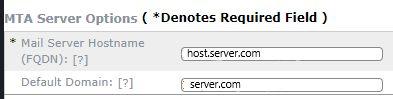
The easiest choice for this is the server’s hostname. You can find it by logging in to your InterWorx server as the administrator and going to System Services -> Mail Server -> MTA Settings -> MTA Server Options.
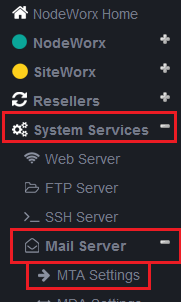
mail server links highlighted
mail server information
You can also use any domain on the server that has a DNS record that points at the correct mail server for your domain; for example, mail.domain.com.

Account Type

We recommend using IMAP protocol for your email client over POP3 protocol. IMAP is the newer protocol and provides more advantages than POP3 without the drawback of only being able to access your email from a single device like POP3 accounts.For IMAP, use port 993 (see Encryption below).
For POP3, use port 995 (see Encryption below).

SMTP Setting

Use port 587 for the SMTP setting (see Encryption below).

Encryption

InterWorx requires you to use encrypted connections for both incoming and outgoing email (which may be why the ports listed above could be unfamiliar to you). When specifying the settings for the incoming and outgoing server, select the SSL/TLS encryption for incoming and STARTTLS for outgoing.Now that you’ve collected all of the information you need, you can set up your email client. For more information, see Setting Up Your Desktop Email Client.
Was this article helpful?