

Change the Layout in Interworx
Part of getting comfortable with a new control panel is customizing it so that the layout and design are easier for you to use. There are a number of options for changing the look and feel of Interworx.
Changing the Menu Style
One of the most dramatic changes you can make to the layout in Interworx is to change the Menu Style. This setting can be changed for Nodeworx (the administrative account) and for individual Siteworx accounts. The small menu layout compresses all of the links into the navigational menu on the left side of the screen. If you’d like a more expanded view of your menu options, you can choose the Big Menu Style, which presents the navigational links in an icon layout that is similar to what you may be used to seeing in WHM/cPanel (see below).
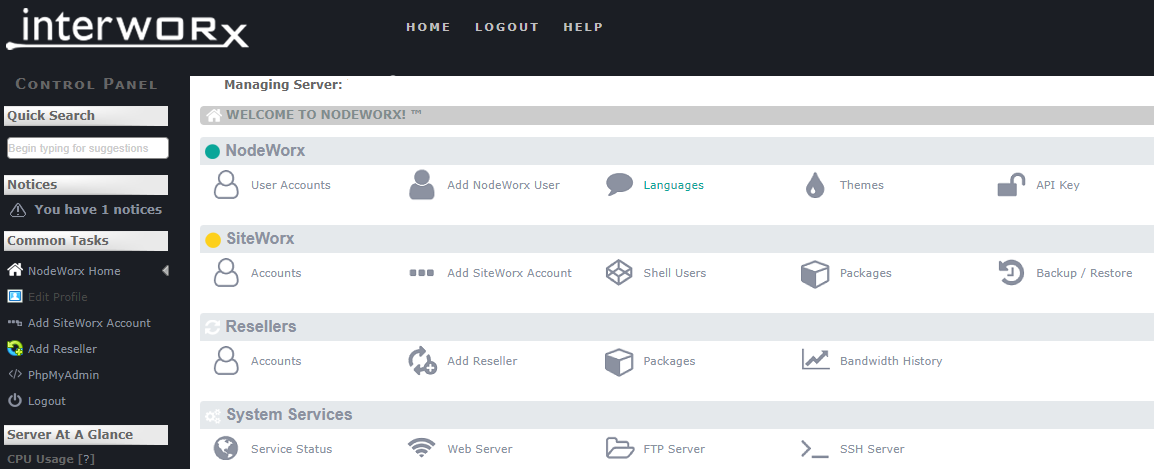
Nodeworx
- Log into Nodeworx using the administrator credentials. For more information, see Logging into Interworx Web Panel.
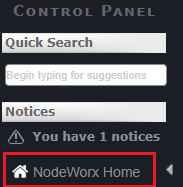
- Click on Nodeworx Home.
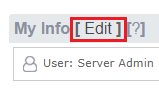
- Under My Info, click Edit.
- Choose the option next to the Menu Style you want to use. The default style is typically “small”. Click Save to save your changes.
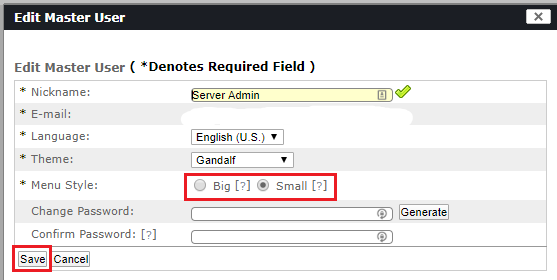
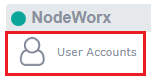
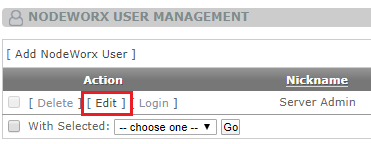
- To change back, Click User Accounts, then click Edit next to the Server Admin account.
Siteworx
Changing the Menu Style for a Siteworx user can be done in the same basic way.
- Log into Siteworx using the administrator credentials. For more information, see Logging into Interworx Web Panel.
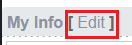
- Click on Siteworx Home. Under My Info, click Edit.
- Choose the Menu Style you prefer and click Save to save your changes.
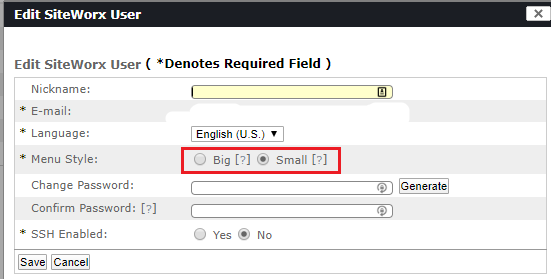
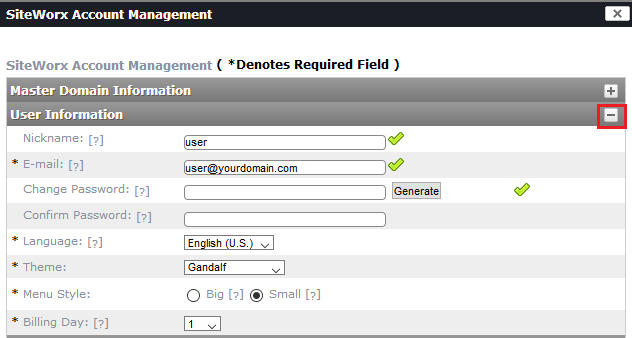
You can also make this adjustment for any Siteworx account through Nodeworx. Just select the account you want to modify and change the Menu Style selection under User Information in the Siteworx Account Management screen.
Changing the Theme
The Theme setting in Interworx controls a number of visual components of Interworx, including colors, icons, and fonts. To change the theme, go to the same locations as described above to edit user information. The theme options are listed just above the Menu Style.
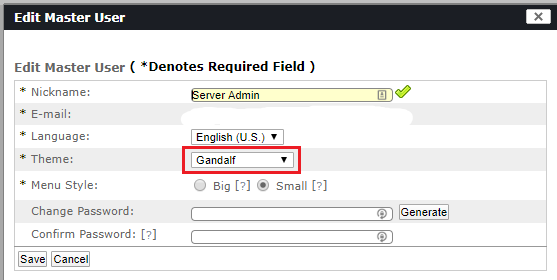
Select a new theme from the drop-down, then click Save to save your choice. You can switch themes as often as you like to find the one that suits you best.