

Renew Let’s Encrypt SSL in Cloud Sites
Once you’ve followed our instructions for Installing Let’s Encrypt SSL in Cloud Sites and installed your SSL Certificate on your sites on the Cloud Sites platform, you’ll need to know how to renew it to continue keeping your sites secure. This tutorial will walk you through the management and renewal process.
View Your Let’s Encrypt SSL Certificates
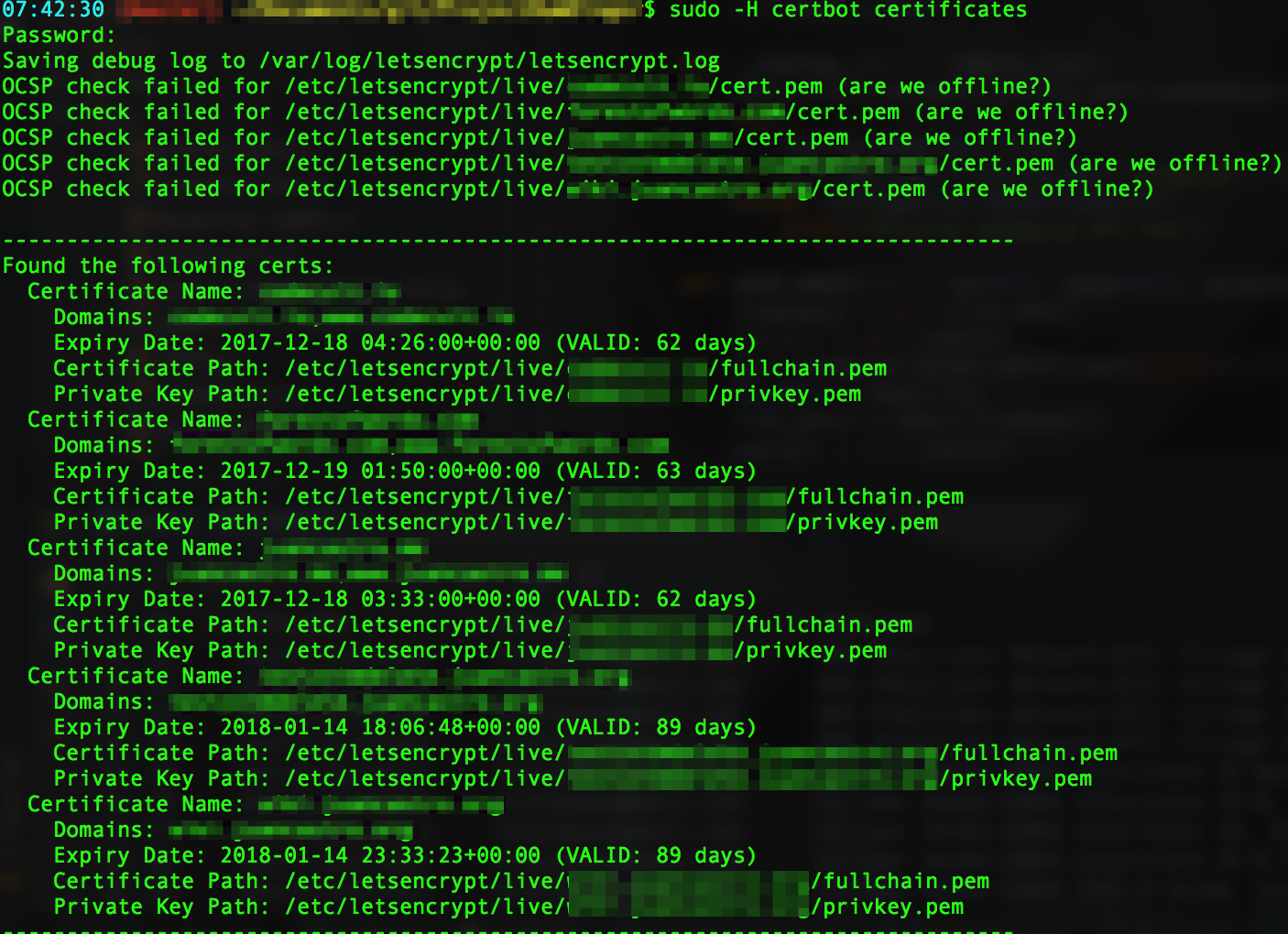
To view your current certificates and see the remaining time to expiration, run the following command:
sudo -H certbot certificates
This will give you a list of each certificate and the time left until renewal is needed.
Note: |
| This list will give you the location of the relevant installer files needed for re-installation should you need to re-install a certificate at any time. |
Renew Let’s Encrypt SSL Certificate
Once you’ve reviewed your certificates and determined which ones need renewing, you can copy the Certificate Name for the cert and run the following command:
sudo -H certbot certonly --force-renew --manual --cert-name www.domain.com
Then, follow the same steps as installation. See the installation process in our article Installing Let’s Encrypt SSL in Cloud Sites.