Cloud Sites File Path
Need to find the absolute file path or web root for your Cloud Sites applications? Learn how to easily locate your Linux or Windows directory paths.
While configuring some web applications in Cloud Sites, you might need to provide the absolute path, full path, or web root for your website. No matter if you’re using Linux or Windows, it’s easy to find your website’s file path in Cloud Sites. If you don’t know whether you need the Linux or Windows path, consult a web developer or the web application vendor, or contact us for a recommendation.
Full File Path on Linux
- Log into your Cloud Sites account.
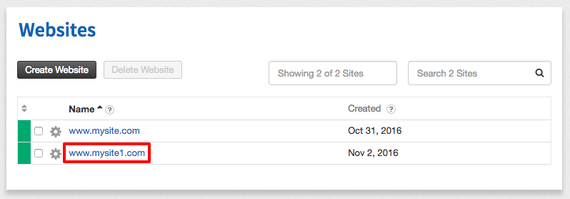
- In your website list, click on the website where you need to know the web root.

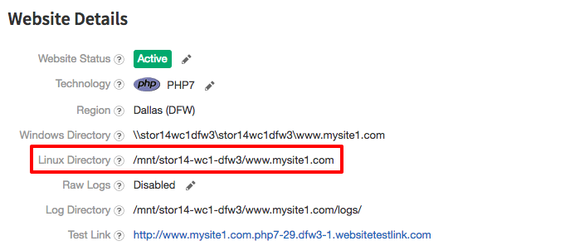
- In the Website Details section, look for Linux Directory. This is your web root and should look something like this:
/mnt/stor1-wc1-dfw1/123456/www.domain.com/web/content/

Full File Path on Windows
- Log into your Cloud Sites account.
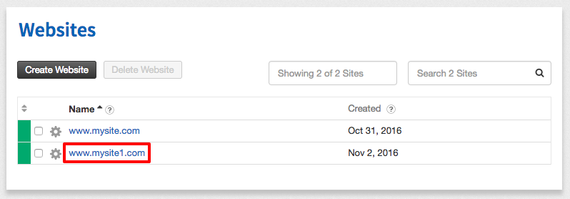
- In your website list, click on the website where you need to know the web root.
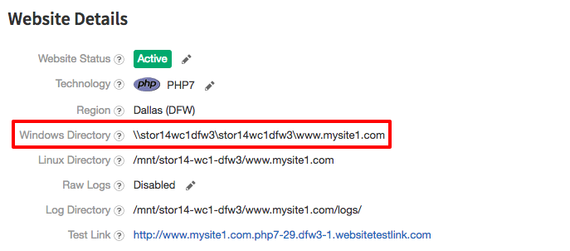
- In the Website Details section, look for Windows Directory. This is your web root and should look something like this:
stor1wc1dfw3stor1wc1dfw3www.domain.com