Upload Files in Cloud Sites Using the File Manager
Uploading files in your Cloud Sites control panel takes just a few steps using the file manager. This tutorial walks you through the process of uploading files.
Uploading files in your Cloud Sites control panel takes just a few steps using the file manager. If you haven’t logged in yet, see our article Logging Into Cloud Sites File Manager before following the steps below.
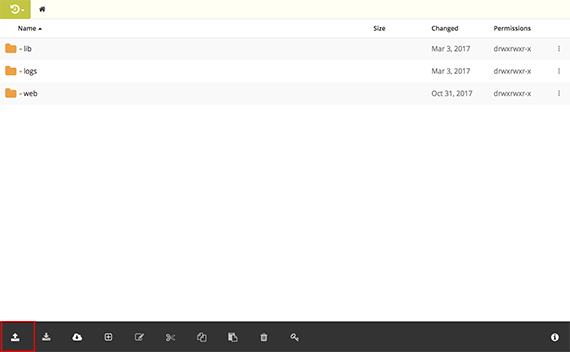
- From the home page of the file manager, click the upload icon from the menu in the footer of the page.

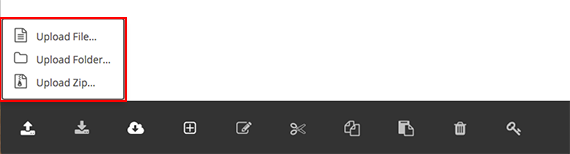
- A pop-up will appear from the upload button in the menu. Select the type of upload you want to perform.

- A window will open with your files, choose the file, and click Open.
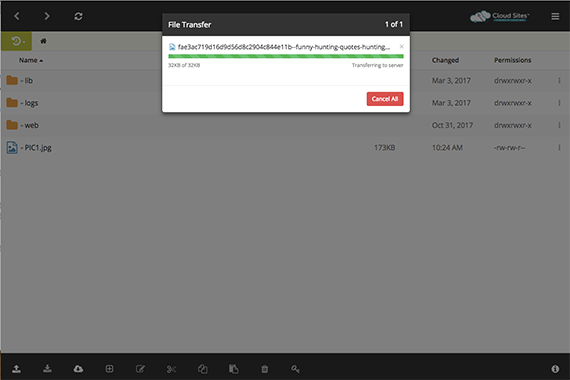
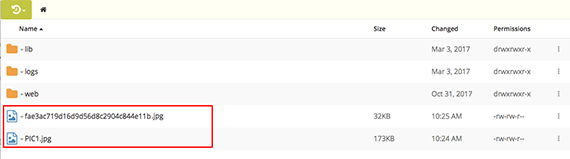
- A file transfer pop-up will appear. Once the upload is complete, you will see your file in the directory.