Cloud Sites Manual Backup with FTP/SFTP
Missing cPanel or SSH access? Learn how to manually back up your Cloud Sites data by finding your FTP credentials and downloading files using an FTP client.
Backing up your site is an important part of site maintenance and helps to ensure that you never lose important data. Most Liquid Web products offer automated backups, but there may be times when you need to take a manual backup to your local workstation. Most often you will do this because you are without cPanel or SSH access. You will need to download an FTP client like Filezilla, WinSCP or SmartFTP. You can use any FTP client you wish, for the purposes of this tutorial, I am using FileZilla.
Cloud Sites Backup
You can now purchase a subscription backup plan for your Cloud Sites control panel. See our article What is Cloud Sites Backup? to get started!
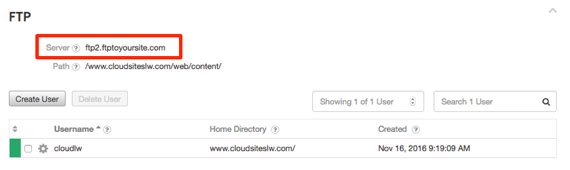
- Your FTP credentials are in your Cloud Sites control panel under the FTP section in your Website Details.

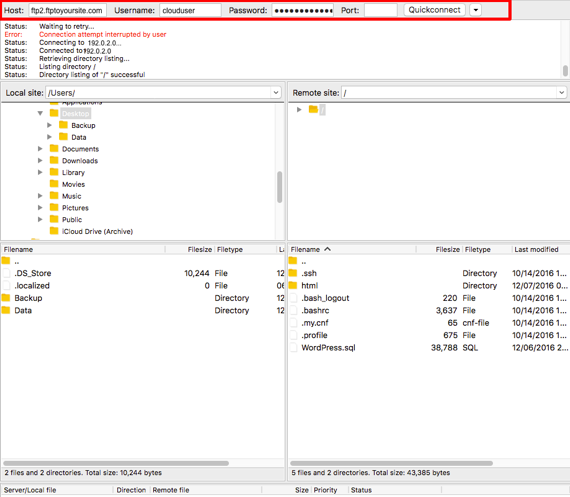
- Log into your FTP client using the Server name, username and password in this section. Click Quickconnect to connect to your website.

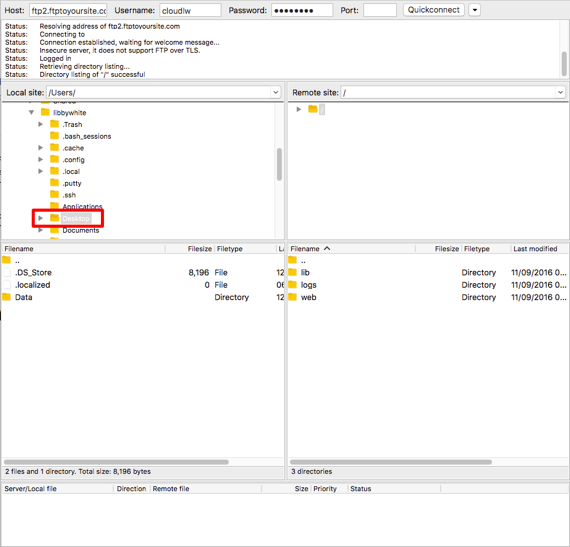
- Once you are connected, click on the location you want to save the backup to. Here we will use the Desktop.

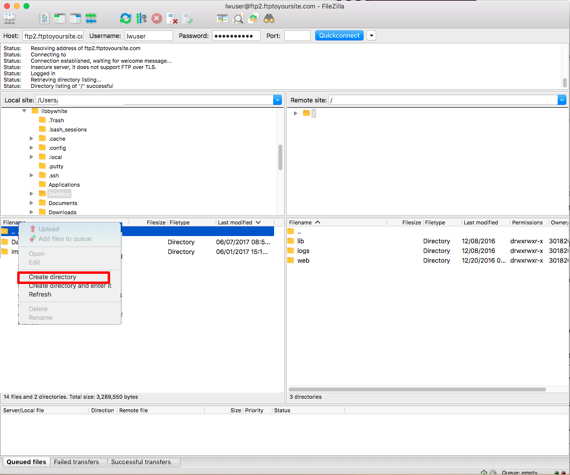
- Right click on the Desktop and choose Create a New Directory.

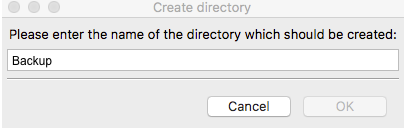
- Enter a name for your new directory. I am using Backup in this tutorial.

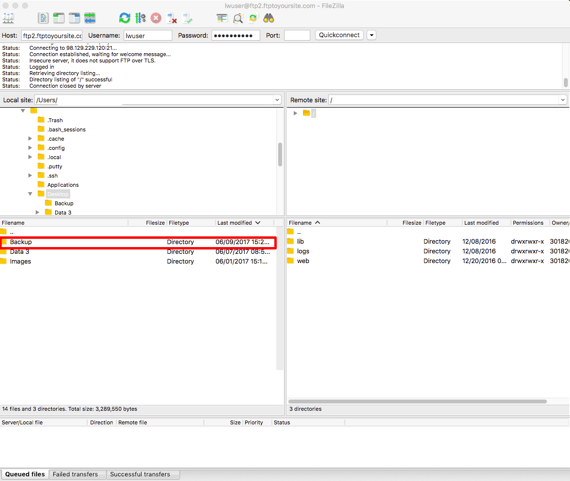
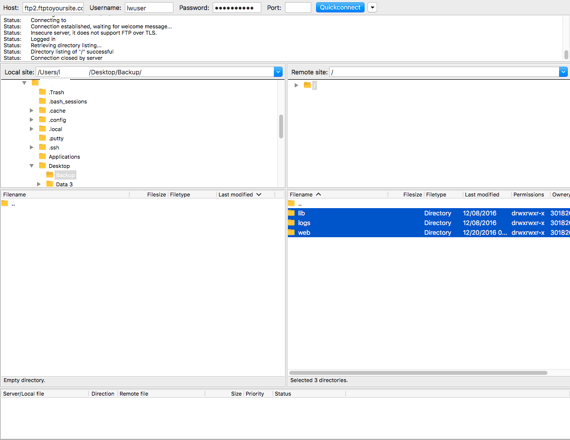
- You will now see your folder named Backup on the left-hand side of the window in your FTP client. Double-click on the file to open it. This will allow your backup to be directed into the correct folder.

- Select the files on the right that you want to backup by either using Control/Command+A or the Command/Control key and selecting the files with your mouse.

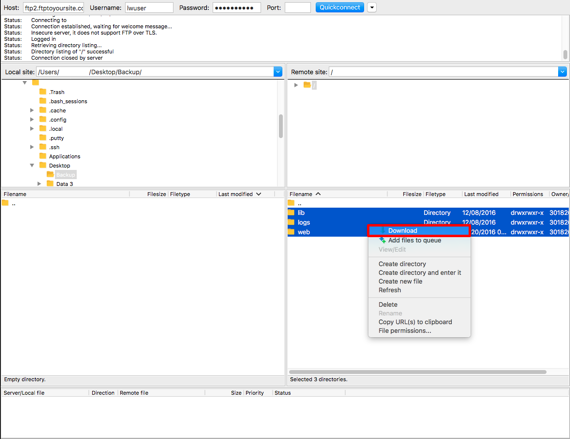
- Right-click over the files and select Download. The files will be downloaded into the directory you selected and serve as your backup.