Restore a Cloud Sites MSSQL Database
Restore your Cloud Sites MSSQL Database from a backup through myLittleAdmin.
Management of your MSSQL Database in Cloud Sites is done through myLittleAdmin. In this tutorial, we will show you how to restore your MSSQL Database from a backup. You can learn more about backups in our article Backing Up Your MSSQL Database in Cloud Sites.
Note: |
| Restoring your database from a backup can take several minutes. Be sure to perform this action during a low traffic time for your site so that you do not interrupt traffic. |
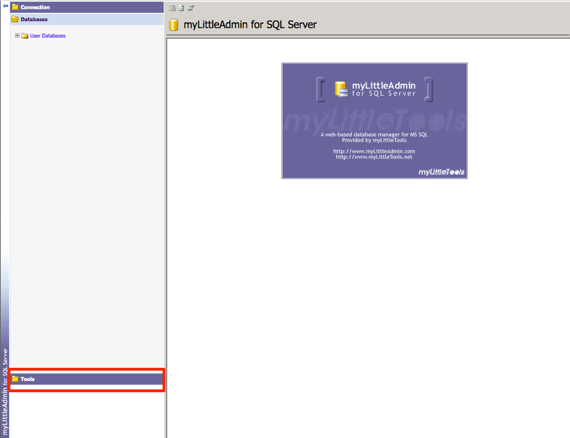
- Once you log into myLittleAdmin, click on the Tools section in the lower left-hand corner of the page.

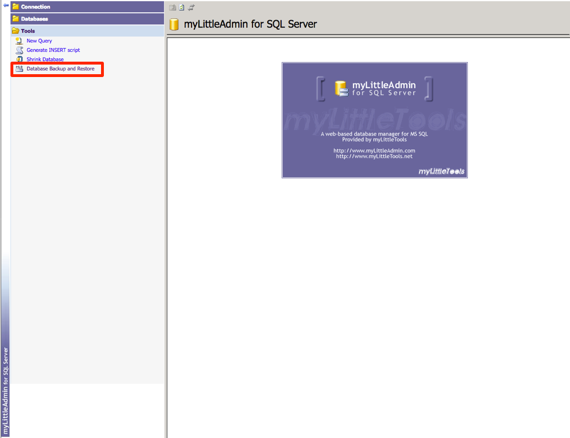
- From the Tools menu, click Database Backup and Restore.
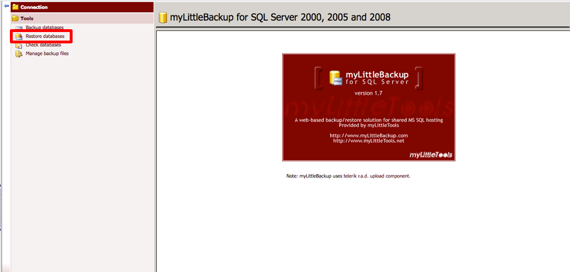
- The myLittleBackup page will open and from here you can select Restore databases.

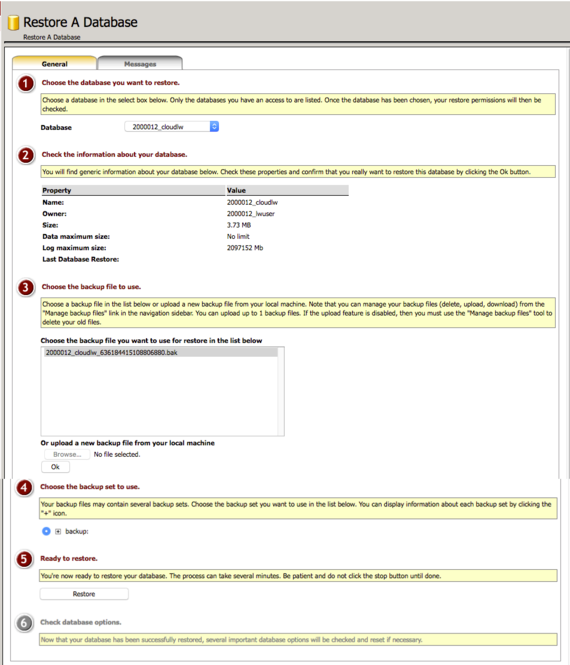
- Follow the steps listed on the Restore A Database page.

- Once you’ve selected all the options for your restoration, click Restore to begin the process.
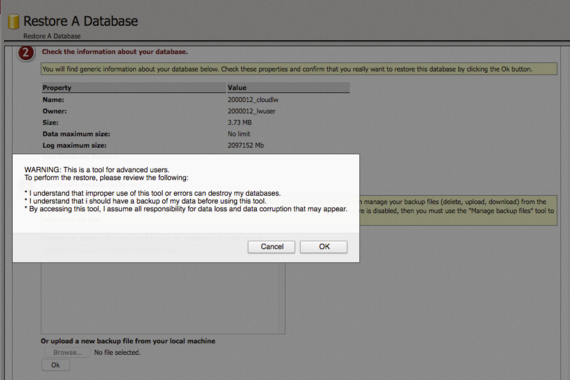
- A pop-up will appear notifying you of the dangers of restoring a database from a backup. If you are sure of making the change, click OK to confirm that you wish to restore your database.
Warning:
Restoring your database from a backup will overwrite the entire contents of your database. Please proceed with caution. 
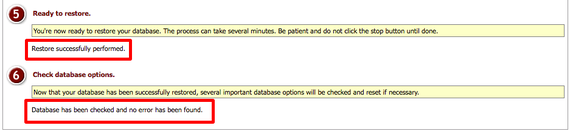
- Once your database is restored, a success message will appear after step 5 in the Restore A Database list. Any errors found with your database will be listed in step 6.