

Backup Your MSSQL Database in Cloud Sites
Regularly backing up your database is crucial for site maintenance on Cloud Sites. To manually backup your MSSQL database, access myLittleAdmin from the Cloud Sites control panel.
Backing up your database is an important part of site maintenance in Cloud Sites. In order to create a manual backup of your MSSQL database from the Cloud Sites control panel, you will need to log into myLittleAdmin.
This tutorial assumes you are already logged into myLittleAdmin. If you need instructions on how to log into your database, see our article Logging into myLittleAdmin from Cloud Sites.
Note: |
| For myLittleBackup to open, please disable pop-up blockers for the myLittleAdmin page. |
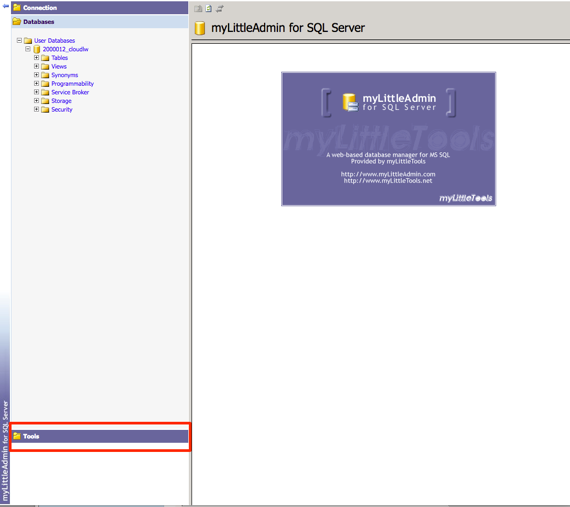
- From the home page of myLittleAdmin, click on the Tools section.

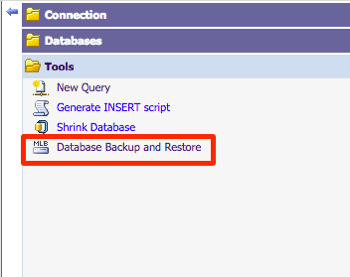
- From the menu, click Database Backup and Restore.

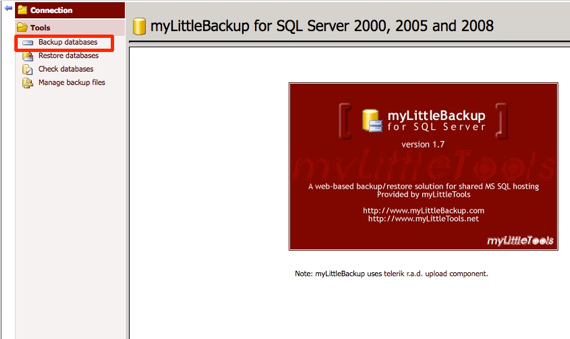
- myLittleBackup will open in a new window.
- Click the link Backup databases.

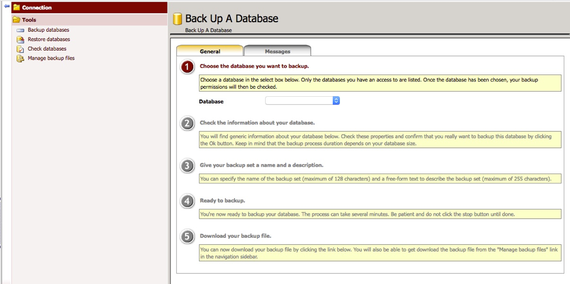
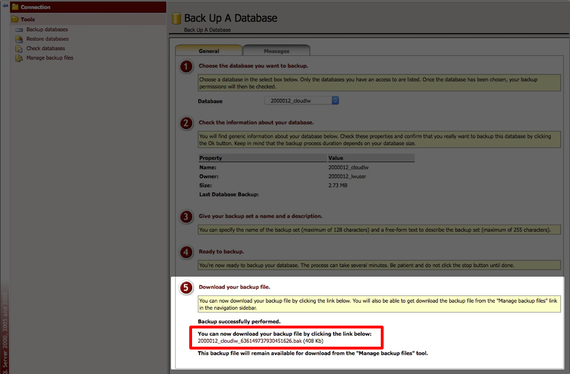
- The Back Up A Database page will open.

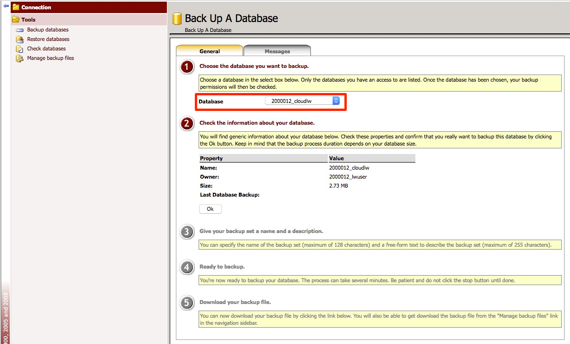
- Choose the database you want to backup using the drop-down menu at the top of the page.

Warning:
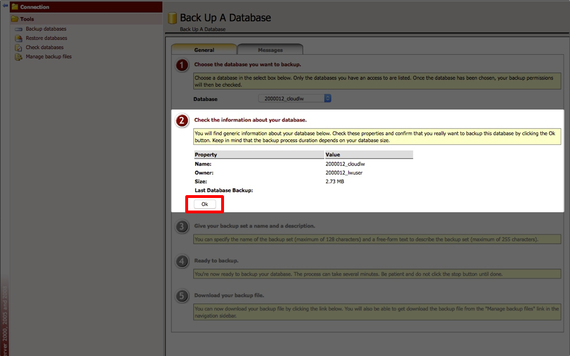
If you see the notification “There are too many backup files in your backup folder”; it means you already have a backup file saved in myLittleBackup. You need to delete that backup before you can create a new one - Click Ok to verify the information for the database.

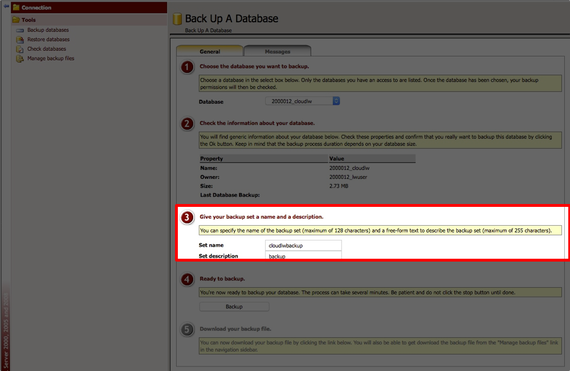
- Give the backup a name and description.

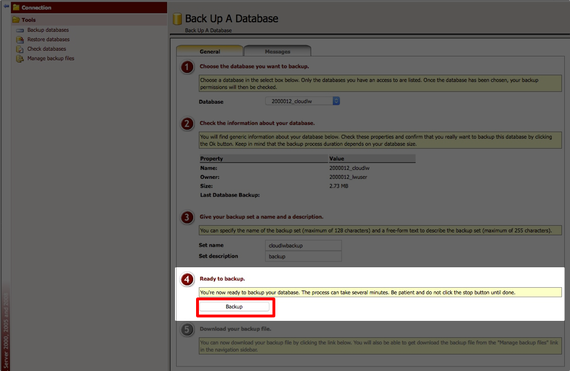
- Click Backup.
Note:
During the backup process, a loading message displays on the screen with the following warning message: You’re now ready to backup your database. The process can take several minutes. Be patient and do not click the stop button until done. - Once the backup is complete, a link will appear for you to download the backup to your local workstation.


You can learn how to restore your database in our article Restoring Your MSSQL Database in Cloud Sites.