

Cloud Sites Control Panel Overview
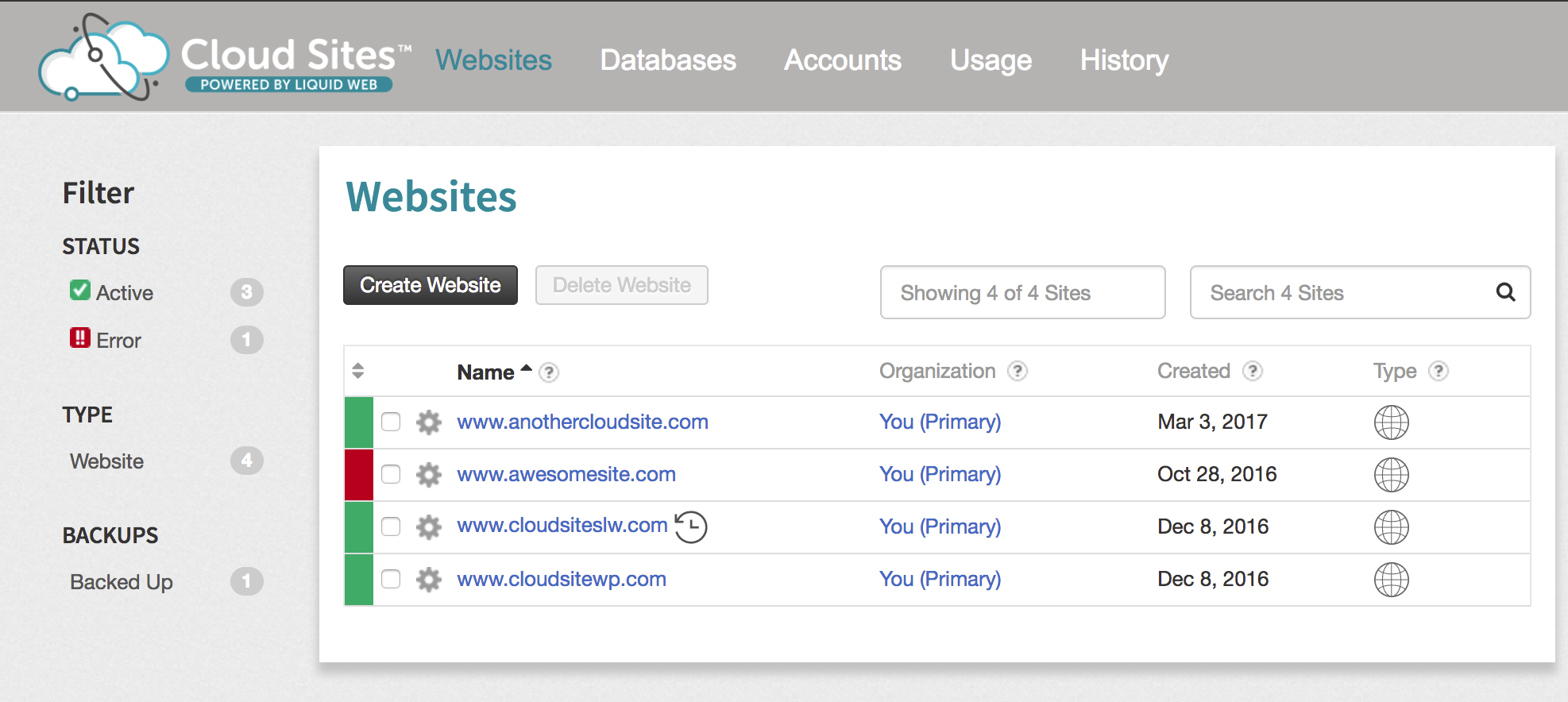
When you first log into your Liquid Web Cloud Sites control panel, you will see a list of the websites created and being managed through the interface. If you have not created a website on Cloud Sites yet, this section will be blank. Click on an individual site to see the site details.
Site Details
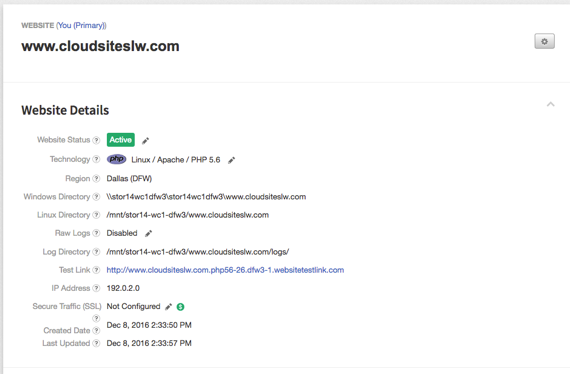
To view each website’s details, click on the website to open the management controls. Here you will see details for your:
- Website – To see how to create a website on Cloud Sites, see our article Adding a Website to Cloud Sites.

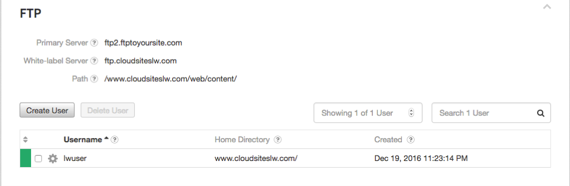
- FTP – To see how to use FTP, see our article Uploading Files Using FTP in Cloud Sites.

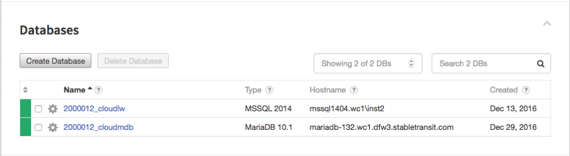
- Databases – See our article Creating a Database in Cloud Sites to see how to create a database.

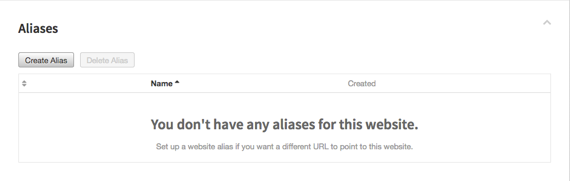
- Aliases – See how aliases work in our article Adding a Domain Alias in Cloud Sites.

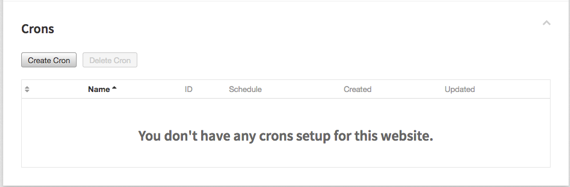
- Crons – Learn how to create a cron in our article Creating Cron Jobs in Cloud Sites.

Databases
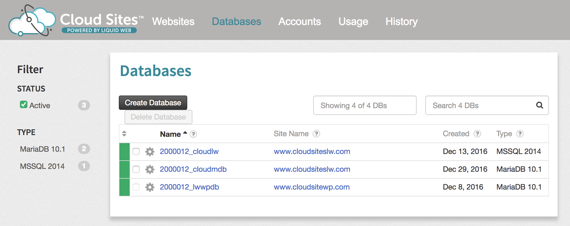
The next menu item on the Control Panel is the Databases link. Here you will find a listing of all the databases you’ve created for all of your sites as well as create users for the databases. To learn how to create a database in Cloud Sites, see our article Creating a Database in Cloud Sites.
Accounts
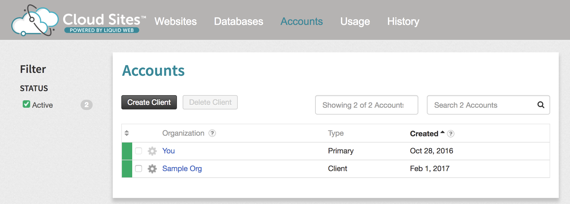
The Accounts section allows you to create client accounts and manage them. This allows you to group clients’ sites together and quickly see which websites belong to which clients. Learn how to manage your client accounts in our article Creating Client Accounts in Cloud Sites.
Usage
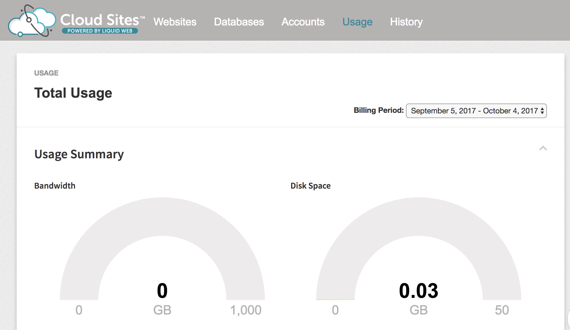
The Usage link shows an overview of the bandwidth, compute cycles, and disk space your sites are using. The view is by billing period (one month). Find out what usage data you can review in our article Checking Bandwidth and Memory Usage in Cloud Sites. To set up usage notifications, see Enabling Usage Notifications in Cloud Sites.
History
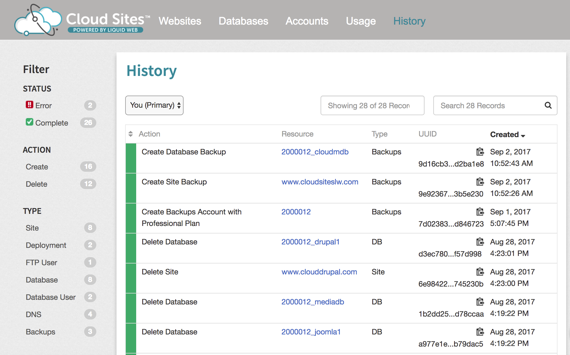
The History section shows all actions taken in your Cloud Sites account. It also shows the status, action made, and the type of action deployed.
Related Articles
To see information on how to manage your account profile, DNS, and billing see our article Managing Your Account in Cloud Sites.