Enable Cloud Sites Backups
After you activate Cloud Sites backups on your account, follow this tutorial to create regular backups of your sites and databases for peace of mind.
Backup a Website
Every site you backup will count toward the total sites available in your plan. The initial backup of your site will be started shortly after being enabled, and will become the first backup checkpoint. You will receive an email notification when the initial backup is complete.
Backups are incremental. The only time a complete backup is taken is when the site is first enabled for backup. Each successful incremental backup will result in a restore point. If your website uses a database, it’s important that it is also enabled for backup.
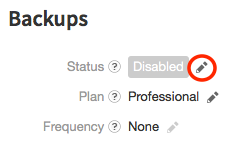
- To enable backups for a site, click on the pencil next to Status:

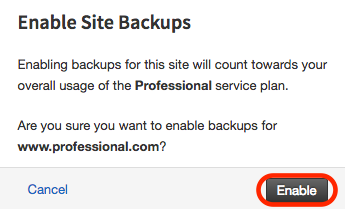
- Click Enable on the pop-up to confirm the creation of your site backup.

Backup a Database
Database backups are also available in the Backup Detail panel. To back up a database, its corresponding site must first have backups enabled. Once site backups are active, you can then add the database to the backup schedule.
At this time MSSQL databases are not supported to backup. If you need to backup your MSSQL database, please see our article Backing Up Your MSSQL Database in Cloud Sites.
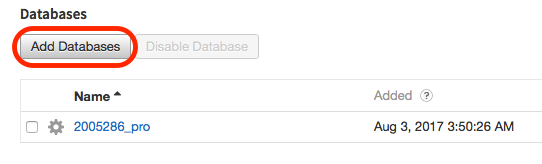
- Click on the “Add Database” button to add a database to the backup.

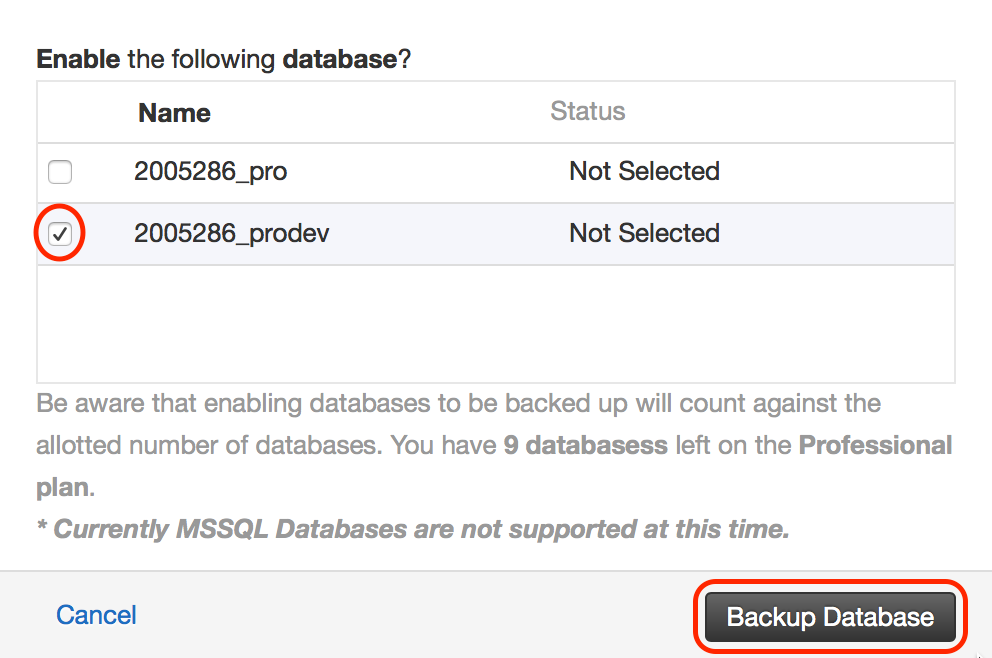
- A pop-up will appear, listing the databases that are available for the site. Click on the checkbox next to the databases you wish to backup, and then press Backup Database to save your selections:

Monitor Backup Usage
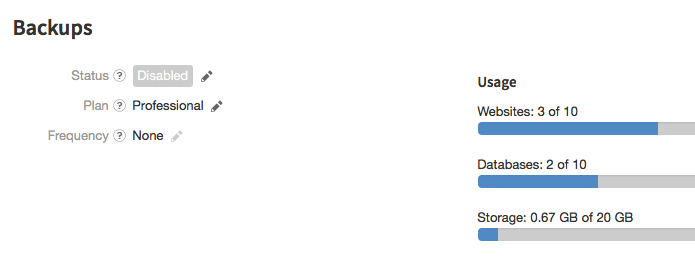
Your current backup usage is tracked in the Cloud Sites control panel. More information found here: Check Backup Usage in Cloud Sites.