Disable or Pause Cloud Sites Backups
Over time, you may need to disable or delete backups to save space, move the backup to a different site, or perhaps you are no longer using the site and do not need backups. Regardless of the reasons, disabling and deleting backups from your sites and databases takes just a few steps.
Disable Site Backups
When backups are disabled, all restore points are deleted. This means any past backups you’ve taken will no longer be available. If you need these backups, we recommend you download them to your local computer before disabling backups by taking a Manual Backup with FTP/SFTP.
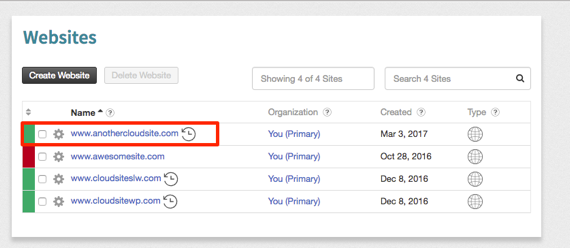
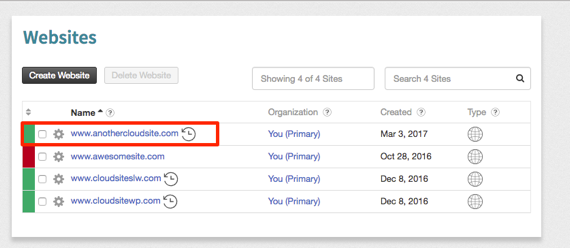
- From the home page of your Cloud Sites control panel, select the site you want to delete backups from.

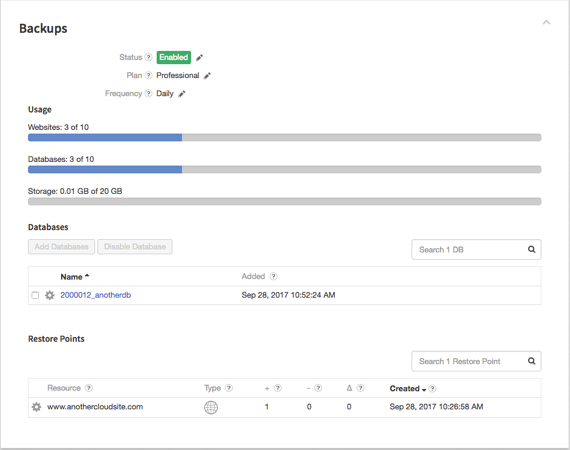
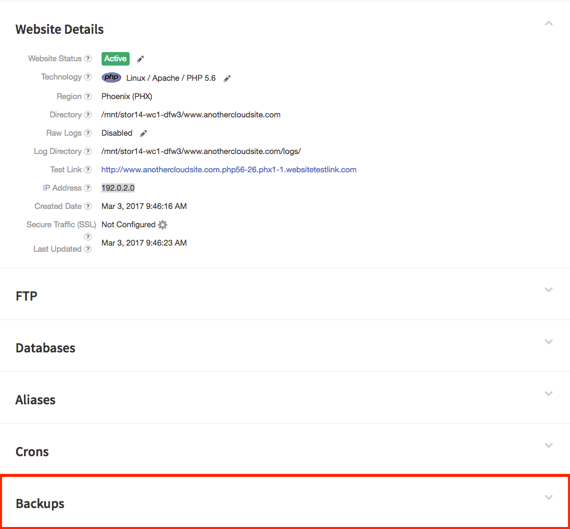
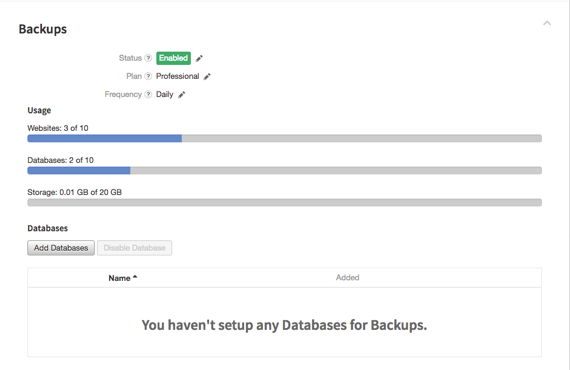
- Scroll down to the Backups section of the website details and click on it to open.

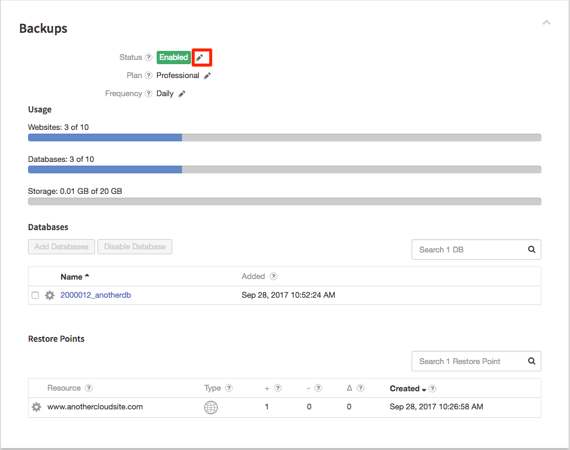
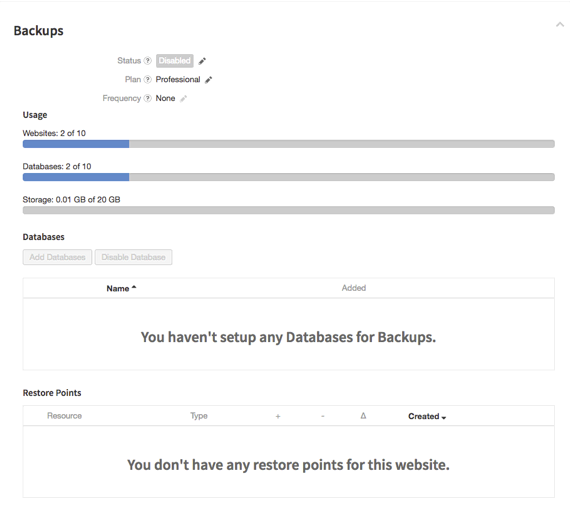
- Once the section opens, click the pencil icon next to the Status section.

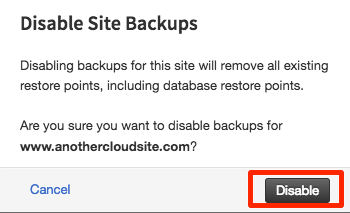
- A pop-up will open, click Disable to stop all backups on the site.

- Once you confirm that you wish to disable the backups, they will remain disabled until you enable them again.

Disable Database Backups
Disabling backups for a database will not disable the backups for your site. You must do that under the Status section in your Backups for that site.
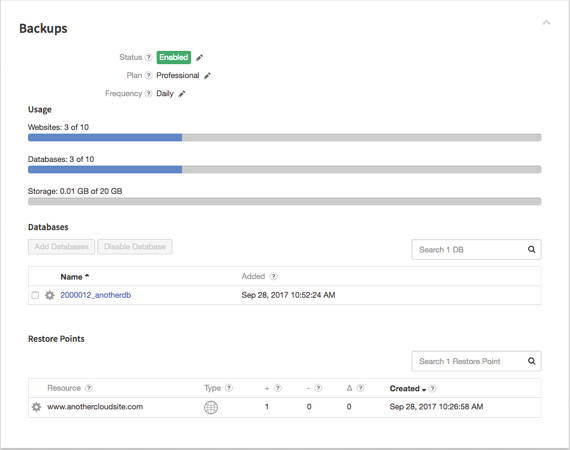
- Open the Backups section of the site you wish to disable database backups for.
- Click the box to select the database.

- Click the Disable Database button in the Databases section.
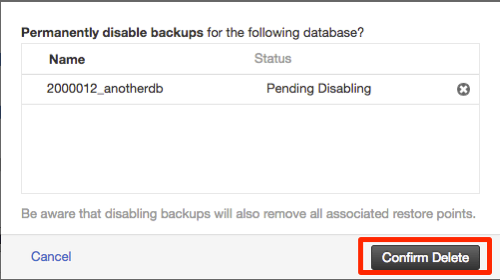
- Confirm in the pop-up that appears.
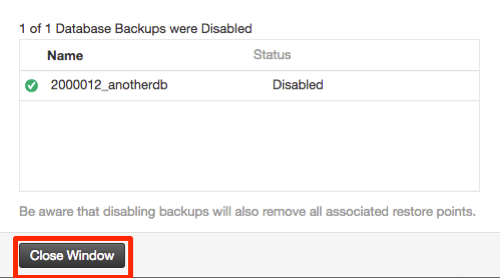
- Close the window by clicking the Close Window button in the pop up.
- Once confirmed, all backups for that database will be disabled and any restore points will disappear.



Pause Site Backups
You can pause backups on any site you choose. This will keep all restore points for the site, but no additional backups will be taken until you reset the frequency.
Database backup frequency cannot be adjusted separately from the site backups. Whatever frequency chosen for the site will also be set for your database.
- Log into your Cloud Sites control panel.
- Select the site you want to pause backups for by clicking the name in the websites list.
- In the site detail home page, scroll to the Backups section at the bottom of the page. Click on it to open the section.
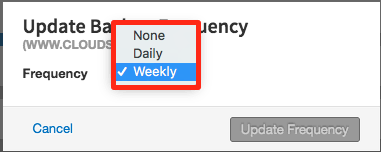
- Click the pencil icon in the Frequency section, a pop up will appear.
- Select None from the drop down in the pop up.
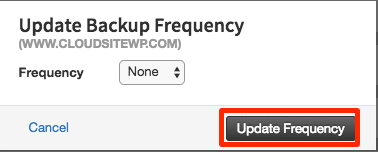
- Click Update Frequency to save your changes.
- Your backups are now paused and will not perform another backup on your site or database until you change the frequency back to daily or weekly.