

Configuring Cloud VPN on MacOS
Using a VPN to connect to your server? Liquid Web offers a cloud vpn solution for connecting to your server securely. Get directions for installing and configuring the VPN client on a MacOS desktop.
Once you create your Cloud VPN, the next step is to configure it so that you can connect securely from anywhere. This tutorial will walk you through configuring your VPN on your MacOS. We recommend using the Cisco AnyConnect Client. The setup is simple and reliable. If for some reason you have trouble using the Cisco Client, you can also try the Native MacOS client shown later in the article. Only one client is required for your VPN connection.
Using Cisco AnyConnect Client
- Open https://vpn.liquidweb.services on any browser on your workstation. Enter the credentials you created for your VPN user. If you need to create a VPN user, see Setting Up Your Cloud VPN.
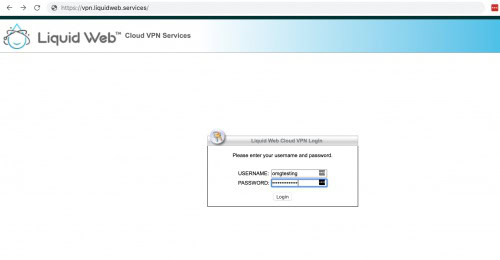
- Click the Download button to download the client on your workstation (the installer will detect which version of the software you need). Run the installer.
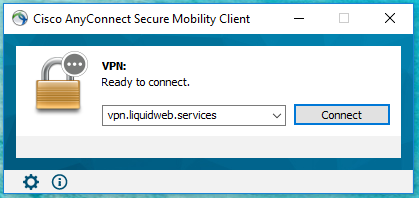
- Open the AnyConnect client. Enter vpn.liquidweb.services into the AnyConnect client.
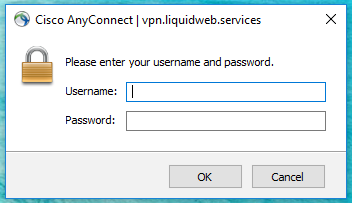
- Enter the username/password you created for the VPN user. Then click OK.
That’s it! You’re now connected to your Liquid Web Cloud VPN and can securely access your server.
Using the Native MacOS VPN Client
- Click on the Menu icon in the upper right-hand section of your screen, select System Preferences from the drop-down.

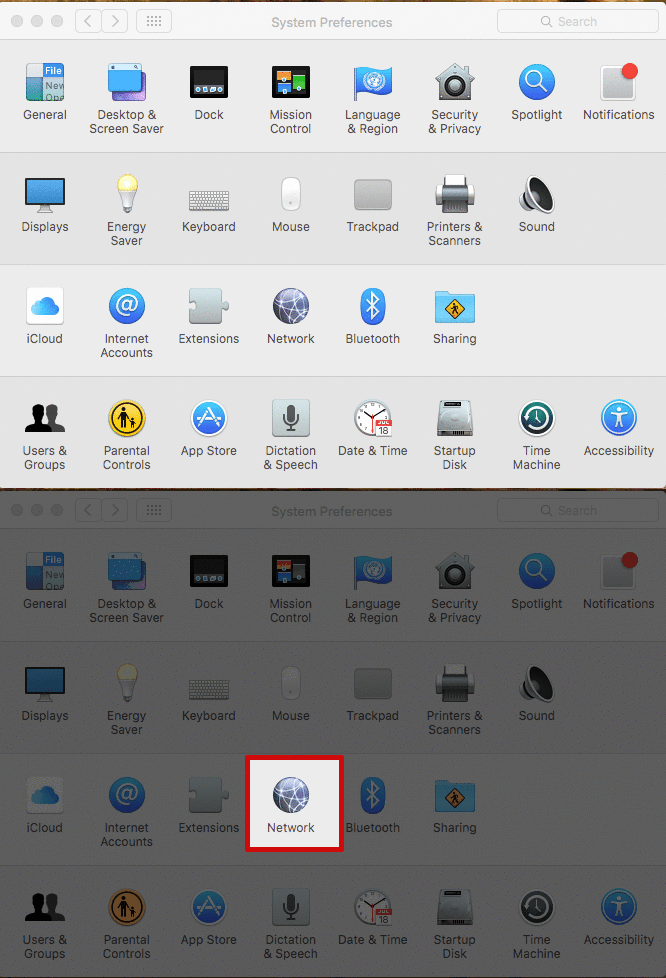
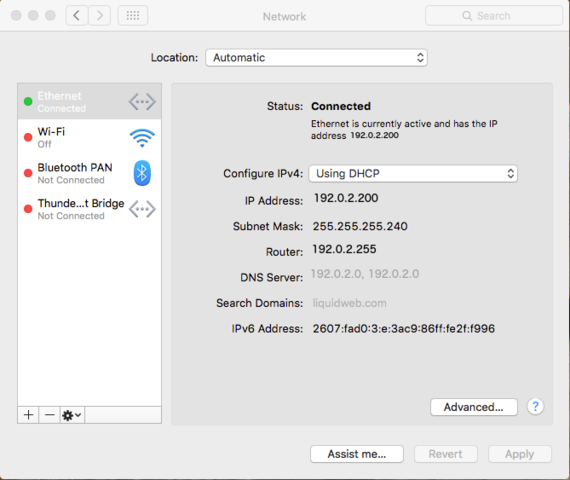
- When the System Preferences open, select Network.
- The Network options will open for you to begin the process of configuring the VPN.

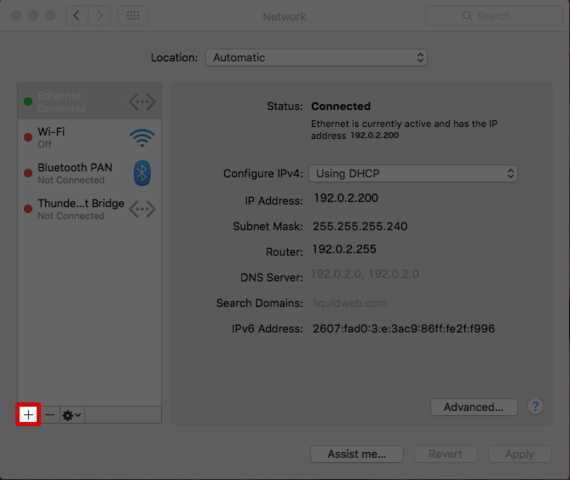
- To create a VPN account, click the [+] Plus Sign at the lower left-hand corner of the connections list.
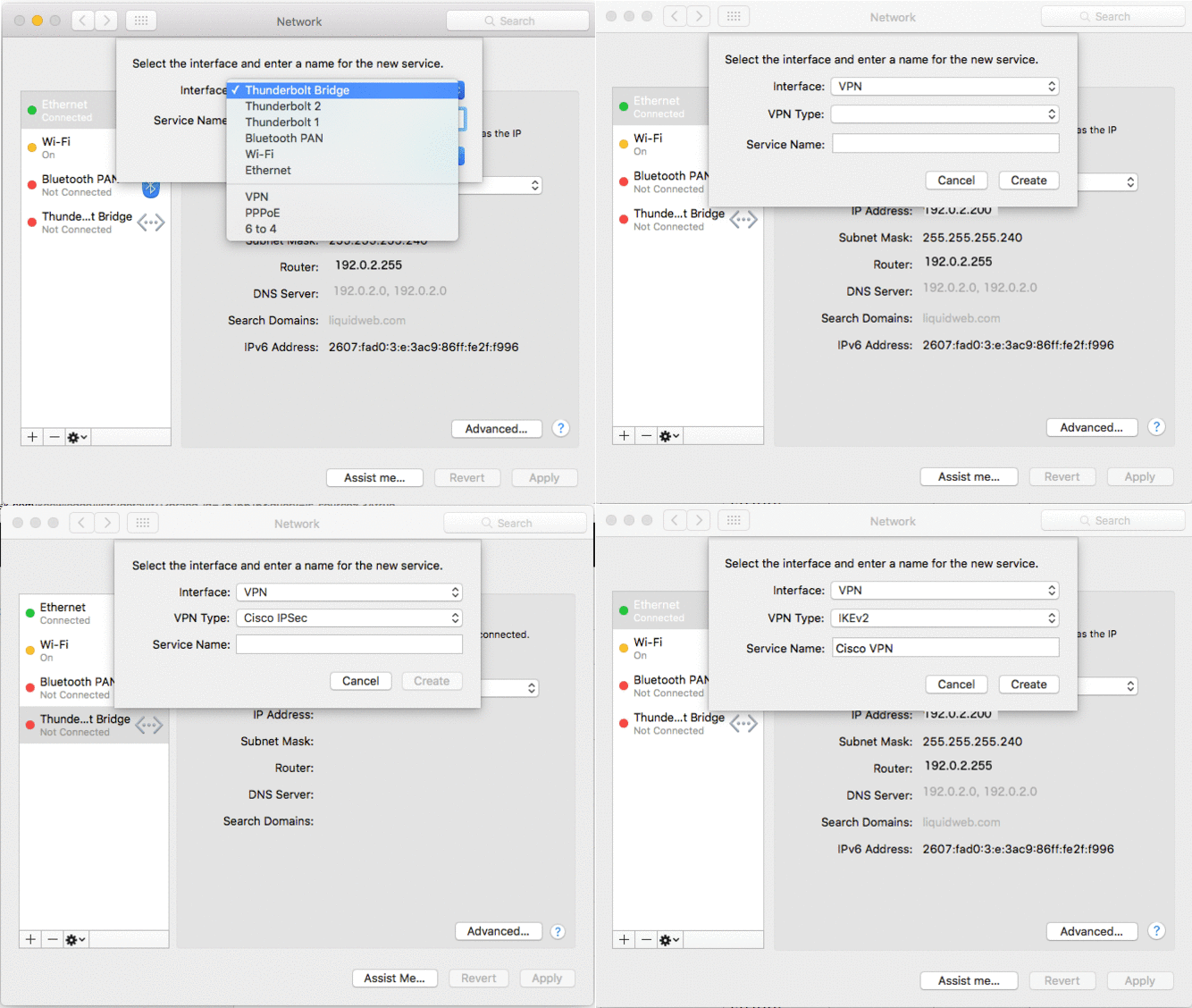
- A pop-up will appear to configure the Interface Options. For the Interface, select VPN, the VPN Type is Cisco IPSec and choose a Service Name like Cisco VPN.

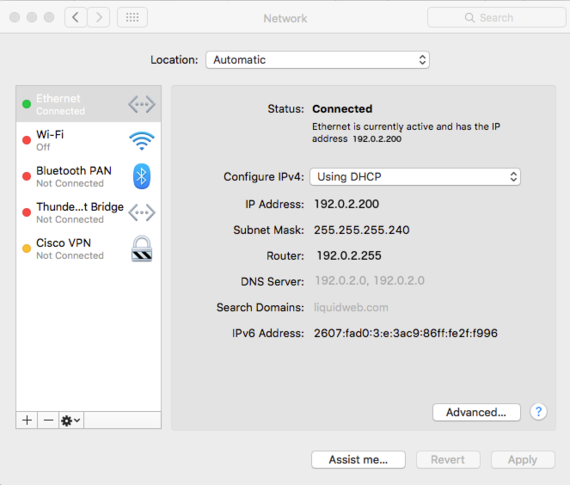
- Click Create and the VPN will appear at the bottom of the connections list.

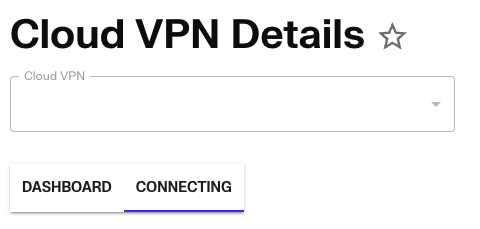
- Enter the Gateway IP: 50.28.17.124, your username and password, then enter the Group name: liquidweb, and the (Group Password) that you can find in your account. The Group Password can be found by clicking on the Cloud VPN under Services, then clicking “Connecting”.


- Click OK to go back to the main VPN settings. To save the VPN to your system click Apply.
- Click Connect to complete the process and connect securely through your Cloud VPN.