Configuring Backups in Interworx Web Panel
Regular backups are vital for disaster recovery. Use InterWorx Web Panel to schedule convenient local server backups as part of your backup plan.
Keeping regular backups of your server and user files is an important part of a disaster recovery plan. Liquid Web offers a number of off-server backup plans to help protect your data and your business (for more information, see Best Practices: Developing a BackUp Plan). Keeping local backups on your server can be a convenient part of a good backup plan. Local backups are generally easier to use and are more quickly available than off-server backups. You can schedule regular backups on your InterWorx Web Panel server to help manage this routine task.
- Login to your InterWorx Server using the domain (SiteWorx) user credentials. For help with logging in, see Logging into InterWorx Web Panel).
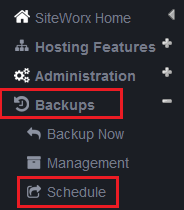
- Click on Backups, then click Schedule in the left navigation panel.
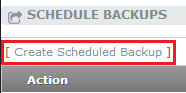
- On the Schedule Backups screen, click the Create Scheduled Backup link. You can only configure one schedule for each type of scheduled backup: daily, weekly, and monthly.
- Select the frequency of the backup (only options that don’t already have an assigned schedule will be available). If a schedule for the frequency already exists, just click the Edit link on the entry to make any needed adjustments.
- Select the type of backup. You can choose from full, partial, or structure only backups. Full backups retain all site data. Partial backups allow you to select only the data you want to retain (website, email, and/or databases). Structure-only backups only save configuration information. No user data is retained.
- Select the location of the backup. The default location is in the /home/$user folder. You can select a different location on the server or remote locations via FTP or sFTP/SCP.
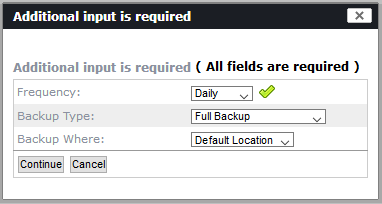
- Click Continue to move to the next set of options.
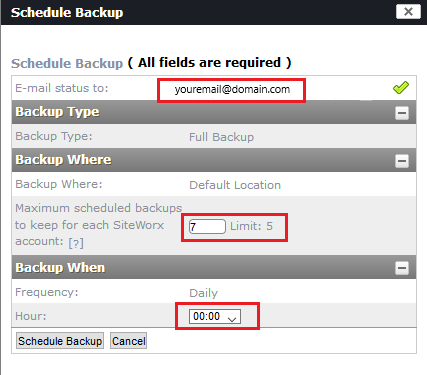
- Enter an email address at which you would like to receive status updates. Select the maximum number of scheduled backups for SiteWorx to retain for the domain. Finally, select the specific time you would like the scheduled backups to run (hour of the day, day of the week, etc.). Click Schedule Backup to save the schedule.