Troubleshooting: Deactivating All Plugins in phpMyAdmin for WordPress
Locked out of WordPress? Learn how to deactivate all plugins via phpMyAdmin. Edit your database directly to regain dashboard access and fix errors.
WordPress Plugins can be really great tools to help you create customization within your site; they can help you change your login url, defend against brute-force attacks, limit login attempts, and so many other awesome things. But what happens if the plugin doesn’t work like it should, and you’re locked out of your site, or worse; it goes down completely? Let’s take a look at how to get into your site when a plugin blocks you from getting in via wp-admin.
Managed WordPress Hosting Users: |
| If you’re using the Managed WordPress hosting, see our article Managing Themes and Plugins with WP-CLI for information on disabling plugins. |
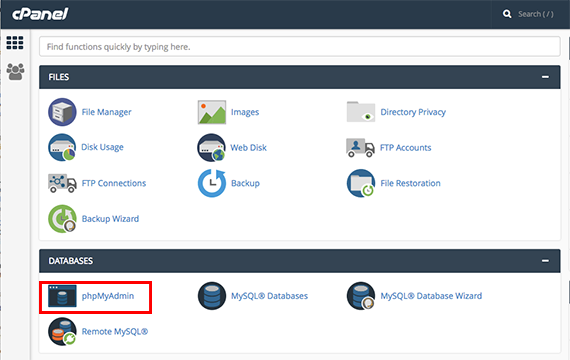
- To disable your plugins from phpMyAdmin, you will log into your cPanel account.
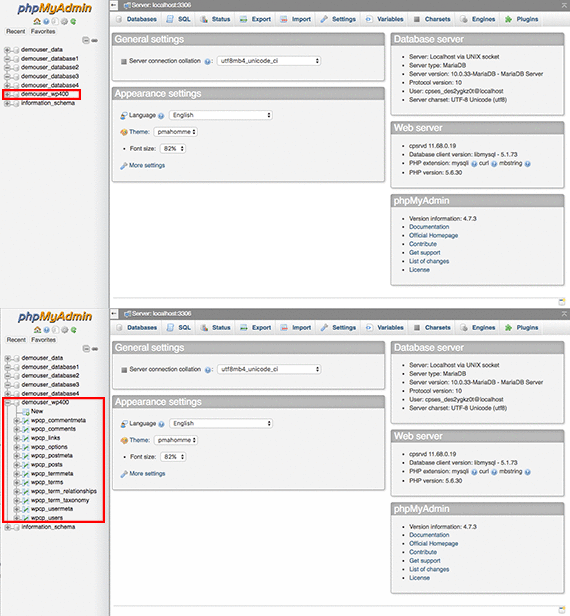
- From the phpMyAdmin home page, locate the database that WordPress is using.
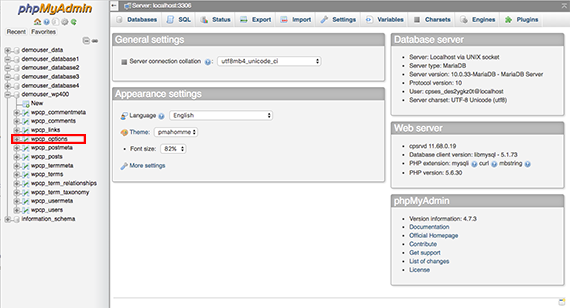
- From the list of tables, select the _options table. This table will have a prefix – most commonly wp, but because they can be changed, it may be something like wpcp, as in the example below.

- Using the Filter Rows search at the top of the page, type in Active Plugins to find the row.
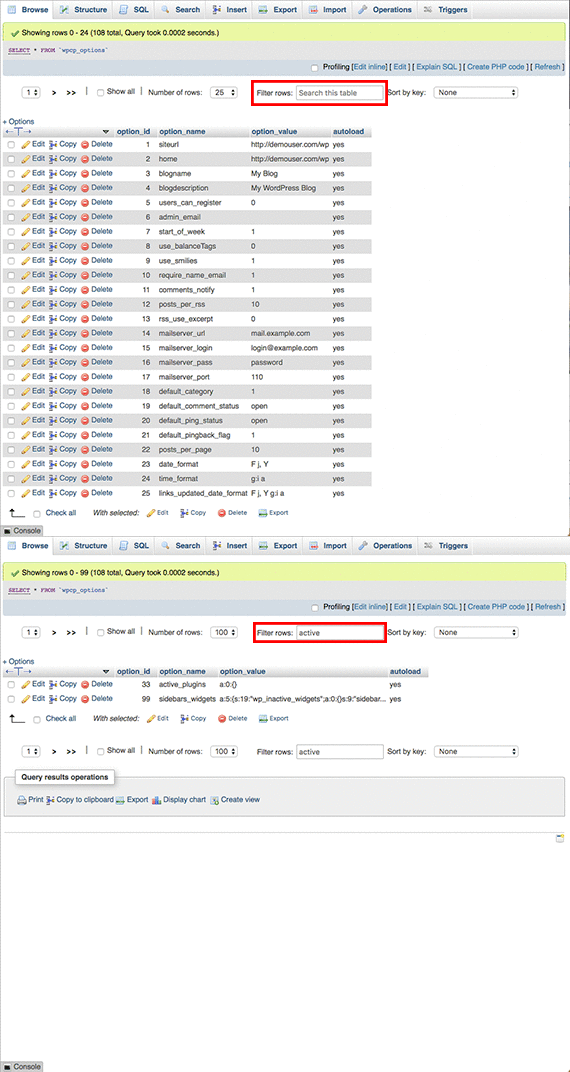
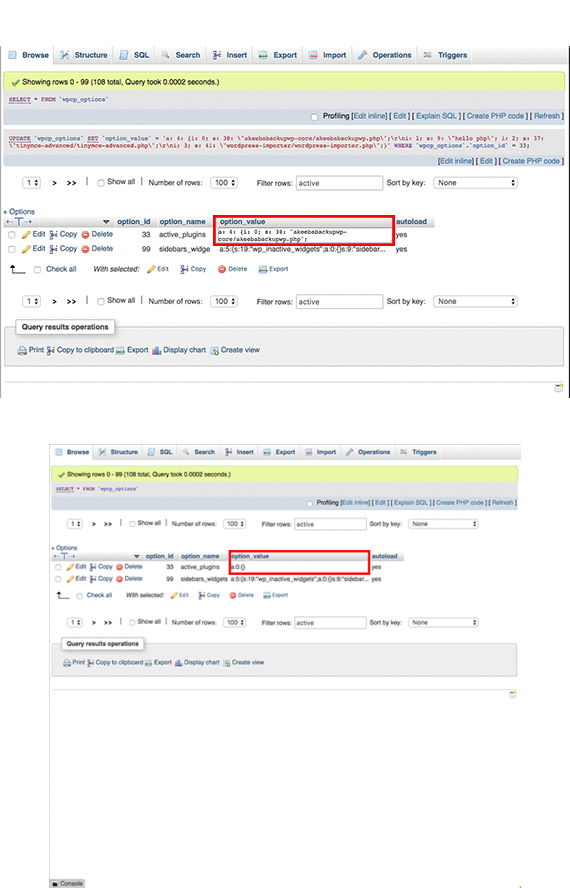
- In the active_plugins row, double-click in the option_value row to edit the plugins and deactivate them. Enter the following to deactivate all plugins:
a:0:{}Tip:
Copy and paste the current information in the option_value row, and save it in a secure place. This will allow you to reset to the plugins being active again after troubleshooting your issue. It should look something like this: a: 4: {i: 0; s: 38: "akeebabackupwp-core/akeebabackupwp.php"; i: l; s: 9: "hello php"; i: 2; s: 37: "tinymce-advanced/tinymce-advanced.php"; i: 3; s: 41: "wordpress-importer/wordpress-importer.php";}
- By entering a:0:{}, you are deactivating all the plugins. Now you should be able to log into WordPress via wp-admin and troubleshoot the plugin causing the issue. When you are finished, you can either copy and paste the saved code from the table back into the option_value section, or reactivate the plugins manually from the WordPress Plugins dashboard.