Backing Up Applications in Softaculous
Note: |
This tutorial walks you through the backup process of a WordPress installation However, depending on database and other application dependencies the backup requirements may differ for other applications. |
Softaculous is software in cPanel that allows web applications to be installed in just a few easy steps. It also provides you with backups for your installed applications. This provides you with the ability to restore your site from a backup with minimal data loss depending on how often you set Softaculous to take backups (see Restoring from a Backup in Softaculous). There are two ways to create backups of your applications:
Warning: |
If you set up automatic backups at installation, make sure you choose the Backup Rotation as the backups will consume space on your account if not deleted on a rotating basis. |
Automated Backups
- Click the edit icon (looks like a pencil) to modify the installation.
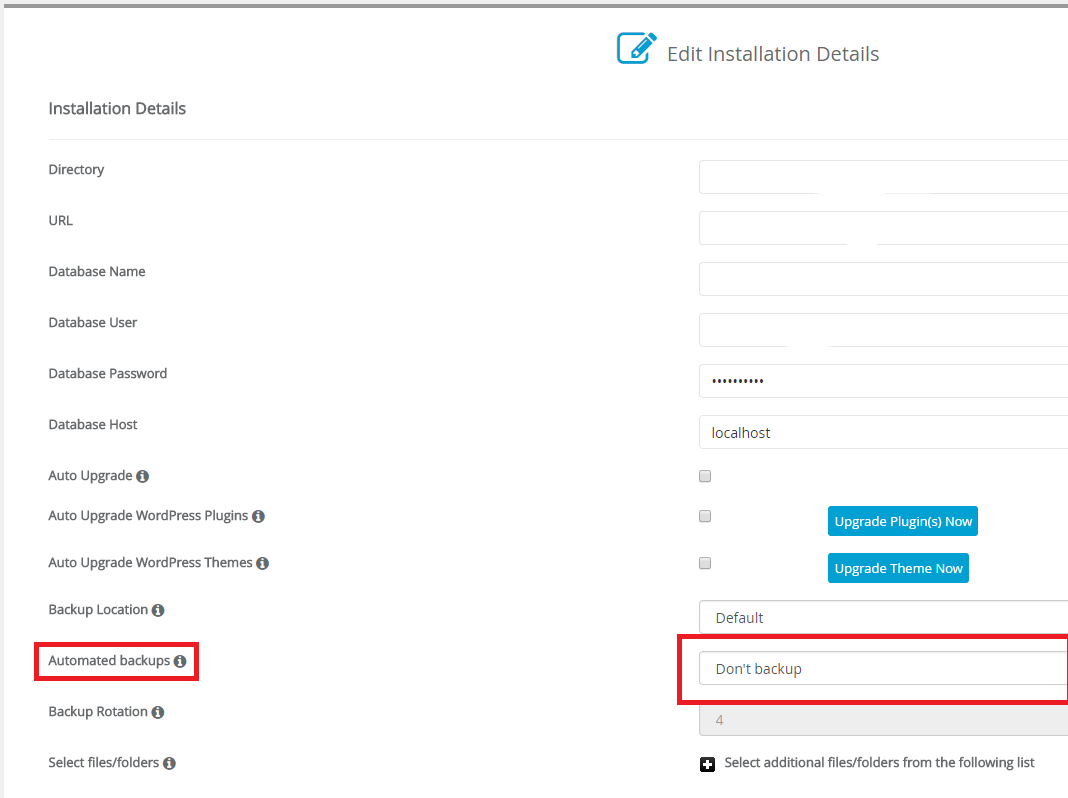
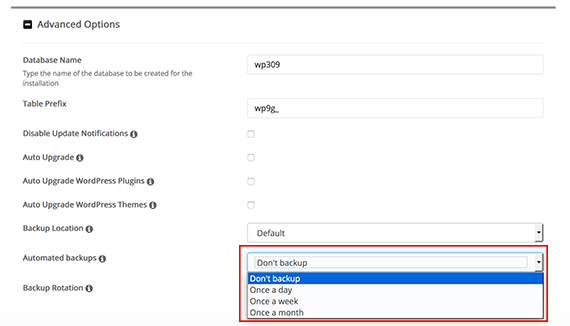
- Once the section opens, you will find the automated backup options at the bottom of the first section.

- Set the Backup Location to default, all backups will be stored in the Backups section of Softaculous.
- You can choose how often to have Automated backups run (daily, weekly or monthly) using the drop down menu.

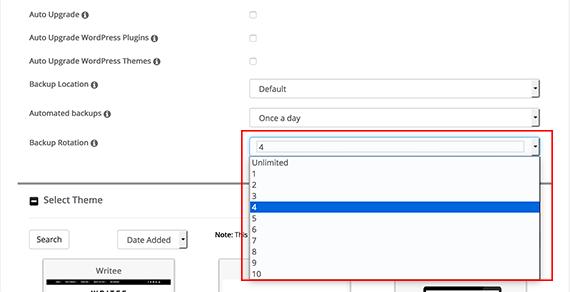
- The Backup Rotation allows you to choose the maximum number of automated backups for this application. If the maximum limit is reached, Softaculous will delete the oldest backup first.
Warning:
Beware of setting this to unlimited as you could use up space necessary on your server for critical operations to keep your site up and running. 
- To finish, click Save Installation Details at the bottom of the page.
Manual Backups
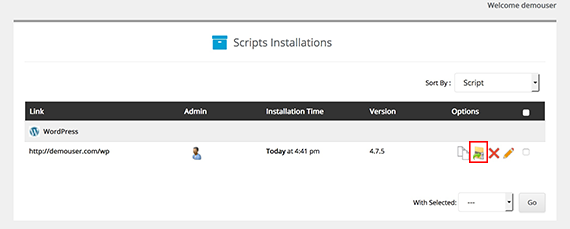
- From the Softaculous home page, click on the Installations link.

- The Scripts Installations page will open. You will see a list of the applications you’ve installed on your server.
- Click on the folder icon to open the backups page.

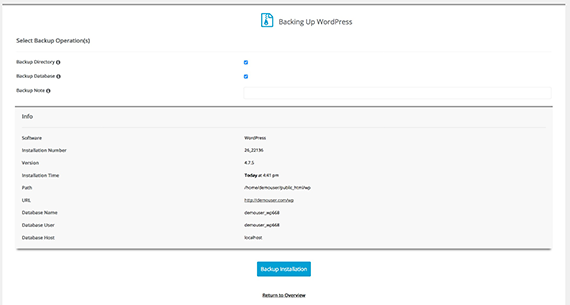
- Here you can choose what you want to back up, create a note, and see the software installation information.

- Click Backup Installation to begin the backup process.
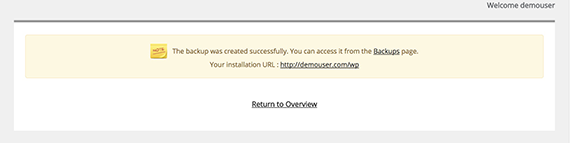
- Once the backup is created, you will receive a success message and a link to access it from the Backups page.