

Change Your RDP Password
Learn to change your RDP administrator password for enhanced security.
Changing your password regularly is a good security practice. This article will show you how to change your Remote Desktop Protocol (RDP) administrator password.
- Log into your Windows server using RDP with the “Administrator” user.
- Press the key combination CTRL + ALT + End. In RDP, this is the equivalent of CTRL + ALT + Delete.
- The End key is usually to the right of the Enter key, often above the arrow keys.
- If you’re using RDP on a Mac, you’ll still use CTRL + ALT + Delete.
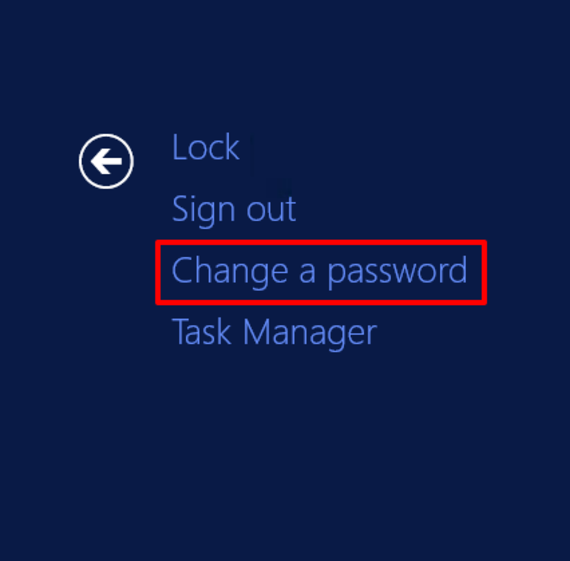
- Click Change a password.

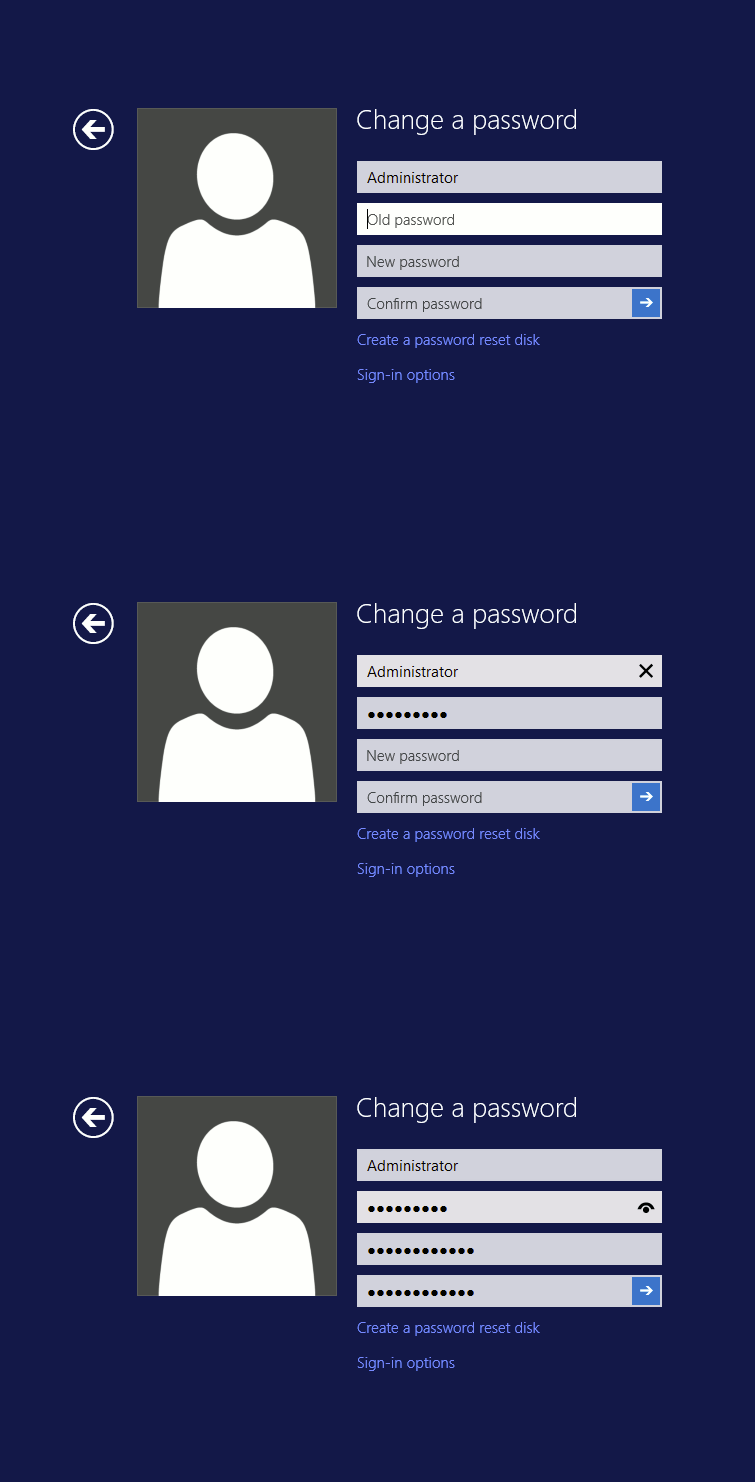
- Enter your Old password. Then enter and confirm a new password.

- Click the arrow to confirm your password change.
- You’ve successfully changed your administrator password! Click OK to exit the password interface.
- Report your new password to ensure Support has access to your server.
Liquid Web takes your security very seriously. We only use your administrator password when you need help and we’ve authenticated your identity, whether you’re hosting an RDP VPS, dedicated server, or cloud solution.