

Change Your Premium Business Email Mailbox Password
Premium Business Email offers quick and easy email password changes. With just a few clicks, update your password. It's recommended to change passwords regularly, at least every 90 days, for enhanced security and to prevent compromise.
Premium Business Email allows you to make email password changes quickly and easily. With just a few clicks, you can update your password. Changing your passwords regularly (every 90 days, minimum) is recommended to keep your email secure and to avoid compromise. To find out more about creating secure passwords, see our article Best Practice: Creating a Secure Password.
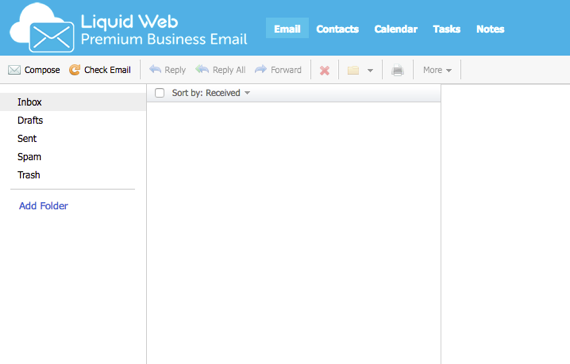
- Log into your Premium Business Email.

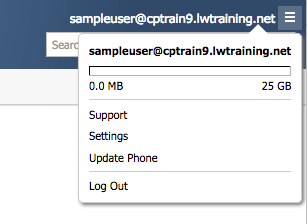
- On the upper right-hand corner of the page, you will see a menu bar next to your email address. Click on the icon to show the drop-down menu.

- Click the Settings link from the menu.
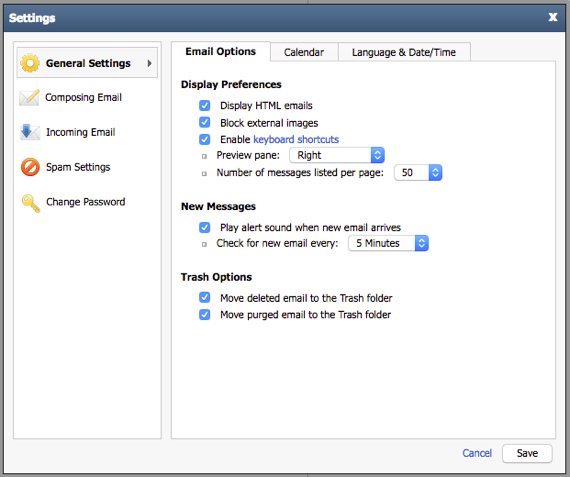
- A pop-up will appear showing you the settings for your email.

- Select Change Password from the menu on the left-hand side.
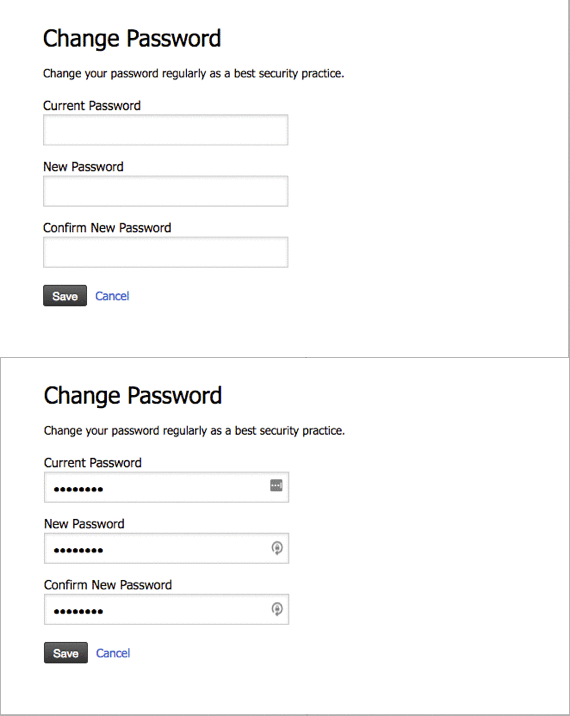
- Enter your current password and then the new password twice.

- Click Save.
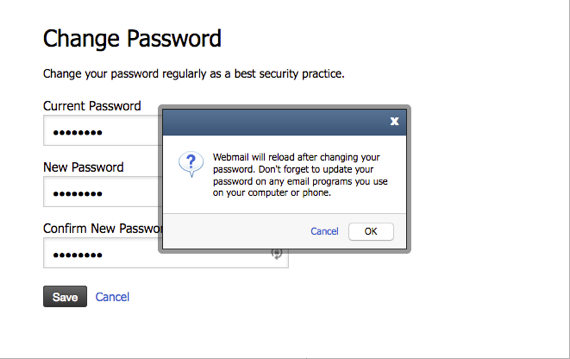
- You will be asked to confirm the password change.
Note About Changing Your Password
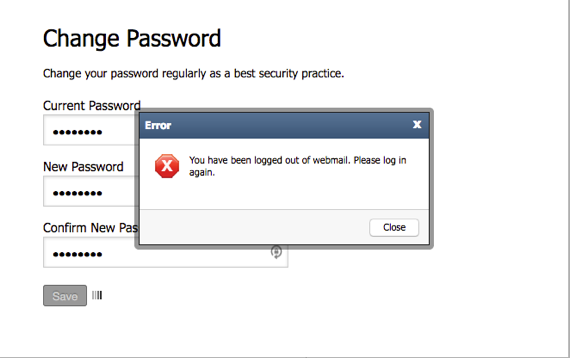
Once you click OK, a notice will appear that you’ve been logged out of webmail. Click Close to be navigated to the login page.
- You will be navigated to the login page for your email. Log in again using your new password.
Now that you’ve learned how to change your email password, take a look at our Best Practices: Protecting Your Website from Compromise for more ways to make your email secure.