

Changing Your Plesk Administrator Password
If you think your Plesk administrator account has been compromised or your security policy requires periodic password changes, you might need to change your account password.
What does it mean to change your Plesk administrator password? This is your main Plesk password and is how you log in if you want to see all the websites on your server. This is not the same password as your “root” server password (on Linux) or your “administrator” password for Remote Desktop Protocol (RDP) on Windows.
Most Plesk administrator accounts use “admin” as the username.
The process for changing your admin password depends on your Plesk Control Panel view.
Power User View
- Log into Plesk. If you haven’t logged into Plesk before, read Getting Started with Plesk.
Note:
You can only change the admin password when you’re logged in as admin. Make sure you’re logged in as admin by clicking on My Profile in the left navigation menu. Confirm your username is admin. - From the My Profile section, click on Plesk Preferences and enter a new password and then confirm your password.

- Finish setting your new password by clicking OK.
- Make sure you report the current password in your Liquid Web account.
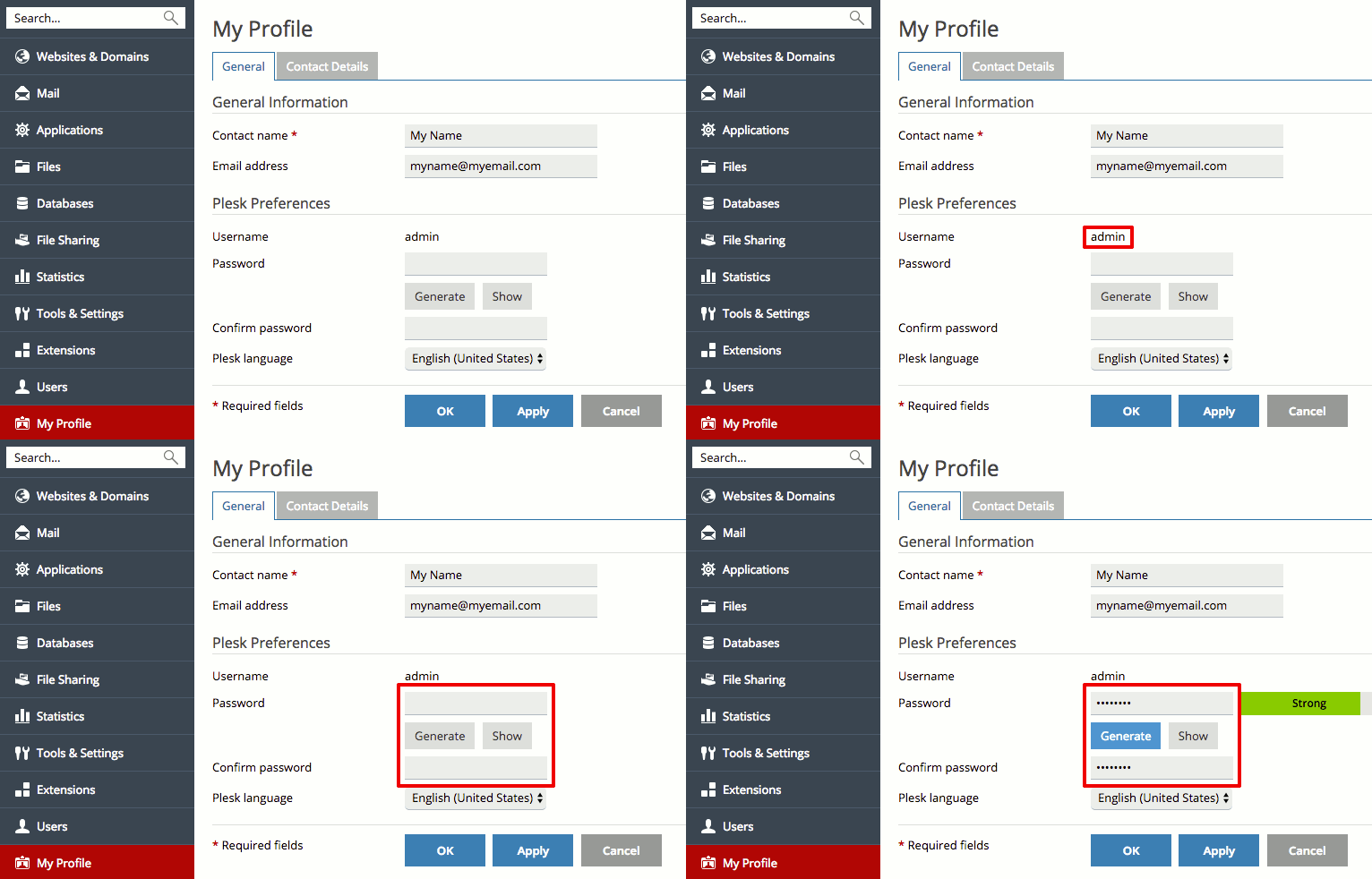
You’ve successfully changed your admin password. You’ll be sent to the login page of Plesk and you can log in using your new password.
Service Provider View
- Log into Plesk. If you haven’t logged into Plesk before, read Getting Started with Plesk.
- In Service Provider view, click Change Password in the left navigation menu under My Profile.
- Enter your current password, then choose and confirm a new password and click OK. Make sure you report the current password in your Liquid Web account.

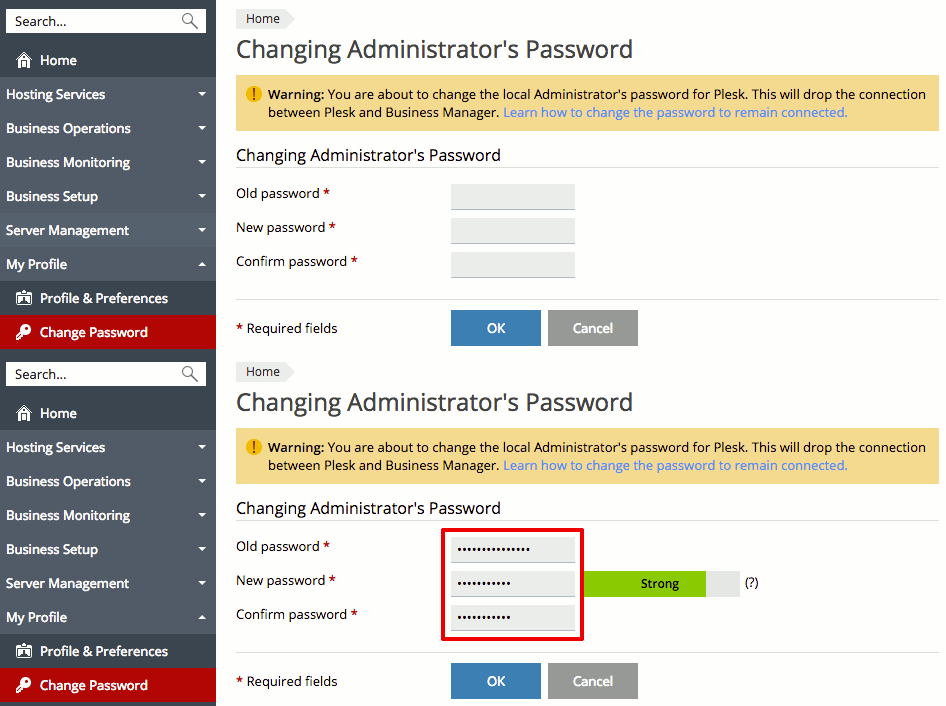
You’ve successfully changed your admin password. You’ll be sent to the login page of Plesk and you can log in using your new password.
Reporting Your Current Password
It’s important to keep your root password secure. Don’t tell people your password or write it down next to your keyboard. If you have any problems with your server, Liquid Web will need your root password to log into your server to help you. Whenever you change your root password, securely tell Liquid Web your new password in your Liquid Web account.
Using my.liquidweb.com
- Log into your Liquid Web account.
- Click on Servers at the top of the screen.

- Click on the name of the server for which you want to update the password.
- Click on Support Access.

- Update the current root (or administrator) password. You can also update an alternative username or send additional information by clicking the drop down arrow.

You can use this process to report your current “root” password. To report changes to your Plesk password, use our secure “One-Time Secret” in your Liquid Web account. See Using One-Time Secret for Password Protection.