Change Your Liquid Web Account Password
Regularly changing account passwords enhances your overall security. Unauthorized access to your Liquid Web account can compromise servers and websites.
It’s a good idea to reset or update your account passwords regularly to keep your server(s) and data secure. If an unauthorized person gains access to your Liquid Web account, they could immediately take control of all your servers and websites—putting your data, operations, and customer trust at serious risk. Changing your password is a straightforward process that takes just a few minutes. If you are the account owner, you’ll also be able to reset passwords for any other user on your account, as well.
Change your user password
- Log into you Liquid Web account.
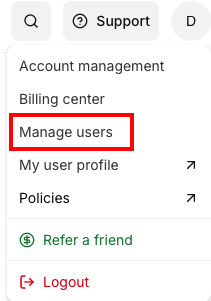
- At the top of the screen, click on the Account Icon, then click Manage Users.
- In the list of users, click on the username for which you want to change the password.
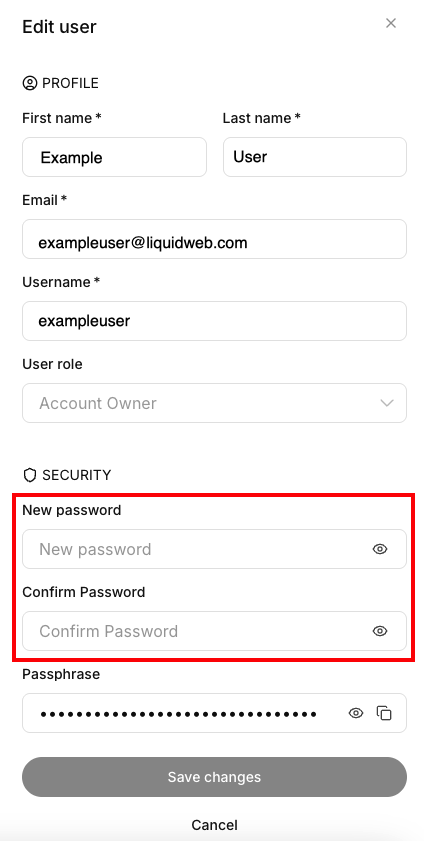
- In the User modal that slides out from the right side of the screen, enter and confirm the new password. Click Save Changes to save the new password.