Change Your Domain Name Contact (WHOIS) Information
Anyone can see information about your domain name by using the whois command in a terminal or an online WHOIS look up tool. This is information you entered when you registered your domain name, and can include your name, address (or business address), and phone number. Here is what a sample record may look like:
Domain Name: LIQUIDWEB.COM
Registry Domain ID: 0000000000_DOMAIN_COM-VRSN
Registrar WHOIS Server: whois.enom.com
Registrar URL: www.enom.com
Updated Date: 2016-06-09T09:12:13.00Z
Creation Date: 2016-05-05T16:50:00.00Z
Registrar Registration Expiration Date: 2017-05-05T16:50:00.00Z
Registrar: ENOM, INC.
Registrar IANA ID: 48
Domain Status: clientTransferProhibited https://www.icann.org/epp#clientTransferProhibited
Registry Registrant ID:
Registrant Name: LIQUID WEB HERO
Registrant Organization:
Registrant Street: 2703 ENA DR
Registrant City: LANSING
Registrant State/Province: MI
Registrant Postal Code: 48917
Registrant Country: US
Registrant Email: SUPPORT@LIQUIDWEB.COM
Name Server: NS.LIQUIDWEB.COM
Name Server: NS1.LIQUIDWEB.COM
DNSSEC: unSigned
Registrar Abuse Contact Email: abuse@enom.com
Registrar Abuse Contact Phone: +1.4252982646
Some records may have even more information, depending on how many details you entered when you registered your domain. Your WHOIS contact information at Liquid Web contains three different contact types: Registrant, Admin, and Tech. These three contacts can use the same information, or you can specify different details for each one. The Registrant contact will receive all communication related to domain ownership (including renewals, transfers, and cancellations). This is the primary contact for the domain and must approve/confirm most changes to WHOIS information. The Admin contact will receive communication related to transferring domains between registrars. The Tech contact will receive communication related to domain changes but is not commonly used for handling domain related changes.
Edit Your WHOIS Information
Sometimes, you may need to change the contact information for your domain. This could be because an email address changed, because your business moved, or for many other reasons. If you registered your domain name with Liquid Web, simply login to your Liquid Web account to change your contact information.
Use portal.liquidweb.com
- Login to your Liquid Web account. For more information on accessing your Liquid Web account, see Exploring Your My Liquid Web Account.
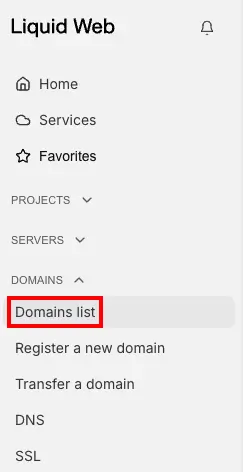
- At the left of the screen, click Domains list.

- Click on the domain for which you want to edit the WHOIS Information.
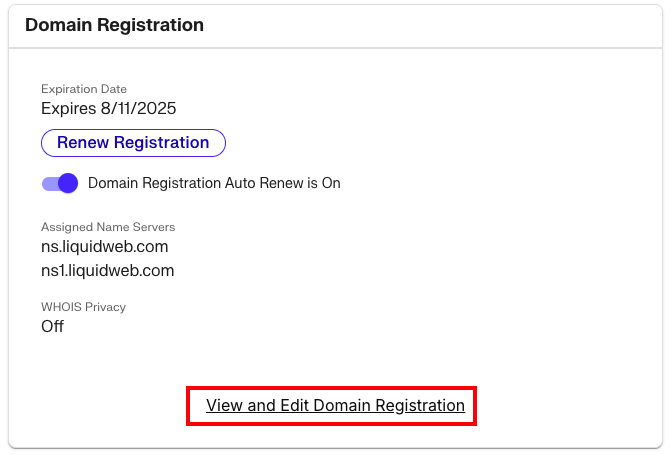
- Under Domain Registration, click View and Edit Domain Registration.

- Scroll down to the WHOIS Info section. Click the gear icon next to the type of contact information you want to edit (Registrant, Admin, or Tech).

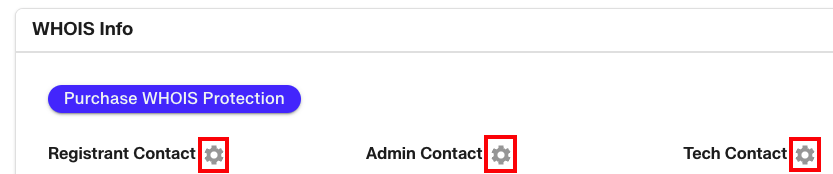
- Edit the information as needed. You can also copy the information to all of the contacts, or sync the data from your main Liquid Web contact. Click Submit to save any changes.
Protect Your WHOIS Information
It is also possible to restrict your WHOIS listing by replacing your information with proxy contact information (essentially making your registration information private, which can reduce unsolicited contacts). Every registrar that offers WHOIS identity protection uses different proxy information.
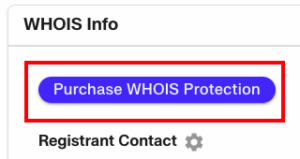
- Login to your Liquid Web account. Click on Domains list, then click on the domain for which you want to add WHOIS Privacy Protection. Under Domain Registration, click View and Edit Domain Registration. Click the Purchase WHOIS Protection button.

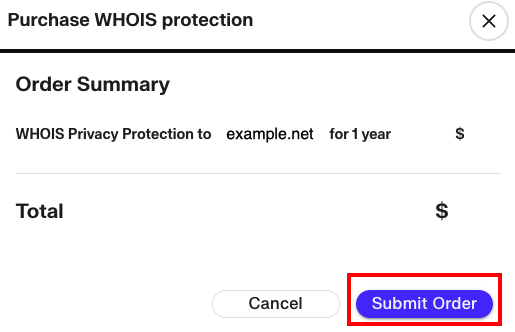
- A pop-up window will ask you to confirm the purchase and approve the fee (prices are removed from the tutorial as they are subject to change). Click Submit Order to complete the process.

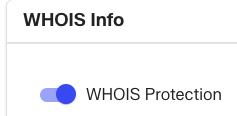
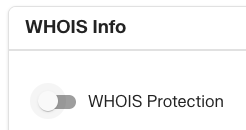
Once you purchase WHOIS Privacy Protection, you can toggle the privacy setting on and off as needed. For instance, if you need to provide access to the information to verify your domain ownership, you may want to disable the protection for a few days, then re-enable it later (Note: Privacy Protection is non-refundable, even if it is disabled). To change the status of your privacy protection, check the toggle button next to WHOIS Protection for the domain you wish to adjust.