Change Your cPanel Password
Changing the password in your cPanel account is a simple process and only takes a few moments. This tutorial covers only the main password, any other users created will still have the same passwords and access.
Changing the password in your cPanel account is a simple process and only takes a few moments. This tutorial covers only the main password, any other users created will still have the same passwords and access.
Note: |
| When changing your main cPanel password, you are also changing the passwords for FTP, MySQL database, and email. |
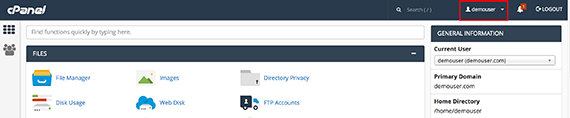
- Once you are logged in to your cPanel account, click on your site name at the upper right-hand corner of the page. If you need help logging into your cPanel account, see our article Logging Into cPanel.

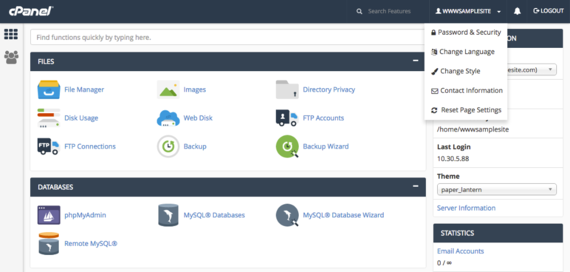
- A drop-down menu will appear. Select Password & Security from the list.

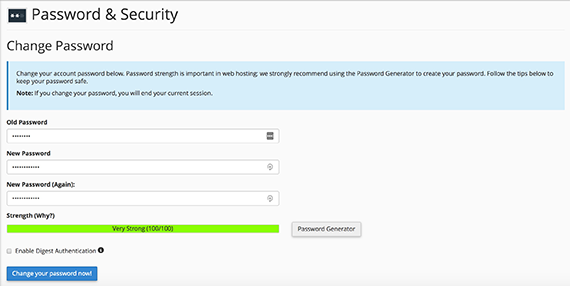
- This will direct you to the Password & Security page. You will need to enter your old password, the new password and confirm it by entering again.

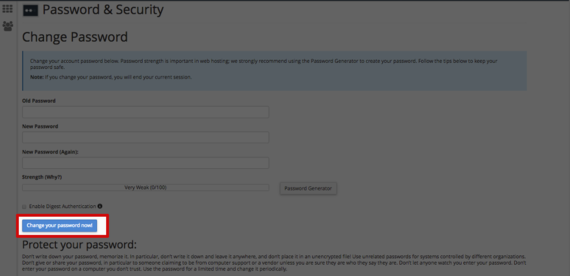
- Once you’ve typed in your new password, click the Change your password now! button.
 Note:
Note:Note:
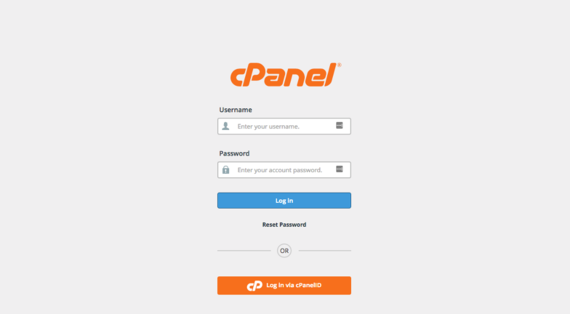
You can have cPanel generate a secure password for you by clicking the Password Generator button. If you are choosing your own password, make sure it is secure by using upper and lower-case letters as well as special characters (for more help on creating a secure password, see Best Practice: Creating a Secure Password). - Once the new password is saved, you will be directed back to the main login page for cPanel. Use your new password to log back into cPanel.

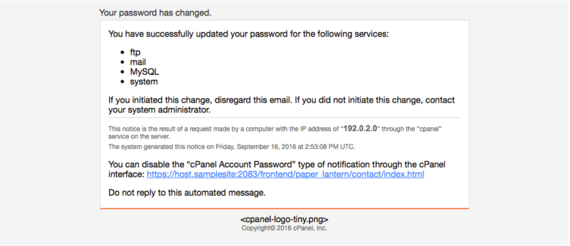
- You will also receive an email notification that your password has been changed.