

Adjust Cloud Sites Backup Plans
As your business changes, you may find that you need to increase or decrease your backup plan. You can change your backup plan at any time from your Cloud Sites control panel. With just a few clicks you can increase or decrease the number of sites in your plan.
This tutorial walks you through the process of changing your current backup plan.
Increase or Decrease Your Backup Plan
In order to upgrade or downgrade, the number of sites and databases must be less than or equal to the number of allowed sites in your plan. For example, if you have 10 sites with current backups, you can increase to the next plan, but will be unable to decrease to a lower plan.
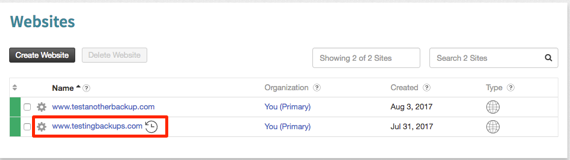
- Select a site from your websites list on the home page of your control panel.

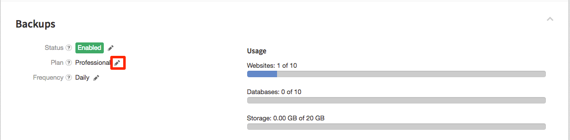
- Scroll down to the Backups section and click on the section.

- Once it opens, select the pencil icon next to Plan to change your plan.

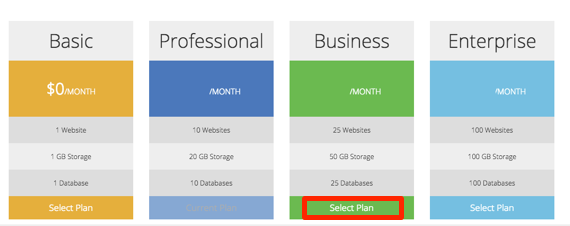
- The plan options will open and you can select your new backup plan, by clicking the Select Plan in the plan details box.

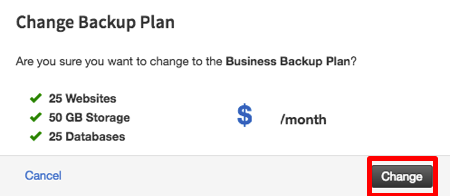
- A pop-up will appear to confirm. It will give you the number of sites, databases, amount of storage and pricing for the new plan. Click Change to save your changes.


Summary
Your new plan will be billed once it is activated and you can view your invoices in your Liquid Web Account. In addition to changing your backup plan, you can also delete and disable backups. See our article Deleting and Disabling Cloud Sites Backups for more information.