Changing cPanel Passwords in WHM
With root WHM access, you can change any cPanel user's password without knowing the old one. This also updates their email, FTP, and SSH passwords.
If you are a reseller or have root access to WHM, you can change any users cPanel account password without knowing the previous password used. This allows you to reset the password for a user who has forgotten their password and needs to get into their cPanel account. If you need help accessing WHM, see Logging into WHM.
Note: |
| When you change the password for a cPanel account, you are also changing the password for email, FTP, MySQL and SSH. |
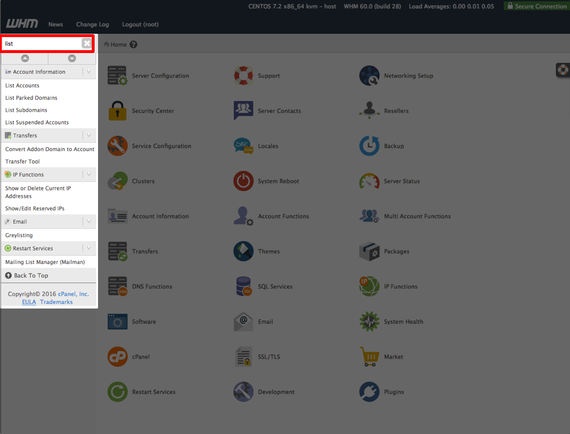
- Once you log into WHM, start typing the words list accounts in the search bar on the left-hand side of the page.

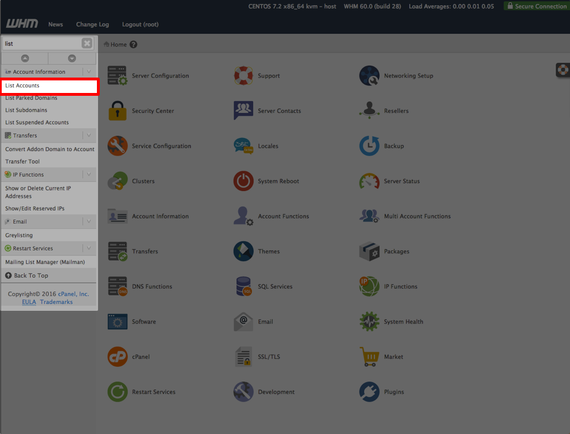
- As you type, the menu will begin to show the Account Information menu. Click on List Accounts to view the cPanel accounts.
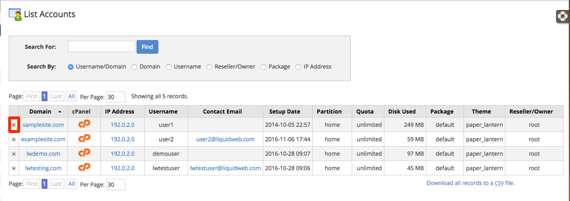
- The List Accounts page shows all active cPanel accounts. From this list, click the [+] next to the domain name to open the modification settings for that site.

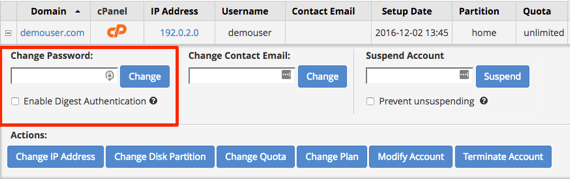
- The Change Password section will show just below the domain name. Enter the new password and click Change.
Note:
Make sure you choose a strong password to prevent hacking. Strong passwords contain upper and lower-case letters, numbers and special symbols (ie. $, &, % and so on). See our article Best Practice: Creating a Secure Password for more information.
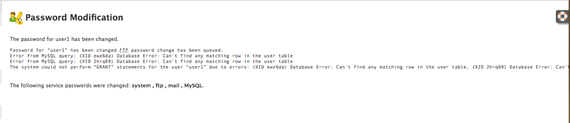
- A confirmation will show for the password change. Click on List Accounts again if you wish to change other passwords, or go back to the home page of WHM.