

Adding Firewall Rules in Plesk
Windows servers using Plesk (such as a Plesk VPS) can use firewall rules to manage help manage server traffic. You can also add firewall rules using Windows Firewall, but adding firewall rules in Plesk is a good first line of defense. If you have a Linux server using Plesk, it’s likely you are using CSF as your firewall solution, which is not controlled via Plesk.
- Log into your Plesk control panel.
- In the left navigation menu, click on Tools & Settings.
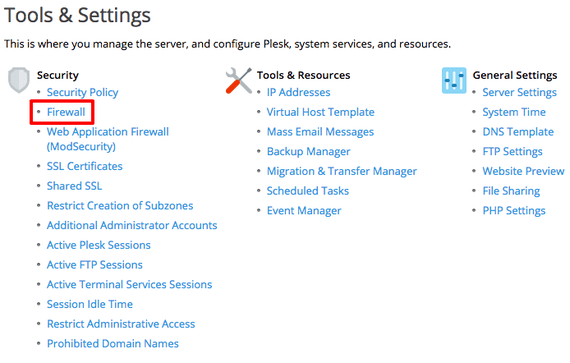
- In the Security Section, click on Firewall.
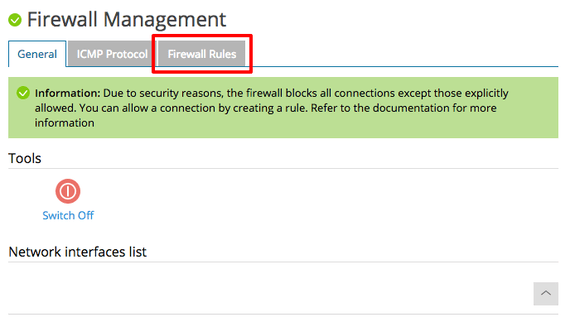
- Click on the Firewall Rules tab. You’ll see a list of all the current Plesk firewall rules.
- There are multiple default firewall rules. Some default rules are not editable, as they are integral to your server functioning properly. Either click on a rule to edit it or click on Add Firewall Rule.
Tip:
We recommend looking through the rules before adding a new rule to make sure there isn’t already a rule you can edit. Sometimes there may also be a conflicting rule already in place. A rule denying something will always take precedence over a rule allowing something.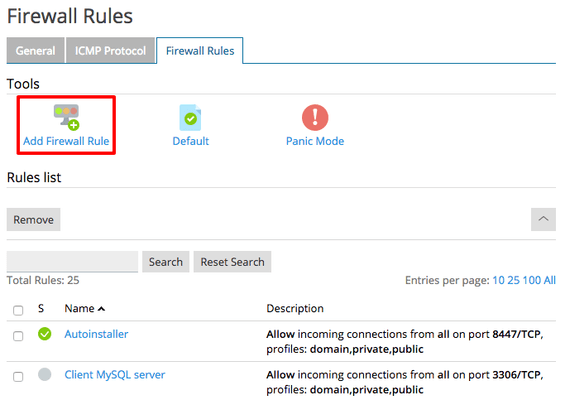
- Fill in the fields to set your rule’s properties. How you fill in the fields will vary based on what you want your rule to do. Some common examples:
- Deny connections on a specific port number.
- Deny connections from specific IPs on a specific port number.
- Allow connections on a specific port number.
- Allow specific IPs to connect to specific ports.

- Once you’ve created or edited your rule, click OK.