

How to Connect Your Domain to Cloudflare (A Step-by-Step Guide)
Liquid Web collaborates with Cloudflare for DDoS protection and faster CDN services. Learn how to enable Cloudflare for your site in this article, using your current nameservers or Cloudflare nameservers (DNS changes are not directly supported).
Liquid Web partners with Cloudflare to provide DDoS protection and CDN services. This guide will show you how to connect your domain to Cloudflare. We’ll walk you through the entire process of adding your site and setting up your DNS records. This ‘onboarding‘ process is simple and will have your site protected in just a few minutes.
Prerequisites
- A Liquid Web account.
- A valid domain with access to its DNS records.
Connect Your Website to Cloudflare
- Log into your my.liquidweb.com account with your username and password, or sign in with Google SSO.
- In the left navigation menu, click on Security. Then, click on Cloudflare.
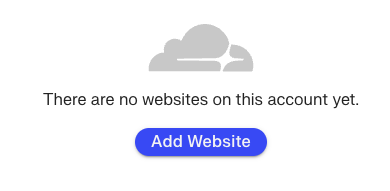
- Click Add Website to add Cloudflare to one of your websites.

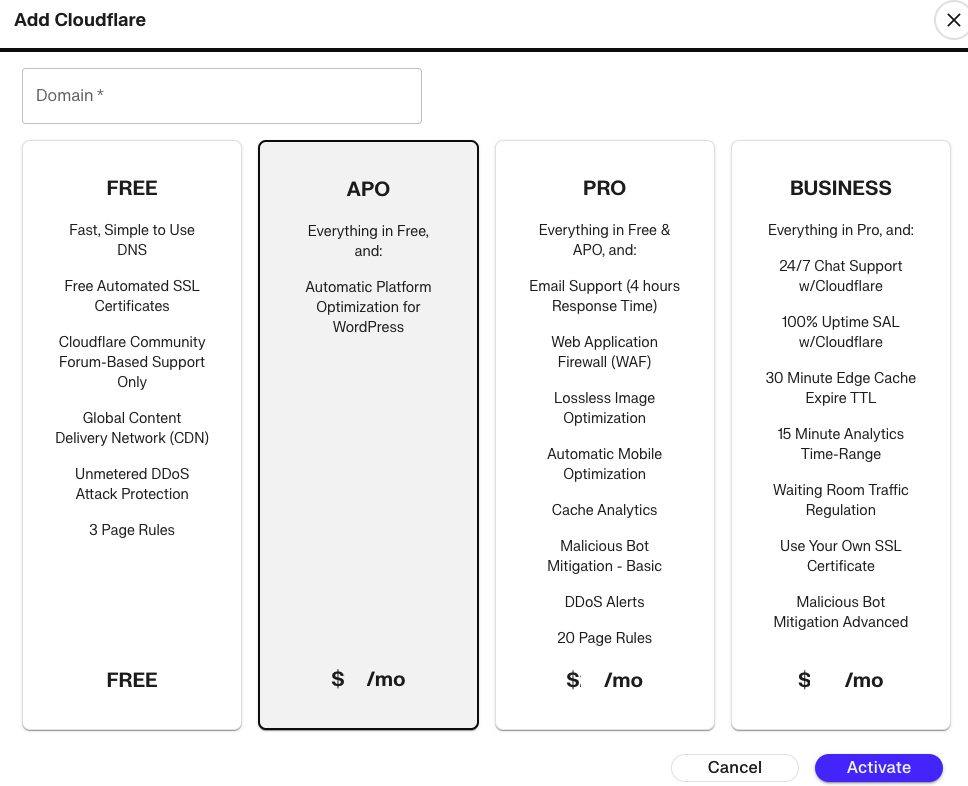
- Enter the Domain name you wish to protect and choose which level of service you want to order. (pricing is removed from this example image as prices may be subject to change)

- Click Activate to finalize your Cloudflare protection.
Managing your Cloudflare settings
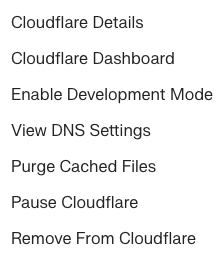
Details about your Cloudflare account can be accessed through the three dot menu to the right of your domain name in the Cloudflare page.
- Log into your Liquid Web account.
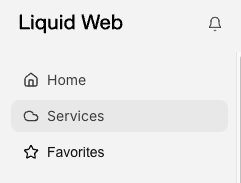
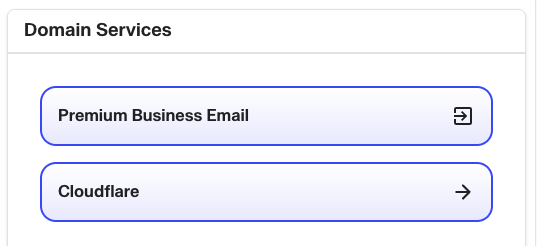
- In the left navigation menu, click on Services. Then, click on the Cloudflare link under Domain Services.
- Click the three dot menu to the right of the domain you want to manage.
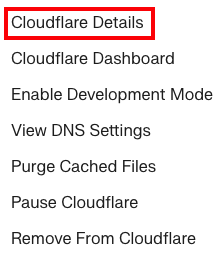
- For Details of your Cloudflare setup, click Cloudflare Details.

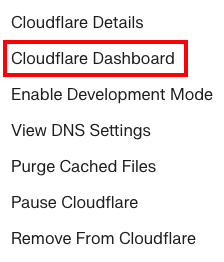
- To go to the Cloudflare Dashboard to manage your domain, click Cloudflare Dashboard. This will take you to a login screen with Cloudflare. Use the same credentials you use to log in to your Liquid Web account.
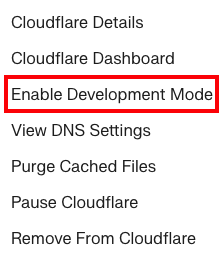
- You can use Development Mode to test your settings. Enable/Disable Development Mode by clicking Development Mode in the three dot menu.
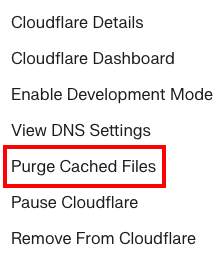
- If you’ve made recent changes to your site that not showing on the live site, click Purge Cached Files to clear older content from Cloudflare and allow new content to be loaded.
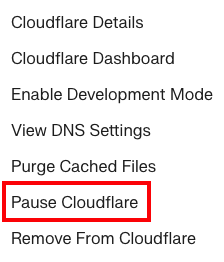
- You can Pause Cloudflare if you suspect it may be causing issues.
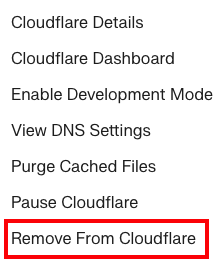
- Finally, you can remove Cloudflare from a domain if you no longer wish to use these services. Just click Remove From Cloudflare from the three dot menu.
| NOTE: |
| Your Cloudflare account is with Cloudflare, not with Liquid Web. While we will provide whatever help we can, our ability to assist with Cloudflare accounts is very limited. Please reach out to Cloudflare for additional assistance. We recommend the Cloudflare Community forums for answers to common questions. For more support options, see Cloudflare Help Center. |