

Add Administrators in Premium Business Email
Premium Business Email supports multiple administrators to manage mailboxes, settings, and domains. Assign domain-specific or global access based on their roles. Learn more in this article about adding administrators and their permission levels.
Your Premium Business Email allows for multiple administrators to be added to manage mailboxes, settings and domains from the control panel. You can assign administrators to a specific domain or allow them to have access to all domains, depending on the functions you want them to perform. This article will take you through how to add an administrator and take you through the three types of permissions you can assign to them.
Watch this video or scroll down for further instructions:
- Log into your Email Control Panel.
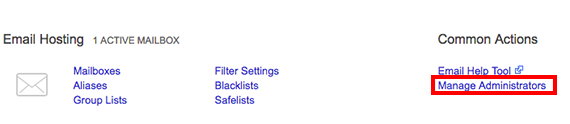
- Click Manage Administrators from the menu under Common Actions.

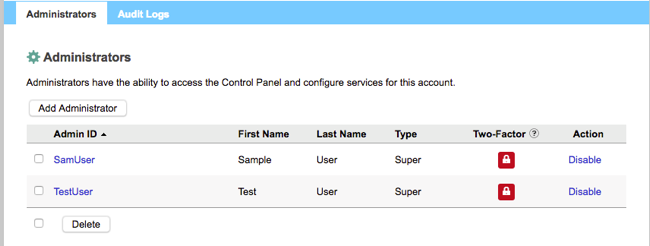
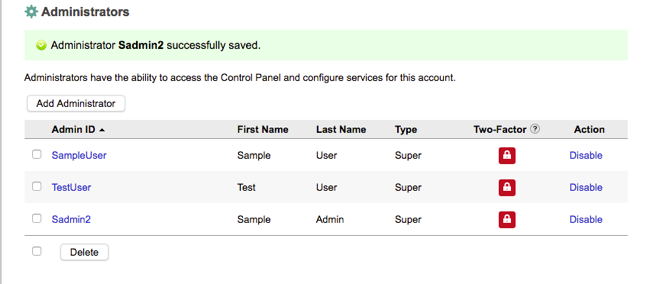
- This will open the Administrators home page. You will see a listing of all administrators on your account.

- Click the Add Administrator button and enter their user information.
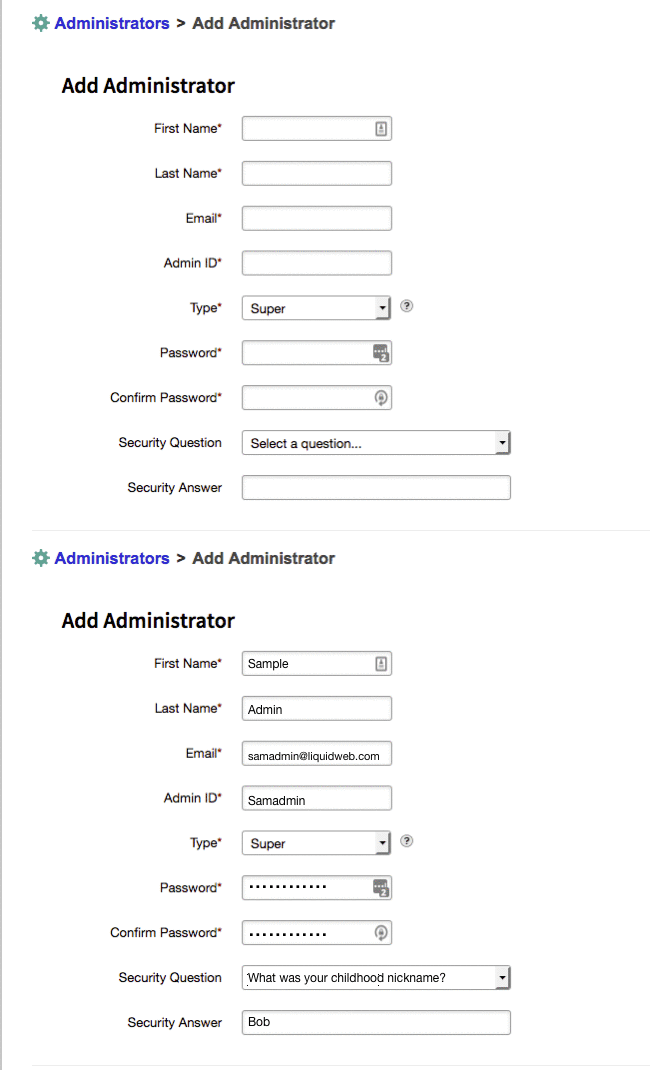
- Depending on the type of user you choose, they will have different permissions within the control panel.

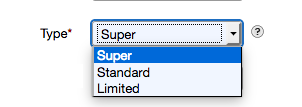
There are three types of permissions you can allow administrators to have:- Super: The highest level of permissions, the administrator can add additional administrators and manage all parts of the control panel.
- Standard: Can manage all parts of the email control panel, but cannot add new administrators.
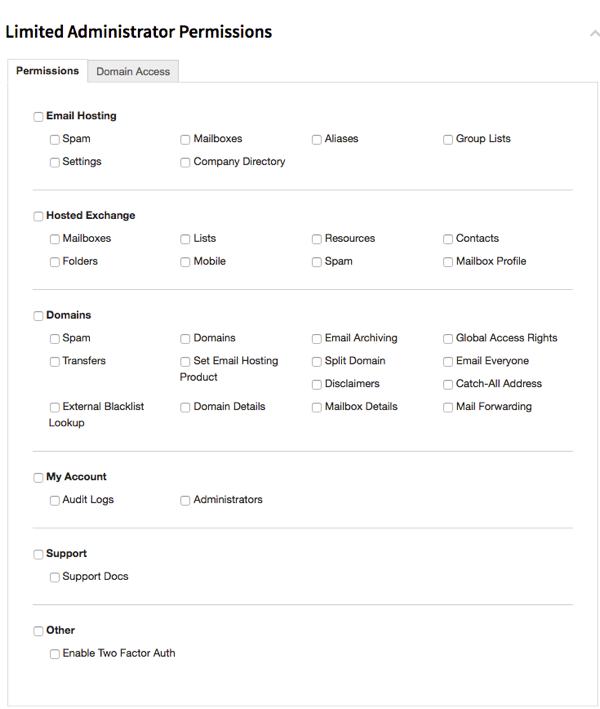
- Limited: Can only access portions of the control panel that are set. These settings can only be changed by a super administrator.

- Once you’ve completed entering the administrator information, click Save and you will be redirected to the administrators home page. The new administrator should show in your list and a success message will show at the top of the page.

Learn how to change and add security to your administrator’s account in our article Managing Administrator Settings in Your Email Control Panel.