

How to Enable Acronis Encryption for Backups
Now more than ever, it is imperative for companies and owners to have disaster recovery at the forefront of their minds. Not only are local backups important, but off-server backups are the second layer of protection from a system failure that could make even local backups unavailable for restoring essential data.
Liquid Web’s Acronis Cyber Backup product is a great and affordable solution to an external backup system. Acronis also comes with extra features to protect against unauthorized access. In a few clicks, any customer with Acronis Backups can enable the Acronis encryption feature on any file, drive, or full system backup plan.
Why is Encryption Important?
While this is optional in every backup setting in Acronis, encryption will help you control who can access your data and its restoration.
Your data is stored in either the Acronis cloud or on Liquid Web’s local cloud, depending on your plan. While these systems are secure, like all online backups, encrypting your backups adds another layer of security for your information if either system is compromised.
HIPAA hosting customers can also utilize the Acronis Backup encryption system while simultaneously complying with the encrypted backups required by many vendors.
How to Set up Acronis Backup Encryption
Follow the below instructions to learn how to create an Acronis backup with encryption.
1. Access your Acronis Backup control panel.
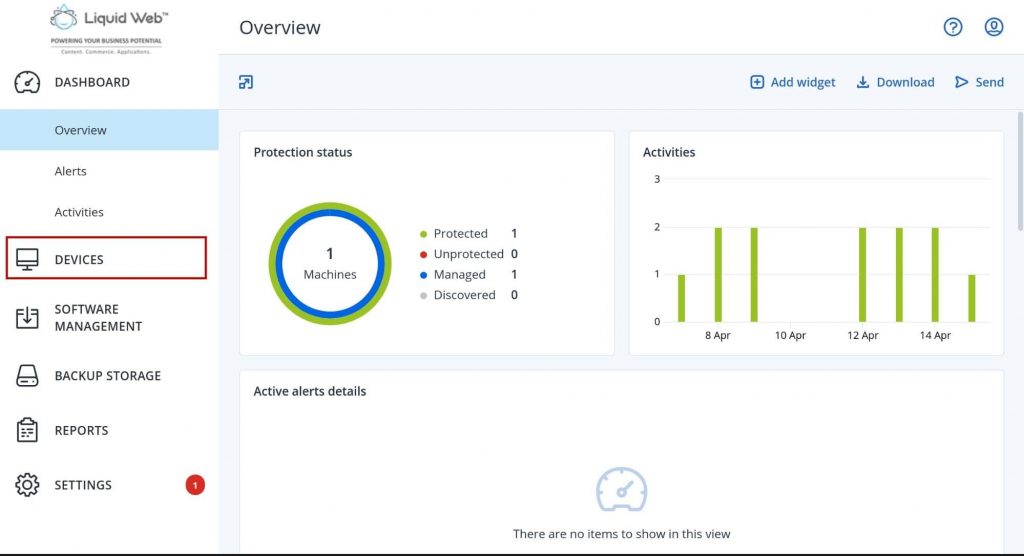
2. Once inside the dashboard, select Devices.
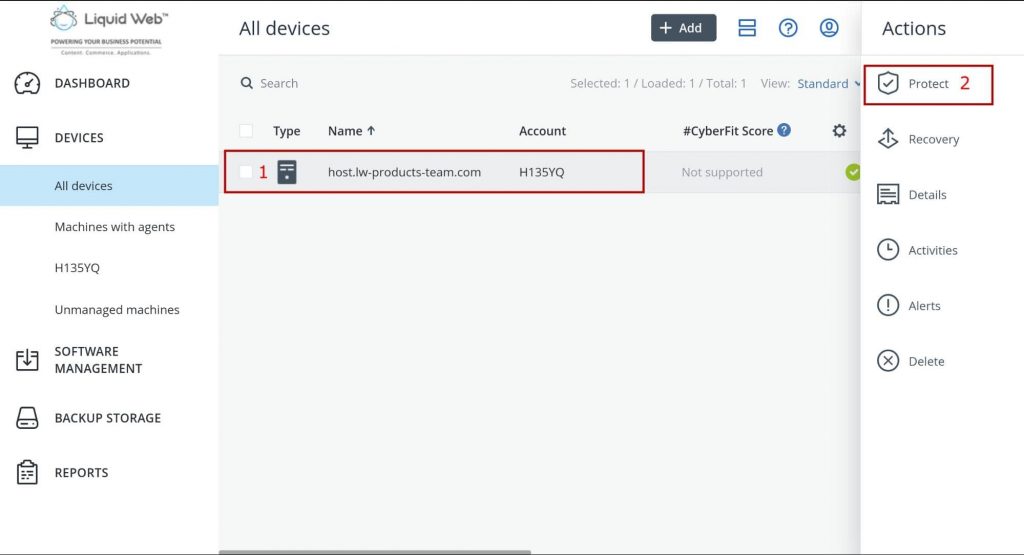
3. Inside of Devices, click on the server, and when the menu expands to the right, click on Protect.
4. Select to Add plan.

Note that you cannot enable encryption on an existing backup plan. You will need to create a new backup plan if you wish to encrypt the data.
5. Configure and set up your backup plan as desired to cover the entire system, a specific folder, or even a single file.
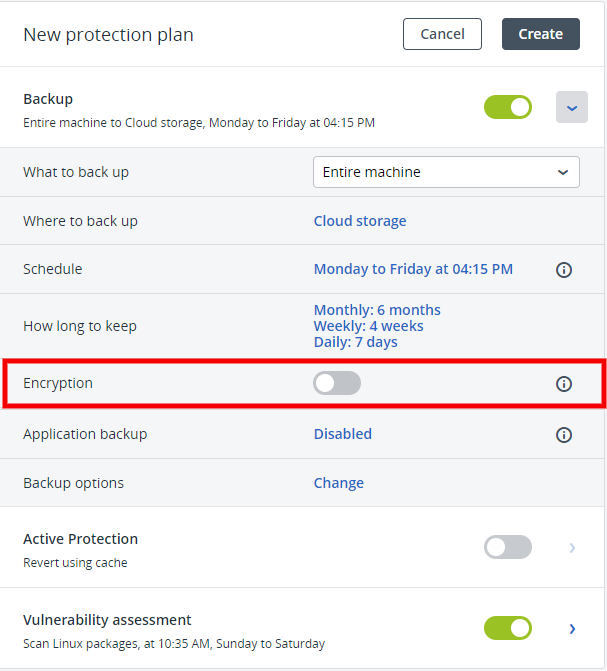
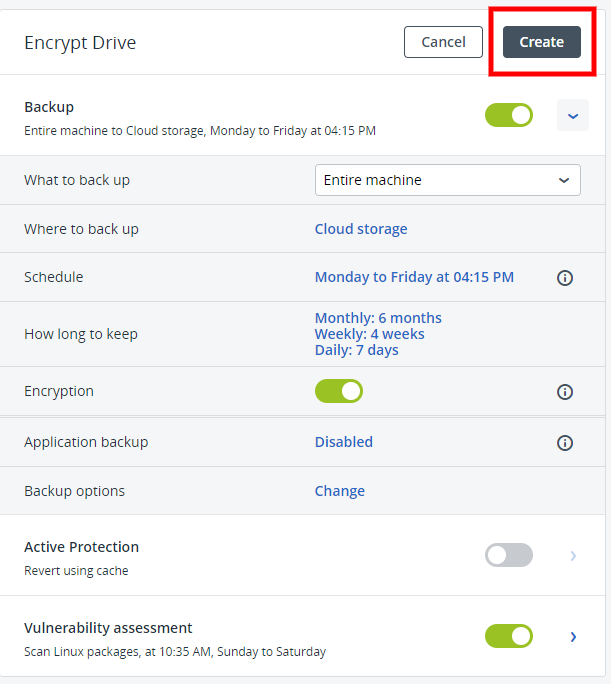
6. Click on the slider option for Encryption.
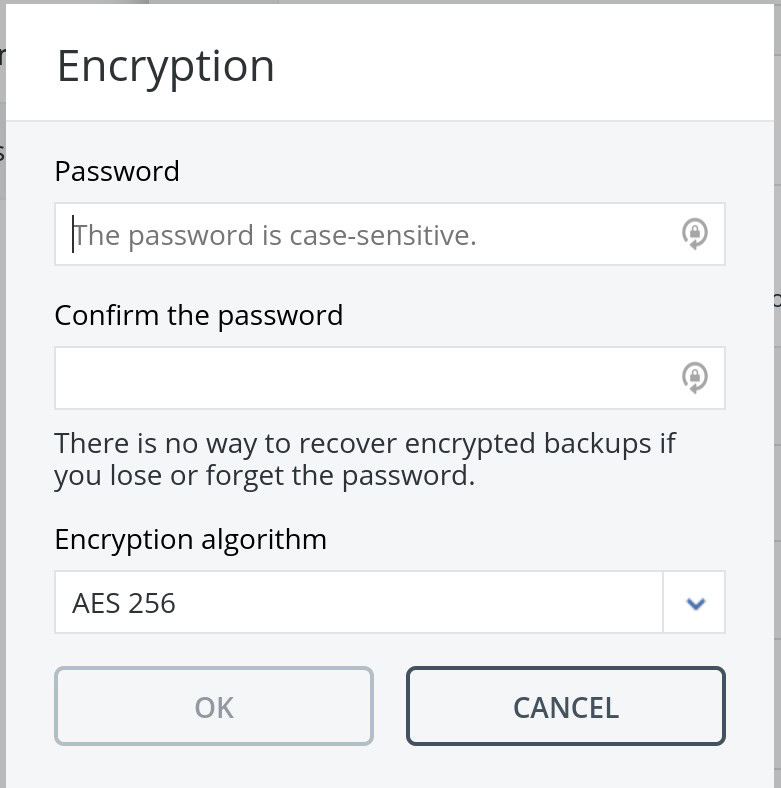
7. Set up your password and the level of encryption (AES 256, AES 192, or AES 128) you desire for your files. Once you have created your password and your encryption level has been established, press OK.
Note that is it critical to take a note of the password that you create for this backup plan. Liquid Web does not retain or keep this password. If you lose this password, your backups will not be accessible and will be lost.
8. After setting up encryption, save your settings for your backup plan by clicking Create, and you are done.
Note that after setting up encryption on a backup plan, you will not be able to turn encryption off. You will need to set up a new backup plan to remove encryption.
How to Restore From an Encrypted Acronis Backup
Restoring from an encrypted backup is similar to how you would typically restore an Acronis Backup.
- Log into your Acronis Backup control panel.
- Within the control panel, click Devices.
- Select the server you wish to restore, which will allow a menu on the right to expand. Click Restore.
- Select the partition, folder, file, or whole server to restore. Acronis will show a summary screen with the details of where your restore will go, the server name, and what will be restored.
- Click Start Recovery.
- Enter the password you created when you set up encryption and click OK.
- Once the recovery completes, you can access your files.
Conclusion
With these steps, any Liquid Web customer with Acronis Backups can easily secure their backups with encryption.